Exporting and importing BackupAssist settings
You can export BackupAssist settings to a file that can be imported into to any BackupAssist v6 installation. This is useful if you want to keep a copy of a working configuration so you can return to at a later time, or if you want to migrate your setup to a different machine running BackupAssist.
BackupAssist settings that can be exported and later imported include:
- Job settings.
- The mail server settings used to send email notifications and reports.
- Backup user identity settings.
- The global email address list.
- The global printers list.
To export BackupAssist settings:
- Run BackupAssist and go to File > Export settings from the file menu.
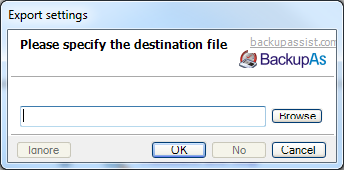
- Click the Browse button to specify where to export your settings.
- Browse to the directory you want to export to and input the name of the settings file.
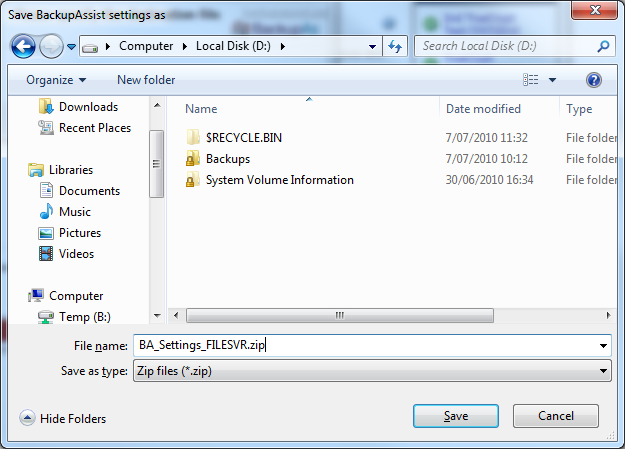
- We recommend that you include the computer name of the machine that BackupAssist is running on within the file name so that you can easily remember where the settings came from.
- Click Save and the OK.
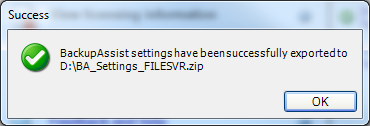
- Once the export is complete you will receive a confirmation message similar to the following:

Note: importing BackupAssist settings from a saved file will overwrite your current settings. Job history and backup reports will also be removed as part of the import process.
To import BackupAssist settings:
- Run BackupAssist and go to File > Import settings from the file menu.
- Click OK to start the settings import wizard.
- Click the Browse button to locate the BackupAssist settings file.
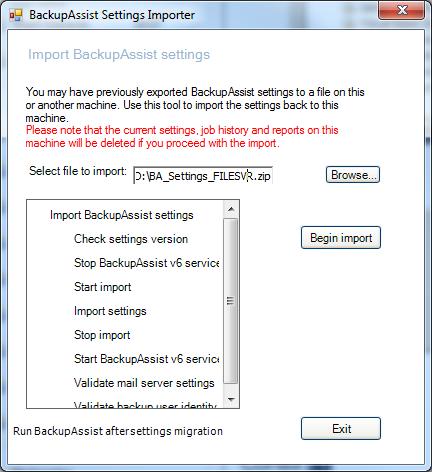
- Check the Run BackupAssist after settings migration checkbox if you want to have BackupAssist launch after your settings have been imported.
- Click Begin import to import the new settings from the saved file. The progress window will display the result of the import.