Registering BackupAssist Classic/Desktop
A BackupAssist Classic installation is licensed once it has been registered with the Managed Backup Console (MBC) service.
When you register an installation, it is added to MBC and can be administered for free until the end of the following month. The subscription for the installation's license will then be added to the monthly MBC billing cycle and charged to your account.
Register a BackupAssist Classic installation as follows:
- Start BackupAssist Classic.
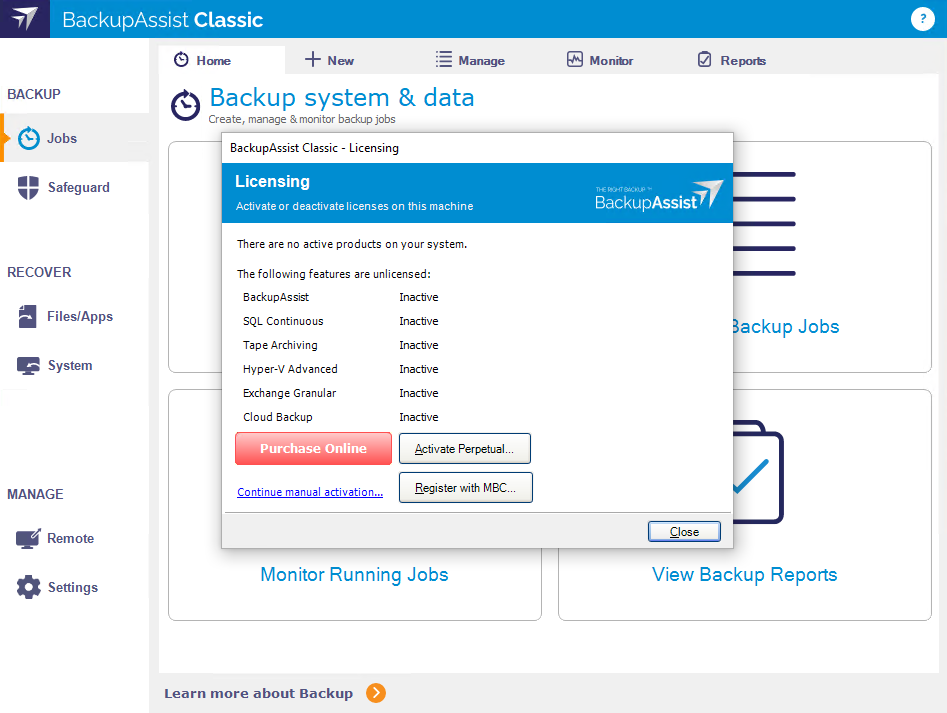
- Select Help > Licensing.
-
If you previously have a perpetual license key activated on this machine, you will need to deactivate it first (see Automatic License deactivation), otherwise, the “Register with MBC“ button would be disabled.”
- Select Register with MBC.
- Enter the Email address and password you log into MBC with.
- Select Authorize.
- Once authenticated, you will be provided option of Clients and Sites to register this installation to. If you are registering a Windows workstation OS system, you will be provided with an additional option to select whether to register as BackupAssist Classic or BackupAssist Desktop.
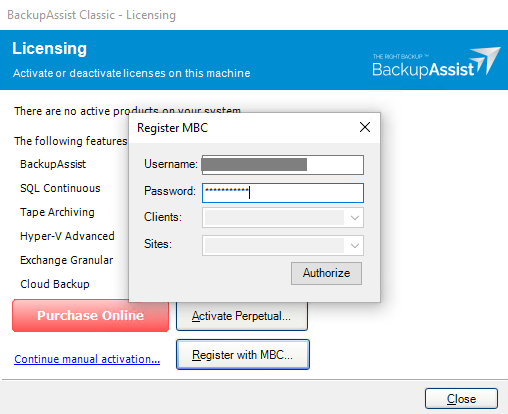
The installation will be authenticated and make the Clients and Sites in MBC available as selectable options.