Registering BackupAssist ER
A BackupAssist ER installation is licensed once it has been registered with the Managed Backup Console (MBC) service. When you register an installation, it is added to MBC and can be administered for free until the end of the following month. The subscription for the installation's license will then be added to the monthly MBC billing cycle and charged to your account.
When you open BackupAssist ER for the first time, you will be prompted to enter your MBC details into the Registration page.
Fill in the Registration page as follows:
- Type your MBC email address and password into the fields provided.
- Select a Client
- Select a Device group
- Click Register
Once the credentials have been entered, the installation's Identification page will open. This is used to select the Client and Device Group for the installation.
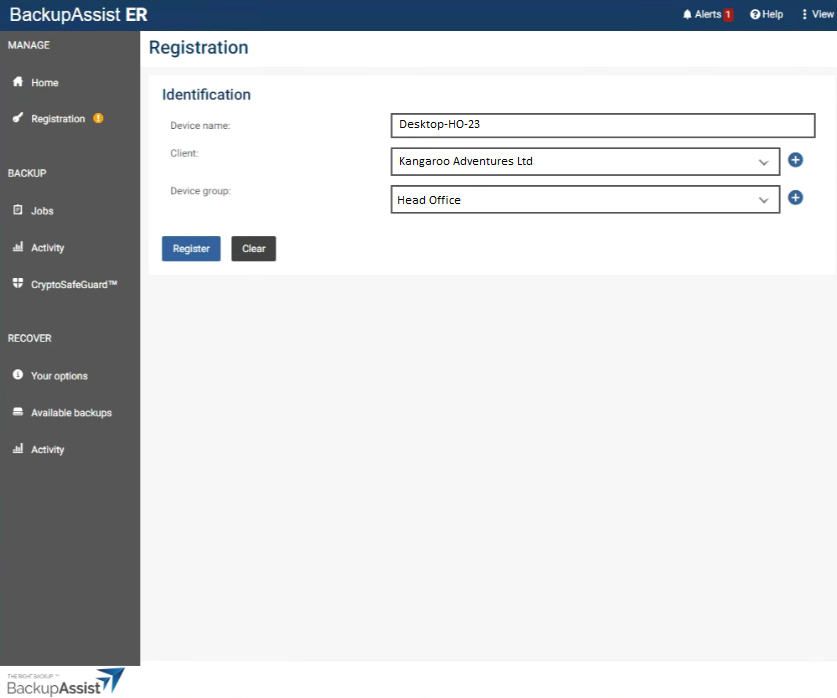
A Device name is assigned to the installation. This is the Windows name for the server that BackupAssist ER is installed on.
The Client is the organization that this installation is for. All of your Clients will appear as selectable options in the Client field.
To create a new Client, select the + icon and type the new Client's name into the field provided, then select the new Client from the drop-down list.
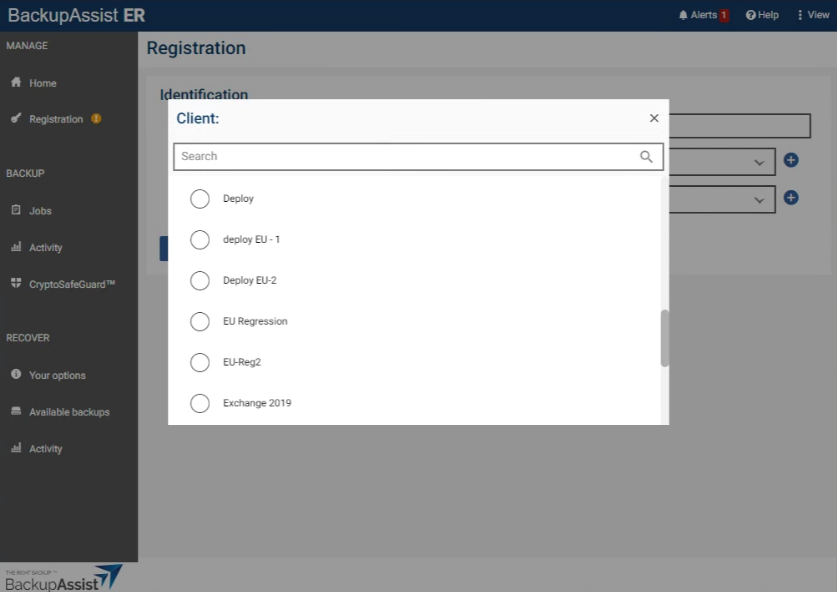
Device groups are used to group a Client’s installations in MBC. All of the selected Client's Device groups will appear as options in the Device group field.
To create a new Device group, select the + icon and type the new Device group's name into the field provided, then select the new Device group from the drop-down list.
This BackupAssist ER installation will now show as licensed and can now be managed using the Managed Backup Console.