CMC-Xpress
Introduction
CMC-Xpress is a mobile application developed by Cortex IT. This application was developed in response to a market survey that highlighted the importance of IT software resellers being able to access their client's backup information and backup status quickly via a mobile platform.
BackupAssist Centralised Monitoring Console (CMC)
What is CMC?
The BackupAssist Centralised Monitoring Console is a portal through which BackupAssist resellers or CMC account holders are able to monitor their client's or their own BackupAssist installations.
The CMC allows you to:
- Receive one email summary report per day that displays the status of your client's backups.
- Monitor your client's backups, keep up to date on backup status and be aware of any issues that may need immediate attention.
CMC-Xpress will allow BackupAssist Resellers and CMC account holders to log into their CMC via a Smartphone or Tablet and view the status of backups and backup report history.
CMC-Xpress is useful for anyone who needs to access up-to-date information regarding their backups while on- or off-site. All you will need is your Smartphone or a Tablet with you.
Supported mobile devices:
- Android Smartphones (Not available on very small screens)
- Android Tablets
* Requires Android 2.2 or above and AIR Support. While Install this App if you are asked to install Adobe AIR please do so because with AIR environment this App will not work.
The list of supported devices will be updated in line with further development.
System requirements:
- Minimum screen resolution of 240 DPI for an optimal view of reports.
To find & use Android application:
In the search engine type in “android market” or goto https://market.android.com
- In search field type in “cmcxpress” all one word − it is not case sensitive
- Click install button and follow the instructions
OR - From your Android phone goto Market section and search for cmcexpress. An App titled "BackupAssist CMCXpress" will show up. Click Install.
CMC-Xpress features:
CMC-Xpress provides a vast array of features designed specifically to present clear up-to-date information to resellers at a glance.
Logging into the CMC portal in CMC-Xpress will initially present you with a quick snapshot of the backup status of your BackupAssist installations.
This is presented in the form of a pie chart.
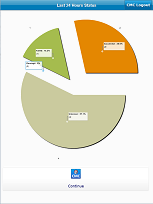
The pie chart displays the backup status according to the following classifications:
- Successful: The backups that have run successfully and reported so to the CMC.
- Warnings: Any backups that may have completed successfully with warnings.
- Failed: The backups that did not complete successfully.
- Unknown: The BackupAssist installations that failed to report their backup status to the CMC.
Clicking on the ‘Continue’ button leads you to the CMC Panel.
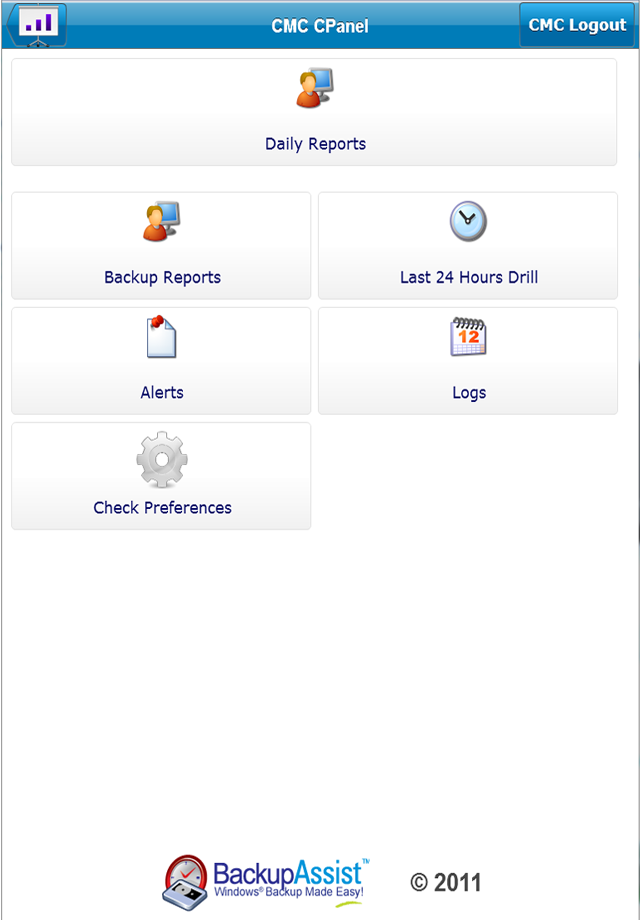
CMC-Xpress features are accessible via the CMC Cpanel as shown above.
CMC-Xpress features include:
Daily reports
View daily backup reports.
The Daily reports button is initially inactive as the application queries the server to check for available reports. This behaviour is repeated every time the CMC panel is opened.
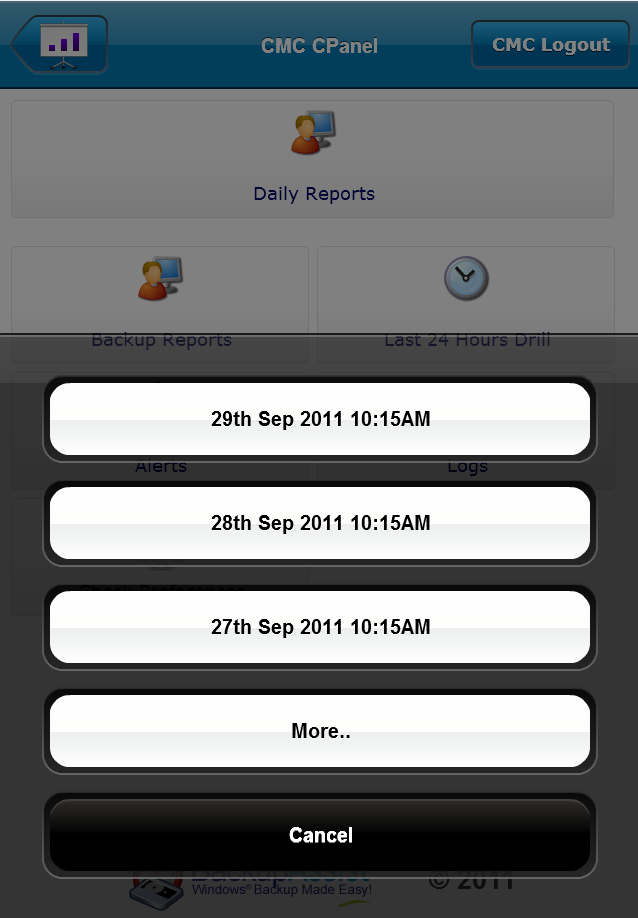
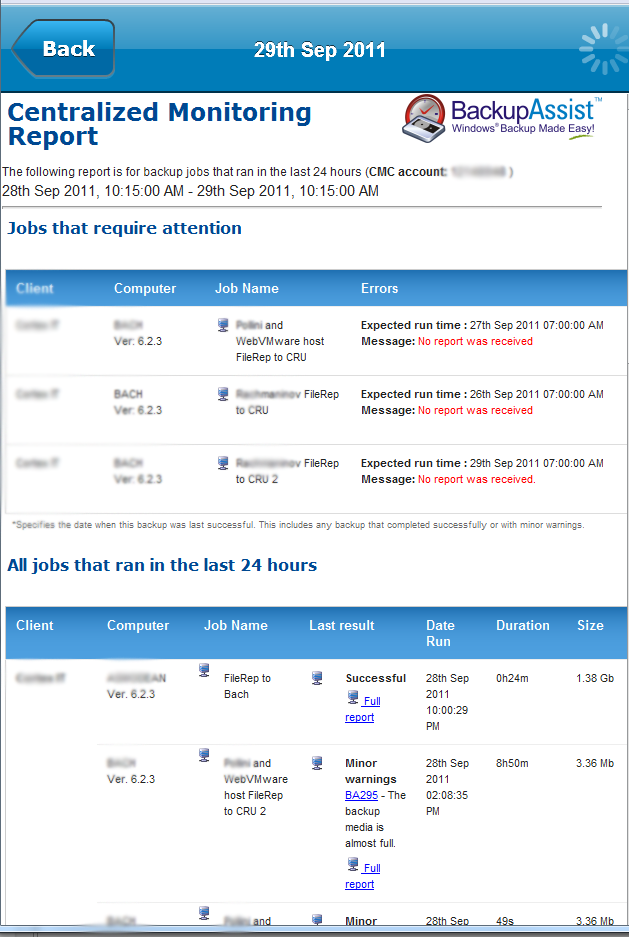
Once you click on the specific date the Report is loaded as it is shown below.
You can also click on the ‘More’ option to go to the ‘Date Picker’ view where you can view any backup report for the last 30 to 90 days depending on your settings.
Backup reports
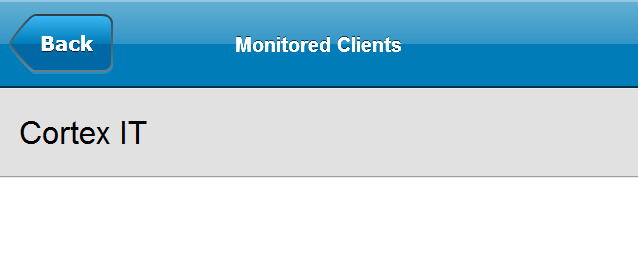
This view presents a list of your BackupAssist customers by company name and enables you to view the backup status for each individual client. In the example below, ‘Cortex IT’ is one of the monitored clients.
Client View
Monitored Installs View
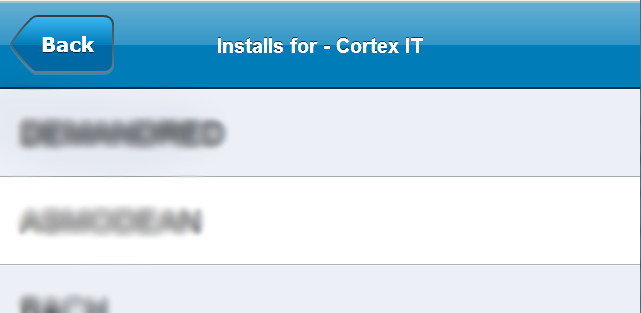
Clicking on any of the installs above produces a list of Configured Jobs for the install (See screenshot below):
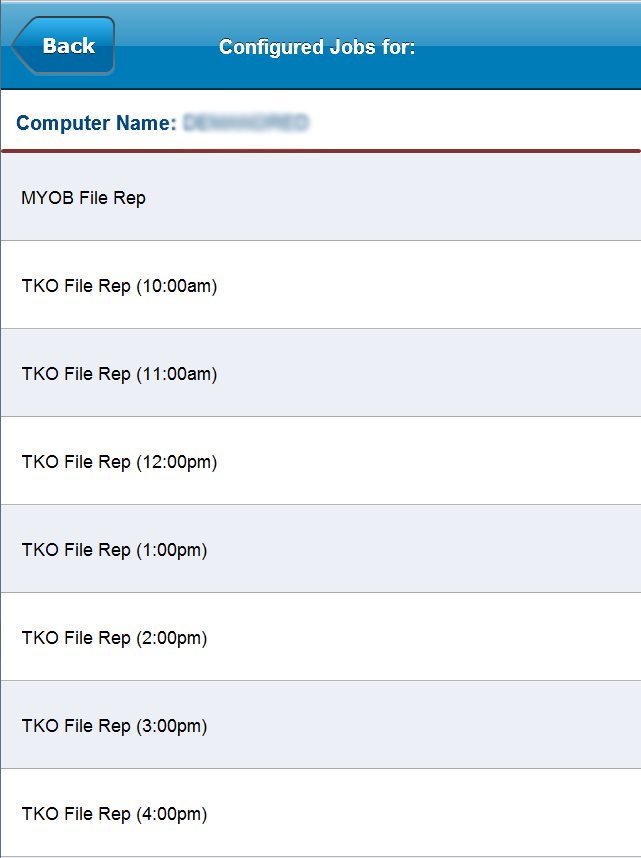
When you click on any of the jobs above, a list of the Last 10 Reports for the job is generated as shown below:
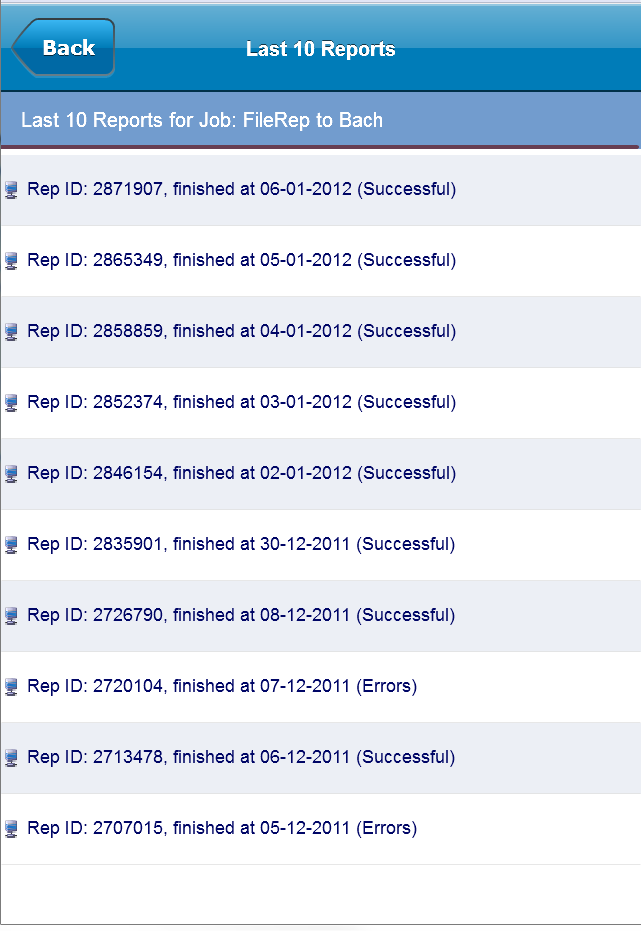
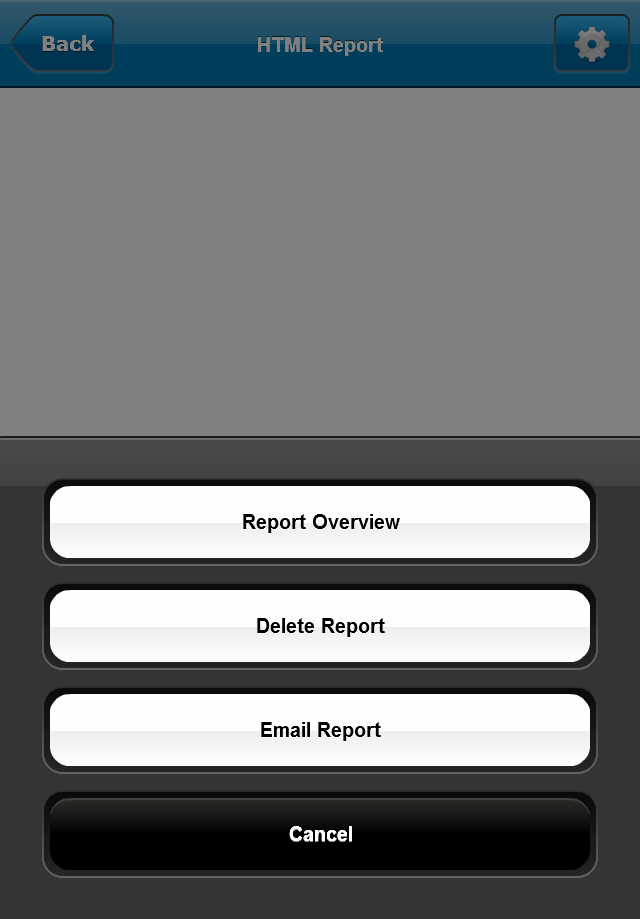
Clicking on any report will load the HTML report that BackupAssist generates after the job is executed. You can delete or email this report to anyone from this page. Clicking on the gear Icon in the top right hand corner of the screen will load a list of options as in the screenshot below:
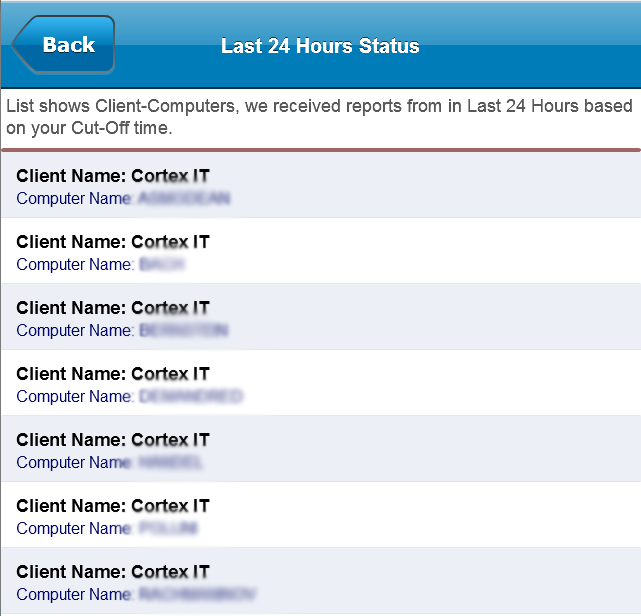
Last 24 hours drill
This page presents you with a list of the BackupAssist installations that ran within the last 24 hours.
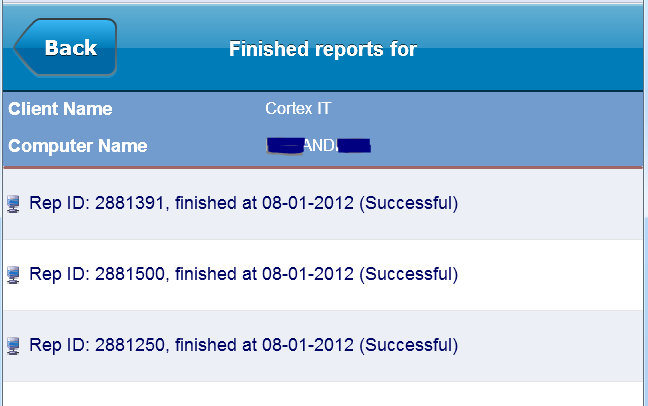
You are then able to drill down and view the backup reports for each backup job.
Pressing the gear icon in the top right-hand corner presents you with the options to:
- View a summary of the backup report
- Delete the backup report
- Email the backup report
Alerts
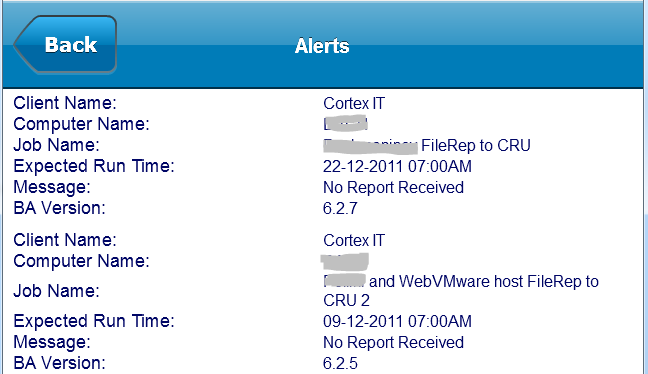
This section notifies you of issues that may need immediate attention, such as failed backups for which backup reports have not been received.
Logs
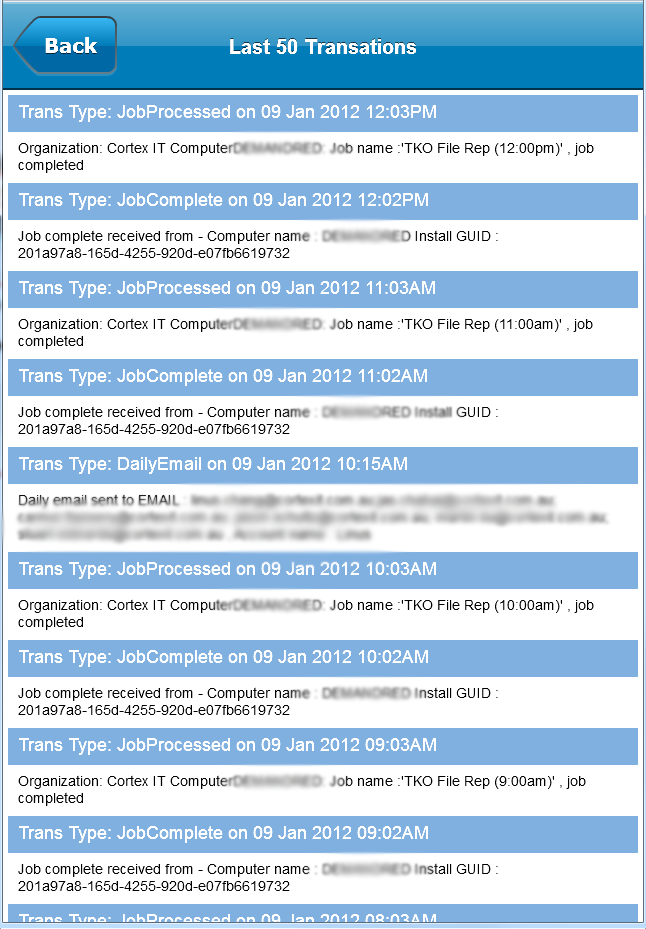
This View allows you to view a list of the last 50 transactions that have been processed within your CMC.
This is extremely useful for troubleshooting as it allows resellers a quick and easy way to monitor and diagnose any unexpected occurrences.
CMC Preferences
This page allows you to view your current CMC settings.
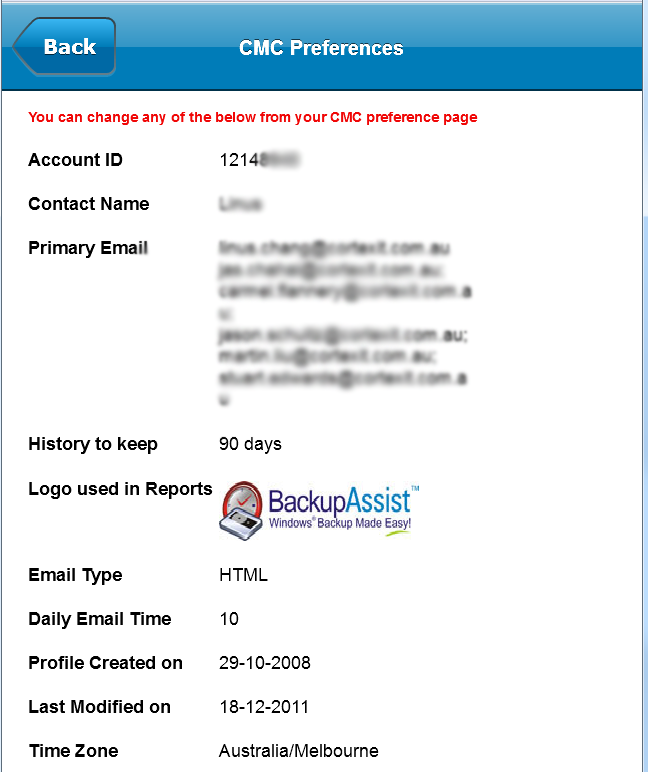
Please note that you will not be able to modify any details from within the CMC – Xpress application.To modify settings, please log in to your full CMC account at: http://www.backupassist.com/cmc
Additional Notes:
This application aims to give the CMC account holder quick and easy access to their client’s backup reports and backup status removing the need to login to their CMC portal via a PC in order to perform basic CMC maintenance tasks. We have no intention of replacing the functionality offered within the full CMC portal.
We always encourage and appreciate feedback. Feel free to forward queries and feature requests to us and we will try our best to address and include them in future versions of CMC-Xpress.