Checking a client's license status
A BackupAssist installation is licensed once it has been registered with the Managed Backup Console, and can be used for free until the end of the following month. The subscription for the installation's license will then be added to the monthly MBC billing cycle and charged to your account.
You may therefore want to know:
- What installations have licenses in the free period.
- What licenses are about to start being charged in the monthly billing cycle.
- How many licenses a client has under subscription.
Reviewing licenses
The Installations page shows the subscription status of all installations registered to your MSP account, and can be used to cancel specific subscriptions.
To open the Installations page, click Installations.
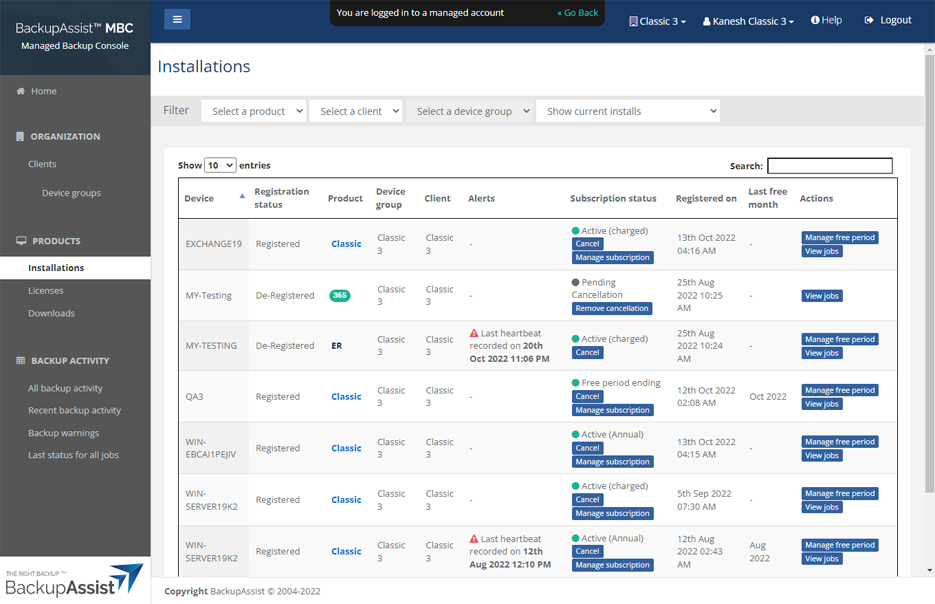
The following options make it easier to find specific installations:
- The Filter menu is used to show the results for a specific product, client and device group.
- The Column headings can be selected to sort the list by that heading. For example, you can click the Client column's heading to sort the rows by client.
- The Show hidden installations box can be ticked to show all installations you have hidden by clicking the Hide button.
Free to paid period notifications
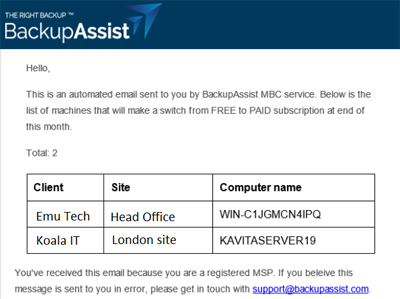
On the last week of each month, a notification email will advise if any BackupAssist installations are moving from free to paid subscriptions at the end of that month. The email is sent to the users set up for notifications on the Organization profile page.
Alerts
The Alerts column is very useful because it shows an installation's last heartbeat. A heartbeat occurs when a BackupAssist installation is active. For example, running a backup job or a recovery would result in a heartbeat. If there is no activity, there is no heartbeat so you can identify any dormant installations.
If you find an inactive installation, you may be paying for a license you're not using and want to cancel the subscription.
Canceling a subscription
To cancel an installation's license subscription, click the Cancel button shown under the installations Subscription status.
When you do this:
- You will not be billed for that license in the next monthly billing cycle.
- The installation can still be used until the next billing cycle.
Note: The Daily Summary Report and Home page include a Purchasing section that shows the cost of subscriptions for the last 3 monthly billing cycles
Hide an installation
Once an installation has been cancelled, you have the option to hide the installation along with all its backup reports from all MBC portal reports tables. For example, if a client has an inactivate BackupAssist installation or a test machine, you may want to remove it from the Home and Backup Activities tables.
A Hide button will become available in the Installation table when it has been cancelled. You can use the Show hidden installations checkbox if required.