This guide is for MSPs and distributor subscriptions through the Managed Backup Console (MBC)
To subscribe to BackupAssist Classic, obtain an MBC account from your distributor or BackupAssist Client success team. Once the account is activated, you can register any number of BackupAssist Classic installations to your account as outlined in the steps below.
To register the installation:
- Start BackupAssist Classic.
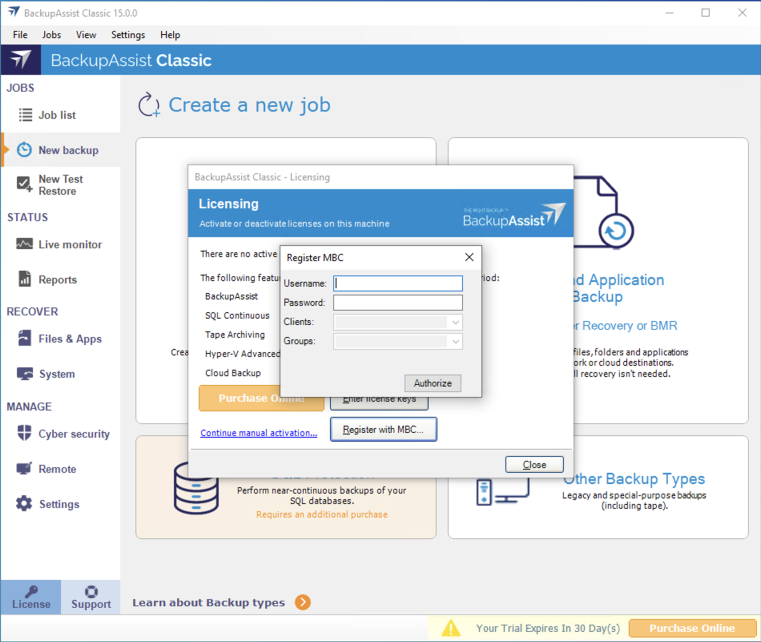
- Select Help > Licensing.
- If you previously have a perpetual license key activated on this machine, you will need to deactivate it first (see Automatic License deactivation), otherwise, the “Register with MBC“ button would be disabled.”
- Click Register with MBC and the authentication dialog will open.
- Enter the Email address and password you log into MBC with.
- Click Authorize.
-
Once authenticated, you will be provided option of Clients and Sites to register this installation to. If you are registering a Windows workstation OS system, you will be provided with an additional option to select whether to register as BackupAssist Classic or BackupAssist Desktop,.
- Respond to the registration confirmation.
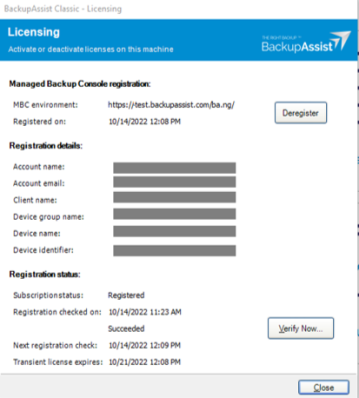
The license information will update and the installation will show as registered. You can now run backup jobs and monitor them in BackupAssist MBC.
The Registration status will show the result of the daily registration checks. There is a 7-day grace period that allows the registration checks to fail before de-registering the installation. The Verify Now button will push an on-demand registration check.