Registering BackupAssist 365
A BackupAssist 365 installation is licensed once it has been registered with the Managed Backup Console (MBC) service. When you register an installation, it is added to MBC and can be administered for free until the end of the following month. The subscription for the installation's license will then be added to the monthly MBC billing cycle and charged to your account.
To download and register BackupAssist 365:
- Log into MBC
- Select the Software builds tab.
- Follow the steps on the MBC download new version page.
- When the installer has been downloaded, follow the BackupAssist 365 installation guide.
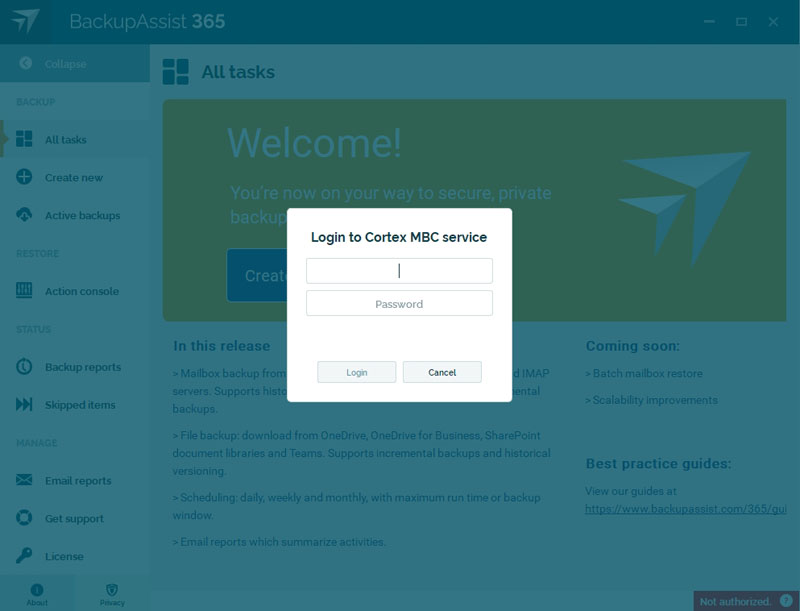
- Enter you MBC username and password into the fields provided, and login.
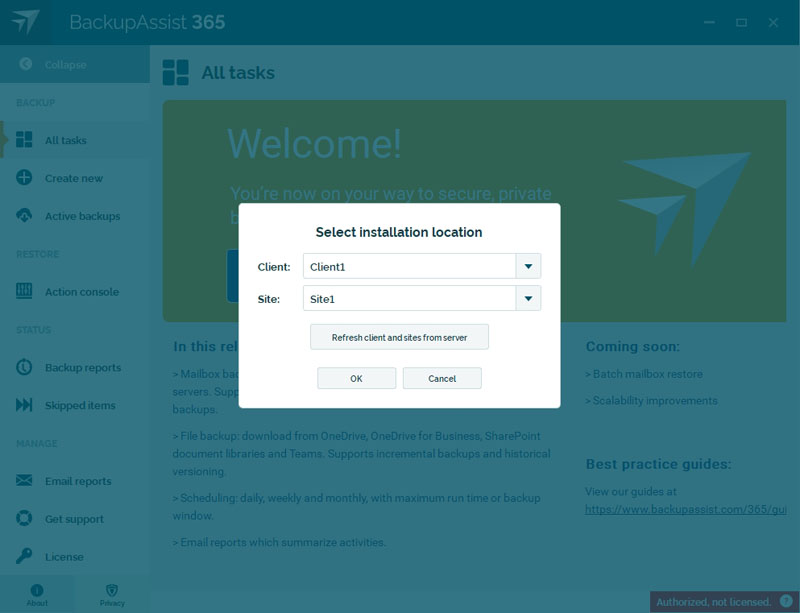
- Select the Client and Site, and click OK.
When BackupAssist 365 starts, you will be asked to register the installation with MBC.
If the Client or Site already exist in your MBC account, they will appear as selectable options in the drop-down list. If the Client or Site is new, you can select Add a new client from the drop-down list and enter a Client or Site name into the dialogs provided.
If any changes are made in MBC, click Refresh and the available Clients and Sites will update.
BackupAssist 365 will now open.
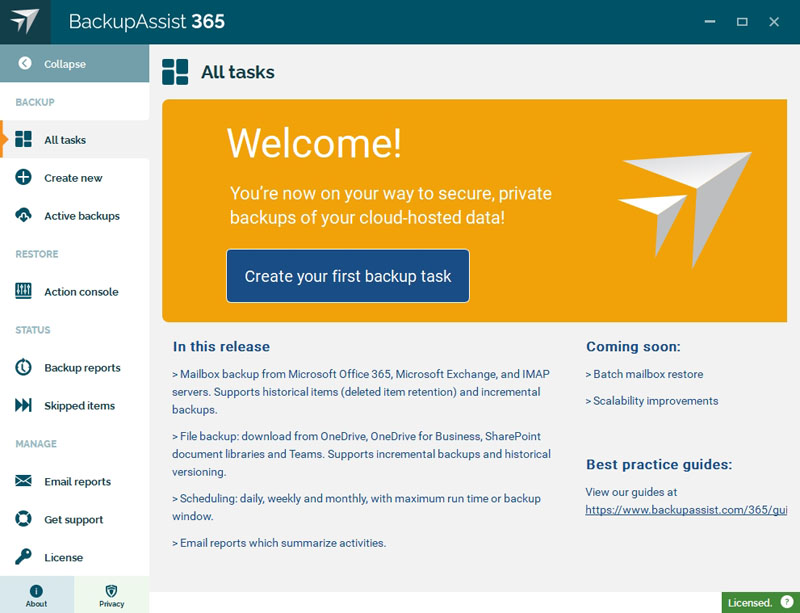
The installation will now show as licensed and can be managed using the Managed Backup Console.