The BackupAssist menu is available from all screens and can be used to perform specific tasks, provide user assistance and enter configurations that apply to your backup jobs.
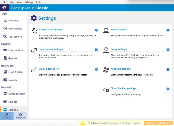
File menu
WFH Template
BackupAssist WFH makes it easy to protect company data on employees’ machines, while saving on a full BackupAssist license. Users working from home can back up to a company storage container in the cloud, using a backup job configured and shared by the company using a template. This backup template pre-configures technical settings in the software, such as cloud configuration settings, email settings, central monitoring, CryptoSafeGuard and so on, so users don’t have to!
The Create option is used by a company systems administrator to create the backup job template.
The Apply option is used by the employee to convert that template into BackupAssist backup job on their BackupAssist WFH installation (WFH license is required).
To learn more, see Cloud Backup and our BackupAssist WFH overview page.
Lock menu
To learn more, see Console Lock
Import settings
This option will prompt you to browse to the location of a saved settings file (created using Export settings). Once the file has been located, and OK selected, your current installation of BackupAssist will import the settings. This import will include your backup jobs but not the reports and history of your backups and restores.
Export settings
This option will prompt you to export the settings of your BackupAssist installation. It will save the settings as a file that will contain your current backup jobs and configurations.
Jobs menu
This menu provides quick access to your backup jobs. Selecting a backup job from this menu will take you to the Edit view of the Manage screen, and add a menu item at the top, called Job settings. The Job Settings menu can also be used to access the configurations of the backup job you selected.
View menu
This menu provides a shortcut to all of the BackupAssist functions and tabs in one click. It also provides access to the BackupAssist Events log. The Events log is a list of all messages that have been sent to the Windows Event Log by BackupAssist.
Settings menu
This menu provides access to the options available in the Settings tab. Refer to the Settings tab section of this user guide for an explanation of the options available.
Help menu
Create a backup quickly
When a new user starts BackupAssist for the first time, the Create a backup quickly screen opens and allows the user to create a File Protection or System Protection backup job. This feature provides a simplified job creation process so that a new or trial user can easily get their first backup job up and running. For existing users, Create a backup quickly is available from the Help menu.
To learn more, see This capability is no longer available in version 15 and later.
Release notes
Selecting this option will open the BackupAssist Classic release notes in a web browser.
Help
The Help menu will take you to the online documentation. The documentation can also be opened using the blue help icon on the top right of BackupAssist. If a help icon appears within a screen, it will take you to the help section that refers specifically to that screen.
Contact support
This opens an email submission for BackupAssist Support. The email has an option to attach a diagnostic file containing system information, BackupAssist's settings and error message details. If support is required, we request that you use this tool to submit your support request so that our technical team can better assist you.
Trouble-shooting tools
Cleanup Service – This is a support tool to be used on consultation with BackupAssist Technical Support. The tool will be used if there are problems with backup jobs starting.
Detailed logging – This is a logging tool used by BackupAssist technical support and should only be used with their guidance.
Licensing
This menu item lists the BackupAssist products you have and how many days are left for each license. It provides links to purchase licenses online and activate products by entering BackupAssist keys.
To learn more, see Customer license activation & deactivation and License deactivation
About
This menu item will display the currently installed version of BackupAssist Classic. There is also a link to email BackupAssist Support. If you are using a trail version of BackupAssist, you will be shown how many days you have left with a link to purchase a license.