Onboarding a new client
Setting a new client up in MBC is a quick, straightforward process, and new installations can be immediately managed with the free period provision. After setting a client up in MBC, you may also want to install and register BackupAssist applications and then set up some backup jobs.
This page explains how to set up a new client in MBC and get their backup jobs running.
Setting up a new client
Setting up a new client will often be the first step in the onboarding process.
To set up a new client:
- Log into the Managed Backup Console.
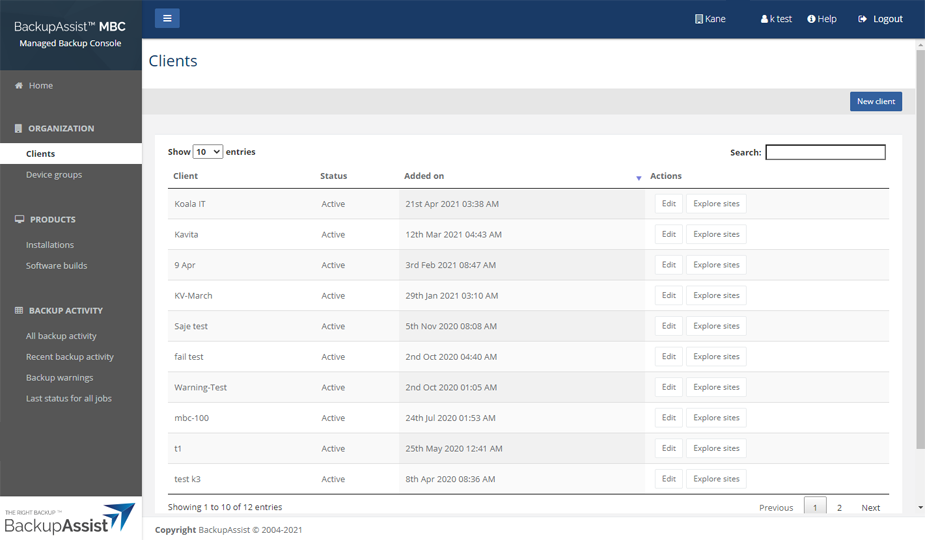
- Click Clients.
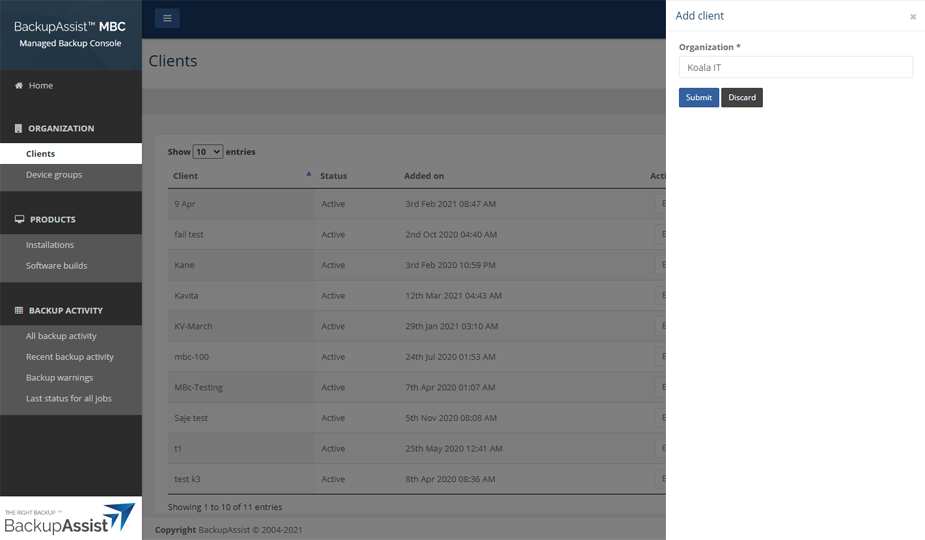
- Click the Add client button.
- Enter the client's name in the Organization field.
- Click Submit.
- Click OK on the confirmation dialog.
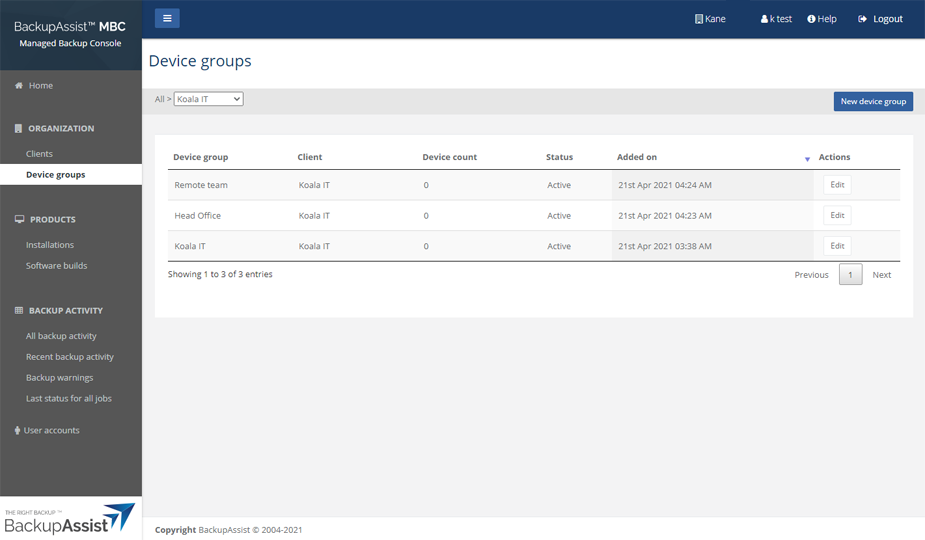
- Click the Explore sites button to review the client's device groups.
- Use the New device group button to add a new device group.
- Use the Edit button under the Actions column to change the device group's name.
The new client will appear on the Clients page.
The new client will automatically have a device group created for it, using the client's organization name.
In the example below, we have added a new device group called Head office.
Note: You can also set up a new client when you register an installation by selecting the Add a new client option during the registration process.
Registering a new client's installations
Once you have a new client, you will want to install BackupAssist applications to protect their systems and data, and register those installations with MBC.
The registration process will license the installation and allow you to immediately manage it using MBC for free until the end of the following month.
Creating and checking a client's backup job.
When you set up a new backup job, you will want to check that it is being monitored by MBC and included in your Daily Summary Report.
Backup monitoring
To check that the backup job is being monitored:
- Log into MBC after the new backup job has run.
- Click Recent backup activity.
- Check that the new job appears in the list and that the View Report link can be opened.
Backup reporting
Once the backup job has run and appears in the Recent backup activity report, it will also appear in MBC's Daily Summary Report.
To learn more about the report, see Setting up the Daily Backup Summary Report