Restoring files and folders
BackupAssist 365 currently supports restores from SharePoint and OneDrive For Business backups. This means if anything goes wrong with your cloud accounts, you can restore from your local backup copy.
To restore files and folders:
-
Open BackupAssist 365.
-
Select Action console.
-
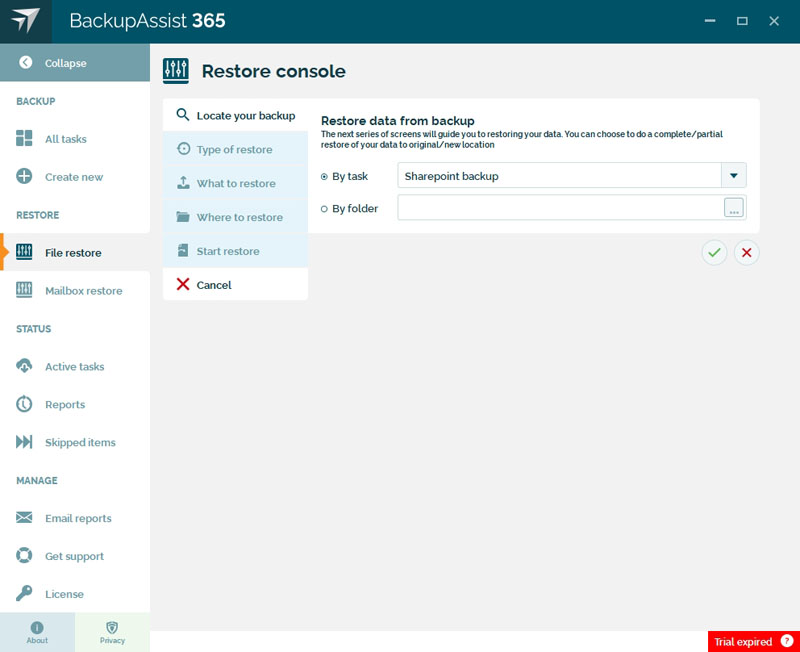
Locate your backup:
-
By task is selected by default, and is used to select the backup task that created the backup you want to restore from.
If you're restoring from a Multi-User file backup, BackupAssist 365 restricts you to restoring to the local system.
-
By folder can be selected if the backup task no longer exists or you're not sure what task to use. Browse to locate and select the folder that you want to restore from.
If you're restoring from a Multi-User file backup, BackupAssist 365 restricts you to restoring to a local folder or a cloud folder.
-
Click the tick to save and proceed to the next step.
-
-
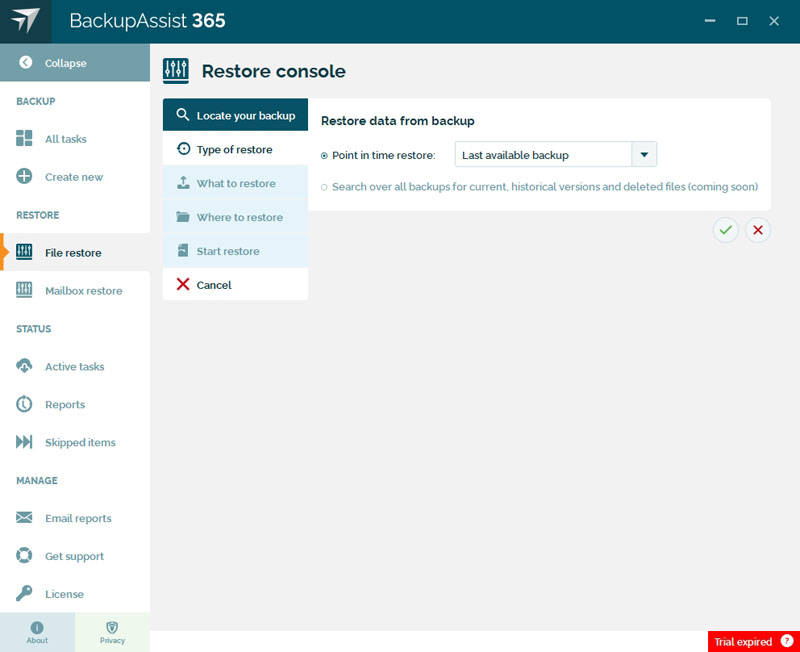
Choose the type of restore:
-
Choose a backup created by the backup task you selected.
This is the backup containing the files and folders you want to restore.
-
Click the tick to save and proceed to the next step.
-
-
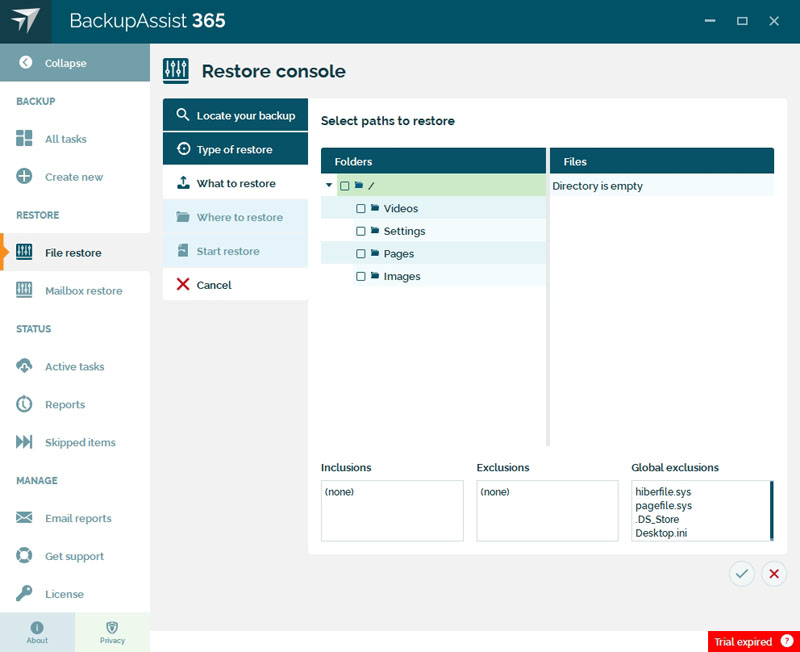
What to restore:
- Select the files and folders that you want to restore.
- Click the tick to save and proceed to the next step.
-
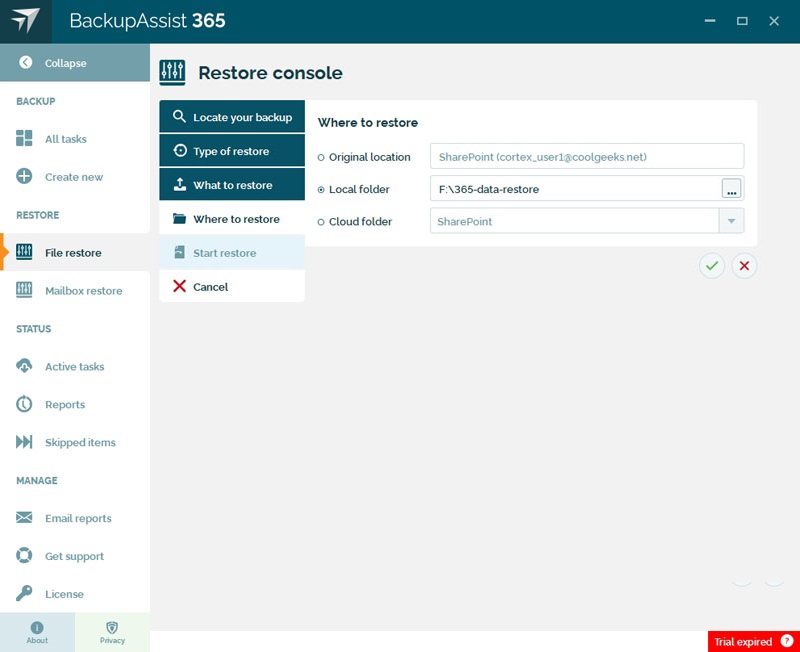
Where to restore:
-
Select one of the following:
- Original location restores the selected files back to the original SharePoint or OneDrive For Business account.
- Local folder restores the selected files to another location. This is useful if you want to move the files to a more accessible location.
- Cloud folder restores the selected files to a cloud location. This could be a SharePoint or OneDrive For Business account.
-
Click the tick to save and proceed to the next step.
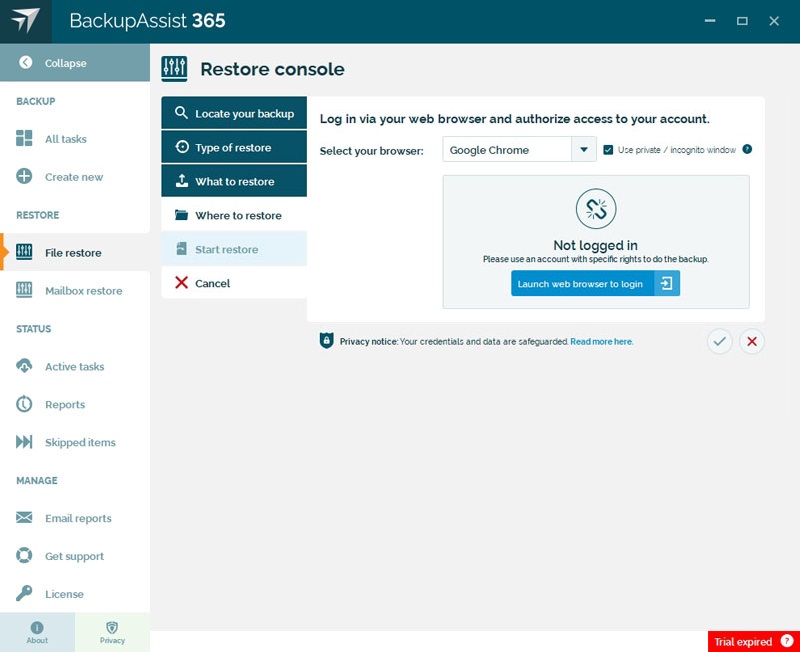
If you selected a cloud location:
- Enter the credentials and authenticate access to the cloud account.
- Click the tick to save and proceed to the next step.
-
-
Click Start restore.
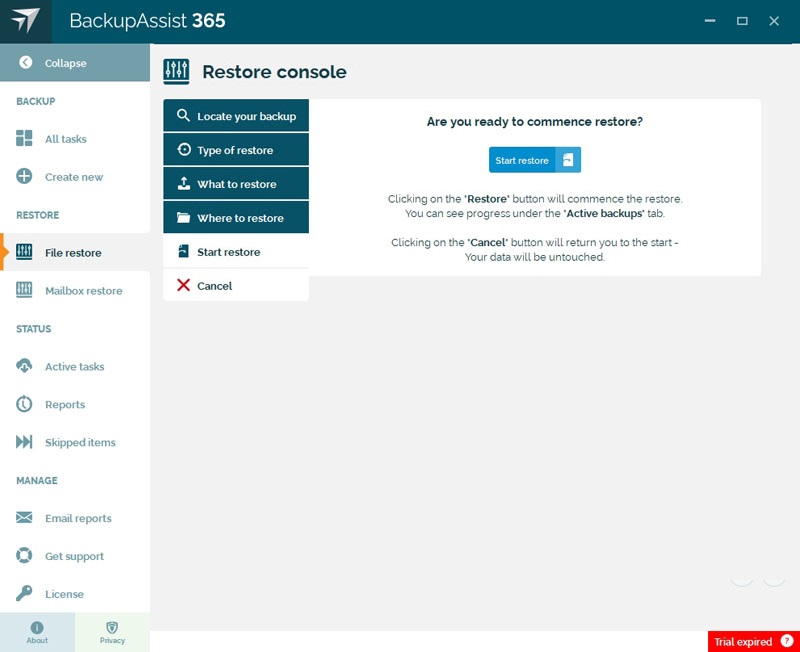
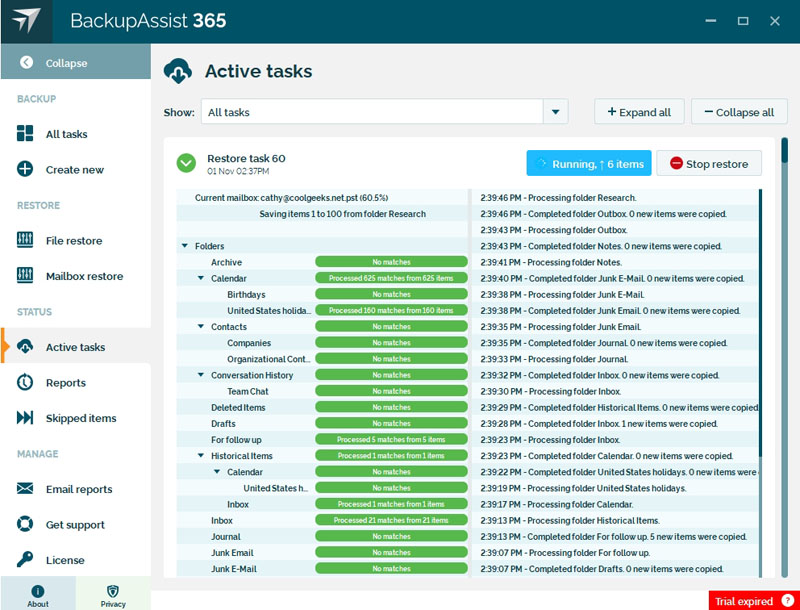
The restore will start and display its progress in the Active backups screen.