Set up the daily summary email (Daily Summary Email)
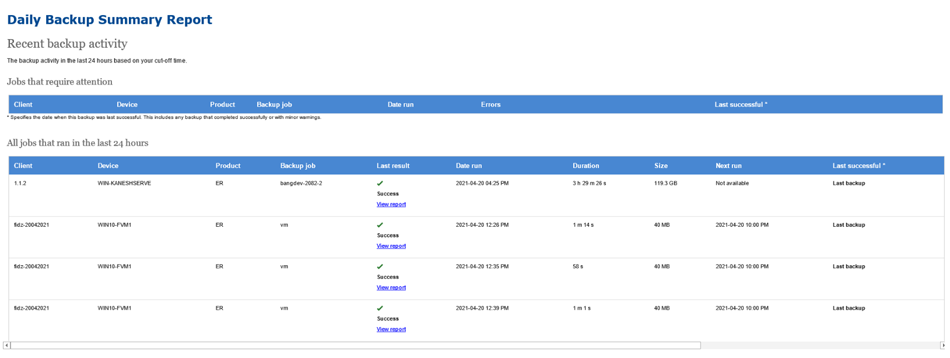
The Managed Backup Console can send a Daily Summary Email to selected email recipients. It has two sections: Account summary and Daily Backup Summary Report.
Account summary includes:
- The number of clients, sites and devices currently managed.
- The number of installations including how many are in the free period and how many have subscriptions.
- The totals paid for the last 3 billing cycles.
Daily Backup Summary Report includes:
-
The details of every backup job run since the last Daily Summary Email.
-
Lists all jobs that require attention separately.
-
Includes backup duration, size, outcome and a link to the backup report.
Setting up the Daily Summary Email
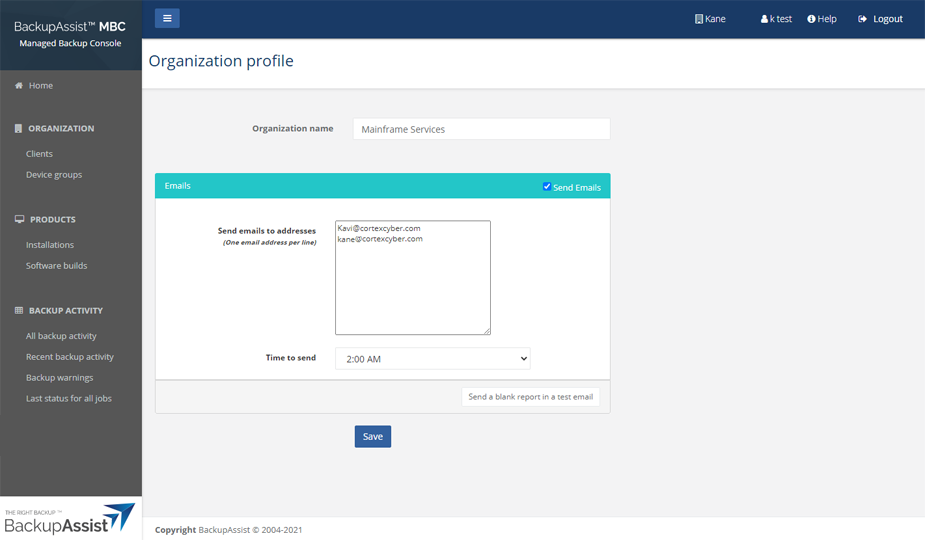
To enable and configure email notifications:
-
Log into the Managed Backup Console.
-
Select your organization name from the top right of the UI.
-
Tick Send Emails.
-
Type each recipient's email addresses into the Send emails to addresses field.
Only enter one email address per line.
-
Choose the time you want the email to be sent from the Time to send drop-down list.
-
Click Save.
You can use the Send a blank report in a test email to send all email recipients a blank, test email.