
 Belgium
 Canada
 Germany
 Italy
Italy France
 Spain
Spain United Kingdom
Choosing the right scheme for your backup job.
When devising your data protection strategy, it is important that you choose the right rotation scheme when configuring your backup jobs. BackupAssist offers a number of powerful, predefined schemes to satisfy most backup history and media rotation requirements. The schemes offered in BackupAssist vary according to the backup engine (e.g. File Replication, Windows Imaging, NTBackup, etc) and the type of hardware device you are using. A scheme should be selected with care as your choice will determine the amount of backup history and, therefore, the number of restore points available. This article explains how the schemes in BackupAssist work, and outlines the tailored schemes that are offered for each hardware device.
- Self-managed schemes in BackupAssist
- Schemes for File Replication backups to NAS or Local Directory
- Schemes for NTBackup and Zip backups
- Schemes for Windows Imaging backups
- Schemes for Rsync backups
- Schemes when using removable media
- Prepare your removable media!
- Conclusion
Requirements
- BackupAssist v6.2.0 and later.
Self-managed schemes in BackupAssist
The following schemes are referred to as "self-managed", as each are used to create a specific number of backup sets. Automated backup storage options do not apply to self-managed schemes, so you will need to ensure that you backup destination has enough space to accommodate the number of backup sets specified by the scheme.
Basic
Each backup set is stored in a separate directory based on the name of the day of the backup. For example, if a backup starts on a Tuesday, the backup set will be stored in a directory named ‘Tuesday’. Future backups that run on a Tuesday will replace the contents of this Tuesday directory.
- Restore points/backup history: Up to 7 - one for each day of the week.
- Usage: this scheme is recommend when you:
- Do not require a large backup history with many restore points
- Have another job that provides a large backup history
- Want to store recent archives locally for a limited time.
- Have limited storage space
Intermediate
Similar to the Basic scheme, but adds 4 weekly, 1 monthly and 1 quarterly backup to your strategy. There is an archiving setting within the Scheduling window that allows you to specify what day the weekly, monthly and quarterly backups will be performed. Quarterly backups are performed every 3 months and will replace the scheduled monthly backup.
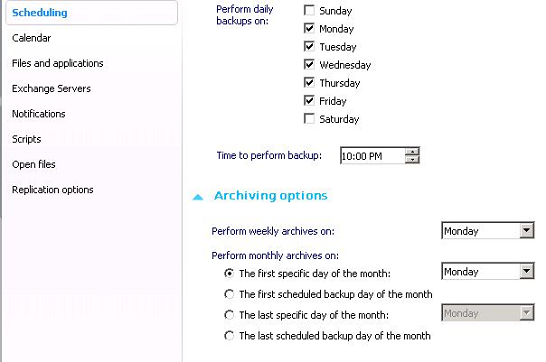
- Restore points/backup history: 12 – up to 6 daily, 4 weekly, 1 monthly and 1 quarterly
- Usage: this scheme is recommend when you:
- Require a larger backup history than the Basic scheme.
- Want to store recent archives locally for a limited time.
Professional
This scheme is similar to the Intermediate scheme, but adds 1 monthly, 2 quarterly and 1 yearly backup to your strategy. Monthly and quarterly archives are overridden every 3 months with a new backup set.
- Restore points/backup history: 16 - Up to 6 daily, 4 weekly, 2 monthly, 3 quarterly and 1 yearly backup.
- Usage: this scheme is recommend when you require archive storage for an entire year.
Grandfather-father-son
Similar to the Professional scheme, but creates monthly backups stored in 12 separate directories. There are no quarterly backups since monthly backups are performed instead.
- Restore points/backup history: 22 – including up to 6 daily, 4 weekly, 11 monthly and 1 yearly backup.
- Usage: this scheme is recommend when you require archive storage for 1 year and need additional restore points.
Daily + N-weekly
Daily archives are replaced every 7 days and you can define between 1 - 53 weeks of archives. Files deleted before the current weekly archive set is created will not be included in the current weekly backup folder.
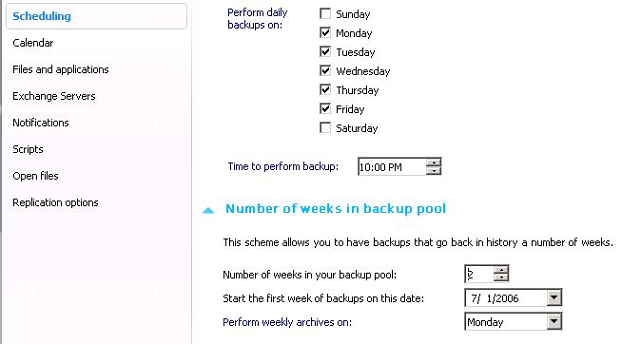
- Restore points/backup history: 59 - Up to 6 daily and up to 53 weekly backups.
- Usage: this scheme is recommend when you require archive storage for up to 1 year and want weekly restore points.
N-Week daily
A set of backups, one for each day of the week, for a user-specified number of sets. The number of weeks included in the archive can be configured from 1 to 53 weeks. If, for example you choose 2 weeks, you will have the following backup sets: Monday 1, Tuesday 1, Wednesday 1, Thursday 1, and Friday 1 AND Monday 2, Tuesday 2, Wednesday 2, Thursday 2, and Friday 2. Backups will be replaced every two weeks on a rotation system.
- Restore points/backup history: Up to 365 - one for each day of the year.
- Usage: this is the best self-managed scheme to use if you want to limit your backup history to 1 year or less, but want daily restore points. Backup sets are automatically managed by BackupAssist once you choose the number of sets you require.
Schemes for File Replication backups to NAS or Local Directory
Mirror
Creates a single mirror/replica of your selected files and folders on your backup destination. Only one restore point is available, so you will not be able to recover files that were changed or deleted before the last backup.
- Note: there is an option to keep files in your backup mirror that have been deleted from the source location within the File Replication options section.
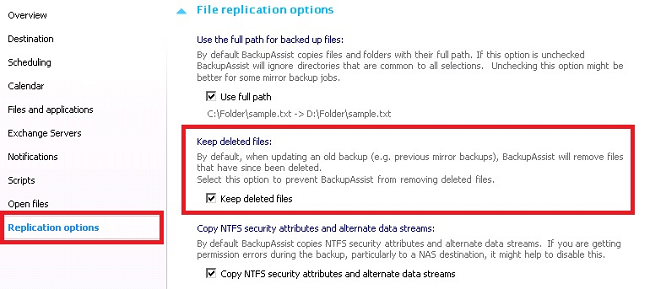
- Usage: this scheme is useful if you only require one restore point and wish to keep a single copy of your data on a backup server for easy ‘copy/paste’ recovery.
Most Recent full
Backups are stored in a different folder each day a backup runs based on the date of the backup.
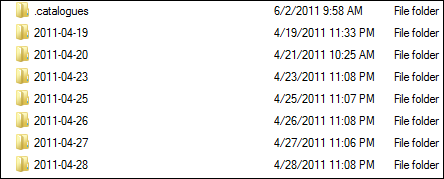
- Note: if Single Instance Store is enabled (read about this here), only one unique copy of each file will be stored on your backup device after the initial full backup. If files are modified or new ones created, they will be merged into a new and complete backup set on your backup destination. This means that you will see a complete list of all files selected for backup within each backup set, even though only one unique copy of each file is actually using disk space on the device.
- Usage: this scheme is recommended when you require a large backup history with many restore points.
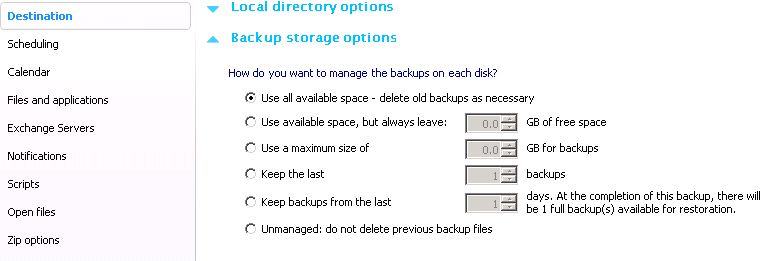
Since these backups are not self-managed, you can configure the Backup storage options for your job to specify how many backups you want to keep on your backup destination.
Since these backups are not self-managed, you can configure the Backup storage options for your job to specify how many backups you want to keep on your backup destination.
Schemes for NTBackup and Zip backups
The Zip Engine offers similar schemes to the File Replication Engine. When backing up to a NAS device or a local folder, however, instead of folders like Monday, Tuesday, Week 1, etc, being created with the data contained within, you will have individual .ZIP files with names like Monday.zip, Tuesday.zip, Week 3.zip, etc.
One scheme, which is only available with the Zip Engine when backing up to external hard drives or RDX drives, is the Full + Incremental scheme. This scheme will schedule a full backup once a week and incremental backups for the rest of the week. You will require the last full backup and all the incremental backups created since to perform a complete restore. You should only use this scheme when storage space on your backup destination is limited, when a full backup is taking too long to complete, or if your data does not change often.
The NTBackup Engine has similar schemes to the Zip Engine, but instead of .ZIP archives, backups are stored in the .BKF file format, which can only be restored from using NTBackup.
Schemes for Windows Imaging backups
The Imaging Engine creates a single backup set, but backup history is automatically maintained if you are backing up to a local device, such as an external hard drive or local drive. On each subsequent backup, after the initial full backup, changes are merged into the image residing on the backup destination. This means that the backup device looks as though it always contains the latest full backup - the historical incremental backups remain hidden. A full backup history, however, is maintained and restoration is easy as it is just like restoring a single full backup: you do not have to worry about having to first restore a full backup and then a series of incrementals.
When backing up to a NAS device, however, only one restore point is available. This is because Windows Server Backup (which BackupAssist uses to create image backups) stores past backup versions in shadow copies, and as VSS is not natively available on network shares, you will only have one restore point when using a NAS to store image backups (i.e. the last backup). BackupAssist does provide a special scheme for image backups to NAS called the One week daily scheme, which gives you up to 7 restore points by storing each day’s image in a separate folder on your NAS. You must ensure that your NAS device is large enough to store the number of complete images you specify. You can read more about image backups to NAS here.
Schemes for Rsync backups
Unless you are backing up to Amazon S3 via S3Rsync, which only provides the Mirror scheme, the following schemes are available for Rsync backups. Each scheme behaves in the same manner as those described in the sections above.
- Mirror
- Basic
- Intermediate
- Professional
- Grandfather-father-son
- Daily + N-weekly
- N-week daily
- Full Archive
- Manual
Schemes when using removable media
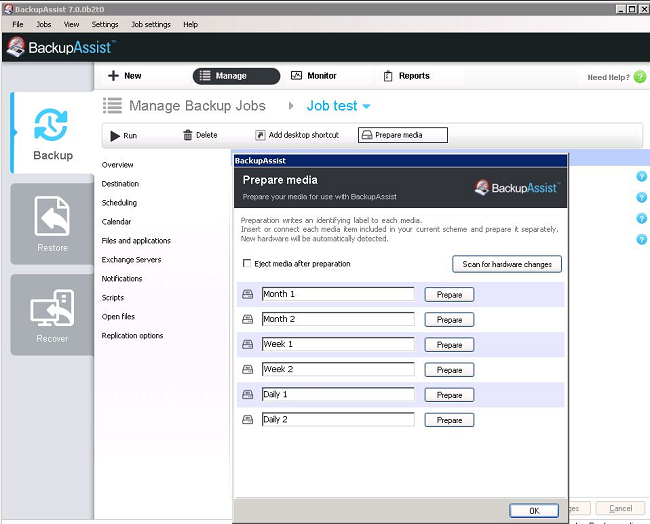
When using removable disk media, such as external hard drives, REV or RDX disks, the names of the schemes offered may vary. Backup sets are stored within directories located on your removable disks based on the date of the backup. You can manage the number of backups store on each removable disk within the Replication mode options while editing the Destination settings for your job. Instead of naming backup directories, the volume label of the backup drive is changed to reflect the day the drive will be attached (Daily 1, Daily 2, etc). These labels are applied to the backup device when preparing the media, which is discussed later in this article.
External HDD schemes
When backing up to an external hard drive, the following schemes are available:
Daily rotating full
Select this scheme if you are rotating backup media offsite daily. You should use a minimum of 2 backup drives for this scheme, but one for each day is recommended.
Daily + weekly rotating full
Select this scheme if you have one set of drives to store daily backups (Daily 1, Daily 2, etc) and another set to store weekly archives (Week 1, Week 2, etc).
Daily + weekly + monthly rotating full
This is similar to the Daily + weekly rotating full scheme, but adds a monthly backup drive for those who require monthly archives.
Daily backup weekly rotating full
Use this scheme when you want to keep the same drive attached for an entire week and then rotate it offsite at the end of the week, swapping it for a different drive. You should use a minimum of two external drives for this scheme.
Full Archive
Backups only run once a month. This scheme should only be used as an extra layer of data redundancy in a multi-tiered backup strategy (more about this here).
Manual
Backups will only run when manually started by a user.
Prepare your removable media!
If you are using removable media, such as tape, external hard drive, RDX or REV, you should prepare all media before running any backups. There are a number of important reasons for this, including:
- E-mail reminders can be sent to users to instruct them to attach the correct drive or insert the correct tape for the next scheduled backup. Reminder notifications can be setup in the Notifications window.
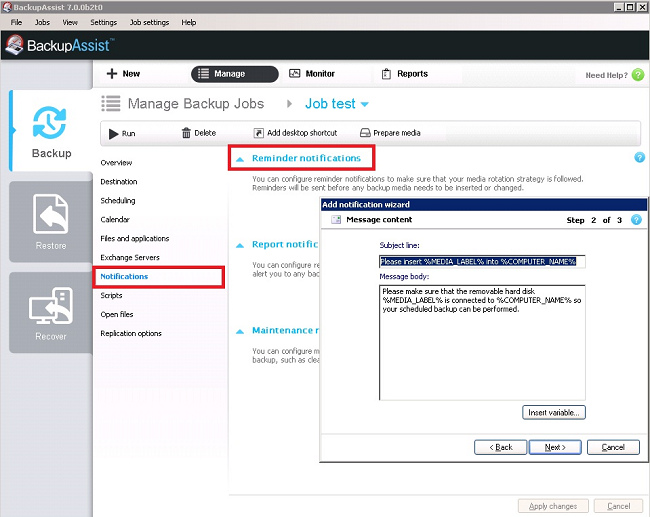
- Warnings will appear in the backup report to indicate that the wrong drive was attached for the backup. This helps ensure that your media rotation strategy is followed correctly.

- The BackupAssist Restore Console will prompt you for the appropriately labeled backup drive needed to restore your files. Ensuring that the proper drive is attached for each backup helps eliminates any issues during the restore process, including restoring from an incorrect backup set.
How to prepare your removable media in BackupAssist
- From the top BackupAssist menu, select "Prepare media".
- Prepare each drive or removable media (External HDD, Tape, RDX, REV) in your media pool.
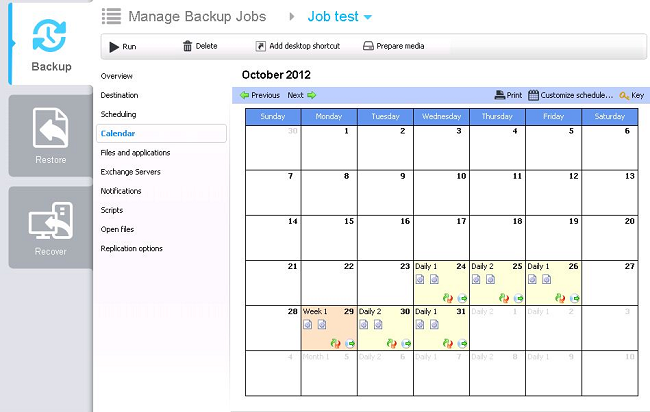
- The calendar for your job will assist you in determining what backup drive needs to be attached each day. The calendar can be printed for easy reference.
Conclusion
When selecting a backup schemes for your BackupAssist backup job, be sure to consider the following:
- How much backup history do you want?
- Is your preferred backup scheme available with the backup device you are using?
- Is mission critical data being rotated offsite on a regular basis?
- Does you scheme retain long term archive sets so you can restore files that were accidentally deleted months earlier?
We hope this article has been helpful. If you have any questions about backup schemes or need any advice, please email us at support_at_backupassist.com.
Kind regards,
The BackupAssist Team


