
 Belgium
 Canada
 Germany
 Italy
Italy France
 Spain
Spain United Kingdom
File Selections
How to use NTBackup to modify your file selectionsContents
- Step 1 - Run ntbackup
- Step 2 - Open the backup selection file
- Step 3 - Modify your selections and save
BackupAssist contains a simple file selection window, as shown below:
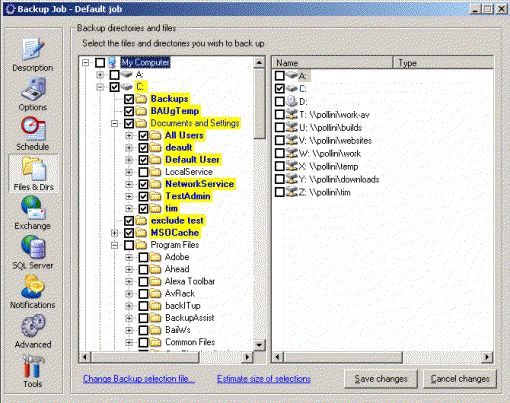
BackupAssist file selection
In some cases, you may wish to use NTBackup to modify your file selections. You can do so by following the 3 step process below.
Step 1 - Run NTBackup
Start NTBackup. You can do this by going to the Start menu, selecting Run, and typing "ntbackup".
If you're prompted whether to start in Wizard or Advanced mode (as shown below), select Advanced mode.
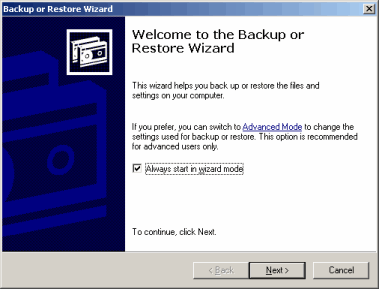
Start NTBackup in Advanced Mode
Step 2 - Open the backup selection file
Click the Backup tab, as shown below:
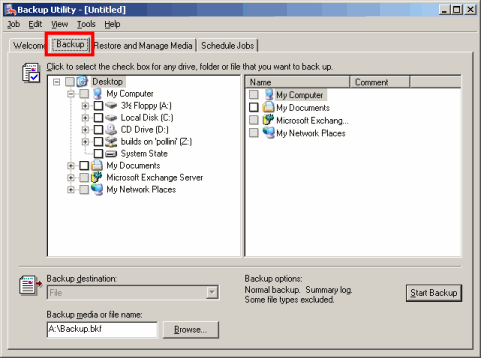
Backup tab in ntbackup
Then from the Job menu, select Load Selections, and open up the file:
C:\Program Files\BackupAssist\Selections.bks
(or equivalent if you installed to an alternative directory).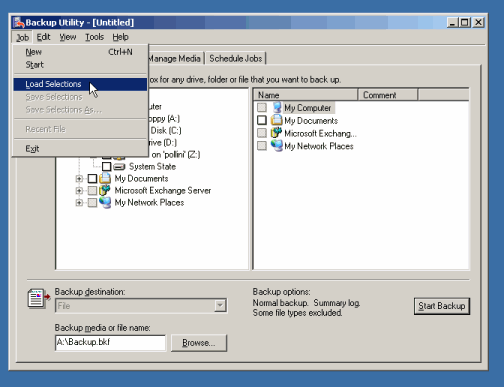
Load selection file
Step 3 - Modify your selections and save
Modify your file selection normally, and be sure to save your selections (from the Job menu).
BackupAssist will now use your modified selections when performing the next backup.


