BA716: The network path was not found
| Error code | Product | Applies to |
|---|---|---|
| BA716 | BackupAssist ER | BackupAssist ER v1 and later |
Description
The network path specified as the backup destination could not be found when the backup job ran.
Resolution
Below is a set of standard troubleshooting steps designed to help resolve backup destination problems. Review the list for solutions to your current access problem.
Ensure that the backup destination is online and accessible
Make sure that the server hosting the network share is turned on and accessible within your network.
This can be checked as follows:
- Browsing to the folder location in Windows Explorer.
- Communicating with the backup destination using ping requests.
Check all physical connections
Check any cables and ports to make sure there's no problem with the physical connection. Problems will physical connections can present as I/O errors and can be ruled out by trying different cables and ports.
Check that the backup path specified in the backup job is correct
To update or review a backup job:
-
Open BackupAssist ER.
-
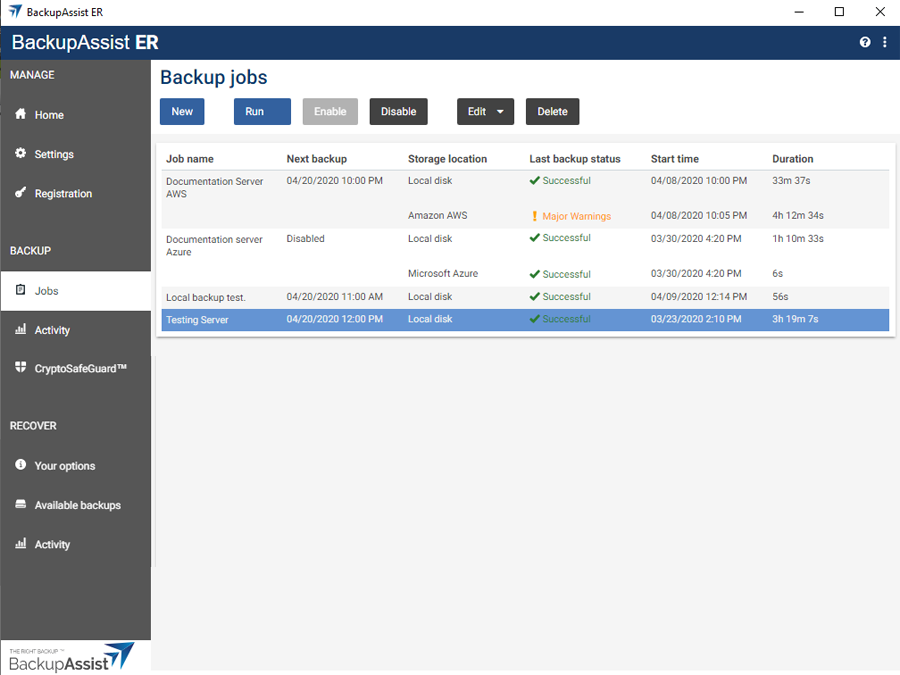
Select the Jobs tab.
-
Select the backup job that you want to modify from the list of jobs.
-
Click the Edit button on the top menu.
-
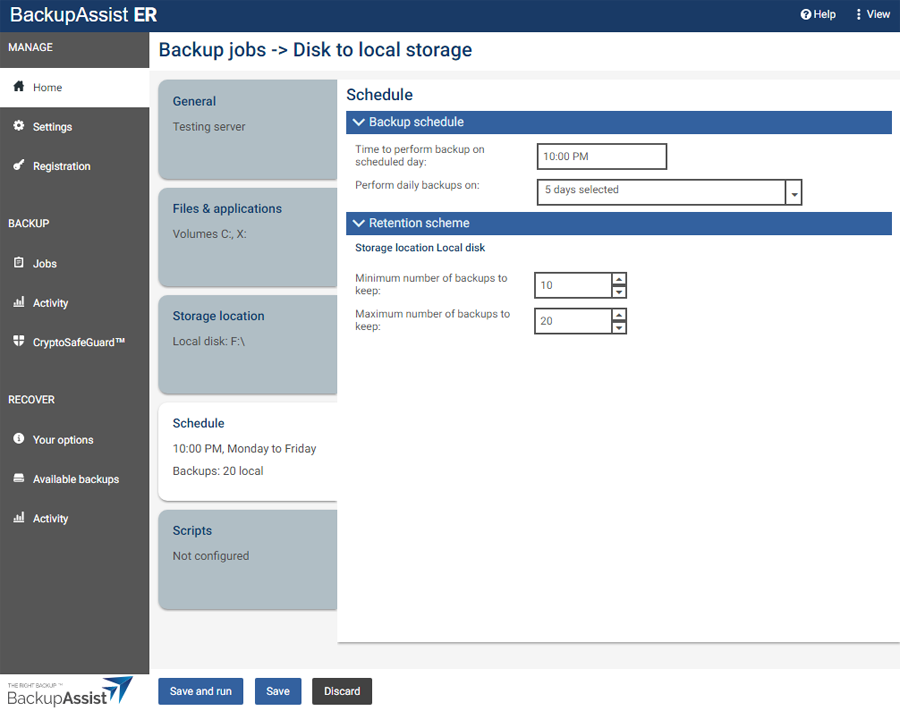
Select the tab containing the information or selection you want to change.
-
Make the required update.
-
Click the Save button.
Make sure the backup destination's path does not have prefixes
The server name in the destination setting for your job should not include any prefixes.
For example Server not \\Server.
The path on the server should not contain the server name.
For example \backups\2007 not \\Server\backups\2007.
Perform a test using an alternate destination
This will help isolate the issue, which may be related to the backup configuration or the selected destination.
Check for multiple connections to a server or shared resource by the same user
Microsoft has a limitation on multiple connections using a specific set of credentials.
The entire error generated when this limitation is reached is:Multiple connections to a server or shared resource by the same user, using more than one user name, are not allowed. Disconnect all previous connections to the server or shared resource and try again.
Things to check include:
- The Mapped network drives on the system
- The Network paths in BackupAssist ER
- Any user-specified credentials on the Destination tab of the backup job.
Run consistency and defragmentation checks
You should also run consistency checks and defragmentation on all backup media.
Please review the following document from Microsoft on the use of chkdsk: https://technet.microsoft.com/en-us/magazine/ee872425.aspx
It's also recommended to perform a defragmentation of your destination drives as well. More information on this process is located at http://windows.microsoft.com/en-au/windows/improve-performance-defragmenting-hard-disk#1TC=windows-7
Check the permissions
When accessing shares without authentication, you will still need to authenticate with the server / appliance hosting the network share if the shares permissions are set to Everybody or Everyone. This permission only means that all members / groups of that domain / server / device will be able to access the share.
To enable authentication free access, you will need to enable Guest permissions on the share, providing your backup destination supports this. In most cases, it is better to create an account or add specific permissions to an account, that will allow access to the share.
For a NAS, check the username and password
To access a NAS destination, a backup job may need to have authentication credentials. IF this is the case for this job, review the backup job to make sure the correct credentials have been provided.
For a NAS, check the firmware and drivers are up to date
Check that the NAS drivers and firmware are up to date. The drivers and firmware will be available from your NAS vendor.
Create a new backup job if the existing job is corrupted
BackupAssist ER may have problems accessing a network share if the backup job is corrupted. This can occur if there is an issue with one of the back end configuration files associated with the backup job.
To resolve this, you can create a new backup job that has the same settings and configuration as the job which is generating this error. Once you've done this, run the newly created backup job and see if the error still occurs.
| Last updated | Created | Further assistance |
|---|---|---|
| 19th Mar 2015 | 15th Dec 2008 | BackupAssist ER Support page |