Your BackupAssist Account
BackupAssist customers with software subscriptions use a BackupAssist Account to administer their purchases, payments and invoices. This account is managed using an online console that , which is managed using the to manage their software subscriptions.
To license BackupAssist ER, you log into your BackupAssist Account (or create one if you are new) and purchase a license subscription. To add that license to a BackupAssist ER installation, you enter your BackupAssist Account's username and password into BackupAssist ER's Registration tab and select the license you purchased.
Note
Managed Service Providers use the Managed Backup Console (MBC) to manage subscriptions and licenses.
Opening the BackupAssist Account Console
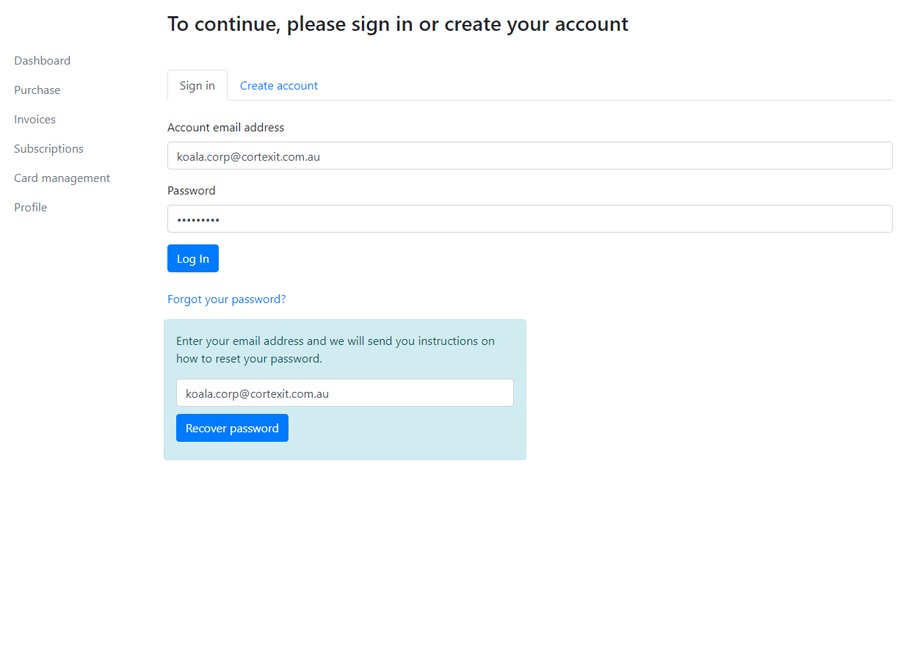
To access the BackupAssist Account Console, just open it using one of the methods below, and log in using your the BackupAssist Account Console user name and password.
There are 3 ways to open the The BackupAssist Account Console.
- Log into the BackupAssist Account Console on our website.
- Select the Buy now button on the load screen emnu while evaluatingBackupAssist ER.
- For the BackupAssist ER Registration tab by clicking the Register button then the Request to buy a license link.
Creating a new account
A BackupAssist Account is needed to purchase subscription, and allows you view invoices and administer your subscriptions. The BackupAssist Account is also a good for users doing a 30-day evaluation, as you can evaluate the console's features.
To create a BackupAssist Account:
-
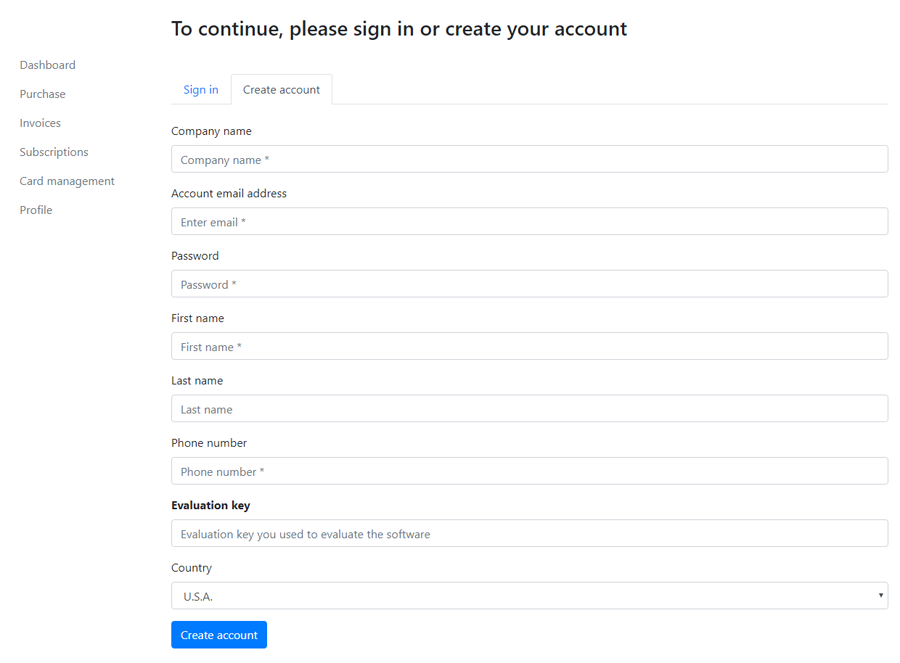
Select the Create account tab.
-
Fill in the fields provided.
The email address and password will be your log in credentials.
-
Select your country from the drop-down list.
-
If you are doing a 30-day evaluation, enter the key provided into the evaluation key field.
-
Click Create account.
-
Log into the BackupAssist Account Console with your email address and password.
You now have an account set up and can browse through the console pages. To purchase subscriptions, you will need to also enter your payment information into the Card Management page.
Dashboard
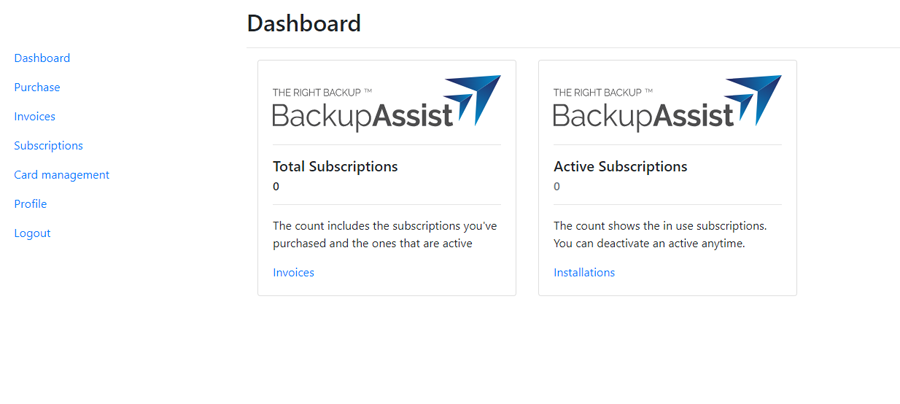
The BackupAssist Account Console allows you to see the Total number of licenses you have subscribed to, and how many are currently being used.
Purchase
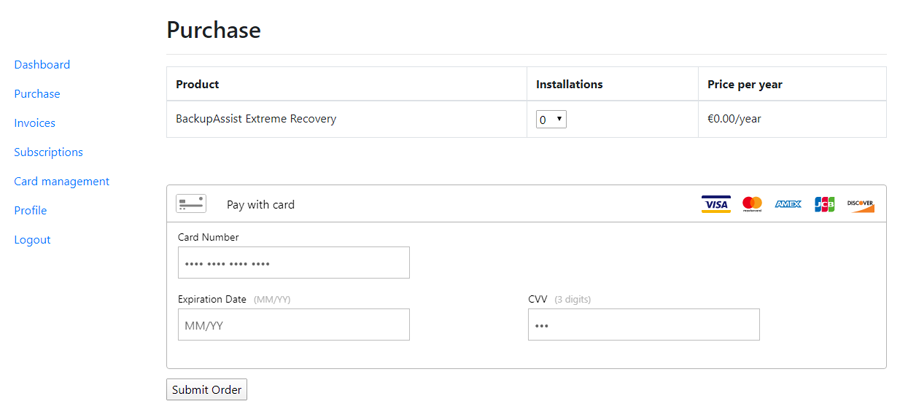
To purchase a BackupAssist ERsubscription:
- Go to the BackupAssist ER entry on the product list,
- Select the number of license you want to purchase form the Installations drop-down.
- Click Submit order.
Invoices
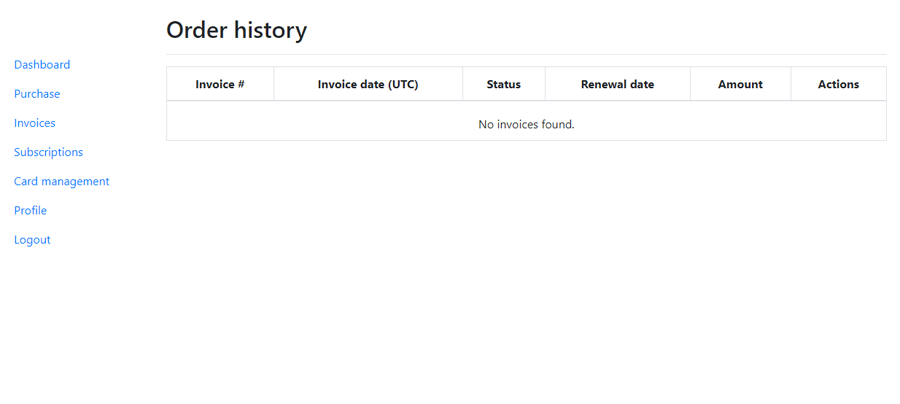
Subscriptions are auto-renewed annually per order. Each renewal generates and invoice and all invoices can be viewed on the Invoices page.
You can Click on an invoice to open it and view the details of the renewed subscription.
Actions
The action's colum allows you
"Not to be auto-renewed"
Subscriptions
If you purchase multiple subscriptions together they will be processed and invoiced as a single order, and each year they will auto-renew together.
As more BackupAssist products are added to the console, you will be able to include different product in the same order.
Subscriptions are billed when purchased and when they renew regardless of the activation status of individual licenses.
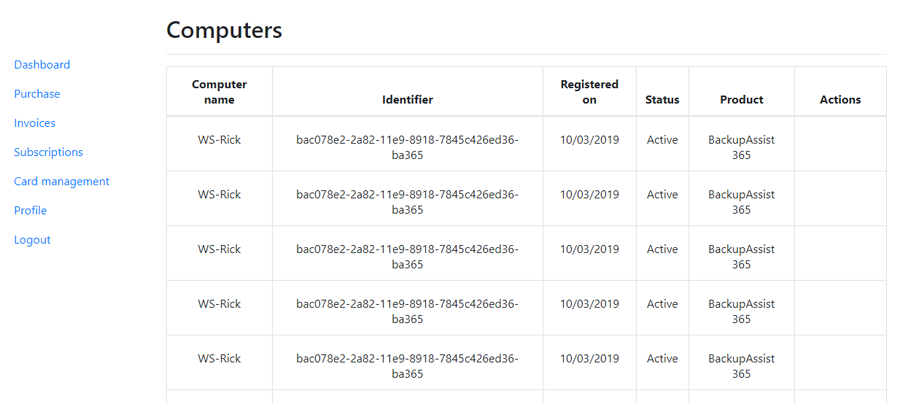
Computer name - the name of the computer that was used to purchase the subscription.
Identifier - a unique machine identifier for providing support. There is a unique identifier for each license subscription.
Registered on - the date of purchase. The subscription will auto-renew each year from is date.
Status - this column shows the status of the
Card management
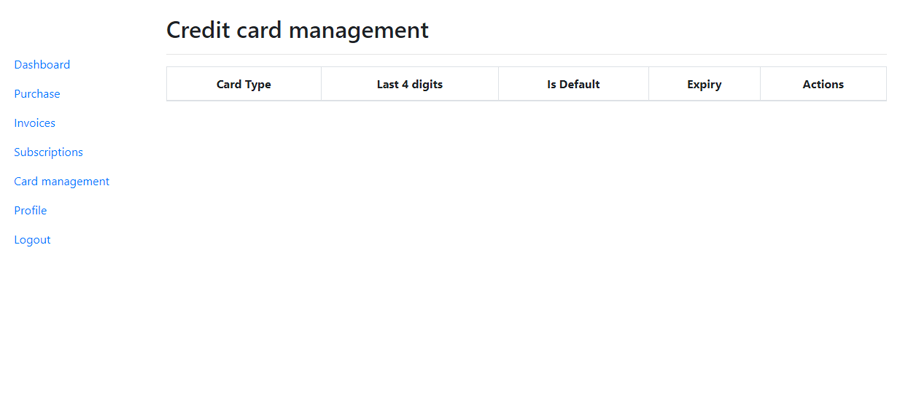
BackupAssist ERsubscriptions are charged to a credit card annually from the date of purchase. The credit card you use are set up in the Card management page and can be selected as they payment option when you purchase a subscription on the Purchase page,
Profile
The details you provided when setting up you BackupAssist Account can be updated on the profile page.
This includes updating your password and email address.