BA728: Selected VSS Component has a missing file
| Error code | Product | Applies to |
|---|---|---|
| BA728 | BackupAssist ER | BackupAssist ER v1 and later |
Description
BackupAssist ER uses the Microsoft VSS writers when performing a backup. This error can occur when one or more of the VSS writers is unable to find all of the required files / components required to perform a consistent backup.
Resolution
The following are solutions for common VSS component problems. Review the list for solutions to the error you have encountered.
If you mouse-over the error, it will show you the VSS writer that generated the error and help isolate the cause.
Resolution 1 – Perform a reboot of the system
Rebooting the system resolves this warning as it refreshes all VSS components and allows any issues with the VSS writers to be refreshed which should remove any errors as well.
Resolution 2 – Check the backup selections
An error can occur if a component within a VSS application which is being backed up has been moved or deleted. E.g. An SQL database has been moved to another system or a Hyper-V guest has been deleted as it’s no longer required.
If this is the case then you need to refresh the backup selections within your backup job. You can deselect the selections which can't be accessed / found which will then remove the error.
To update or review a backup job:
-
Open BackupAssist ER.
-
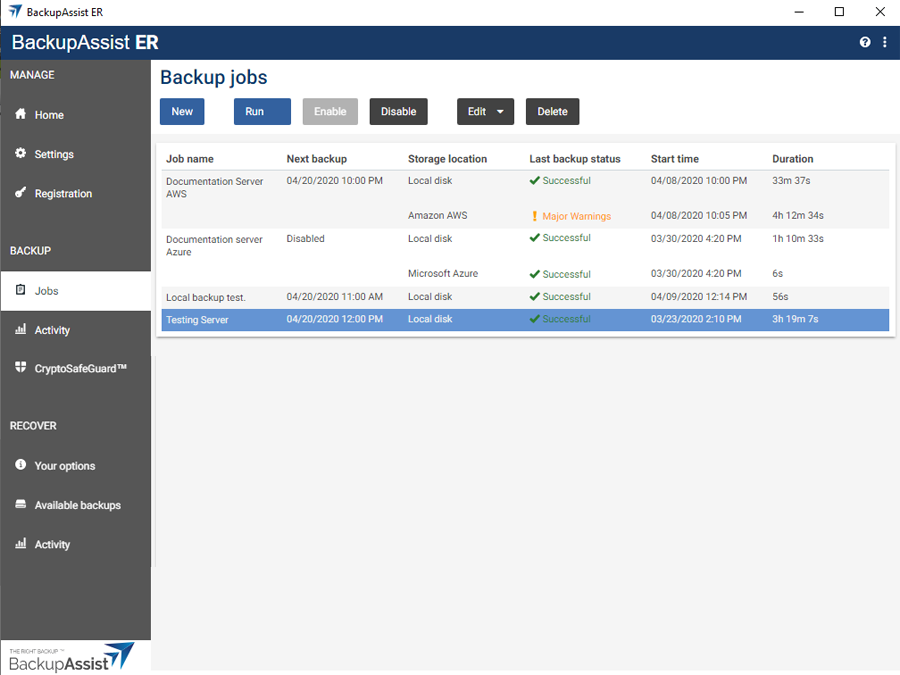
Select the Jobs tab.
-
Select the backup job that you want to modify from the list of jobs.
-
Click the Edit button on the top menu.
-
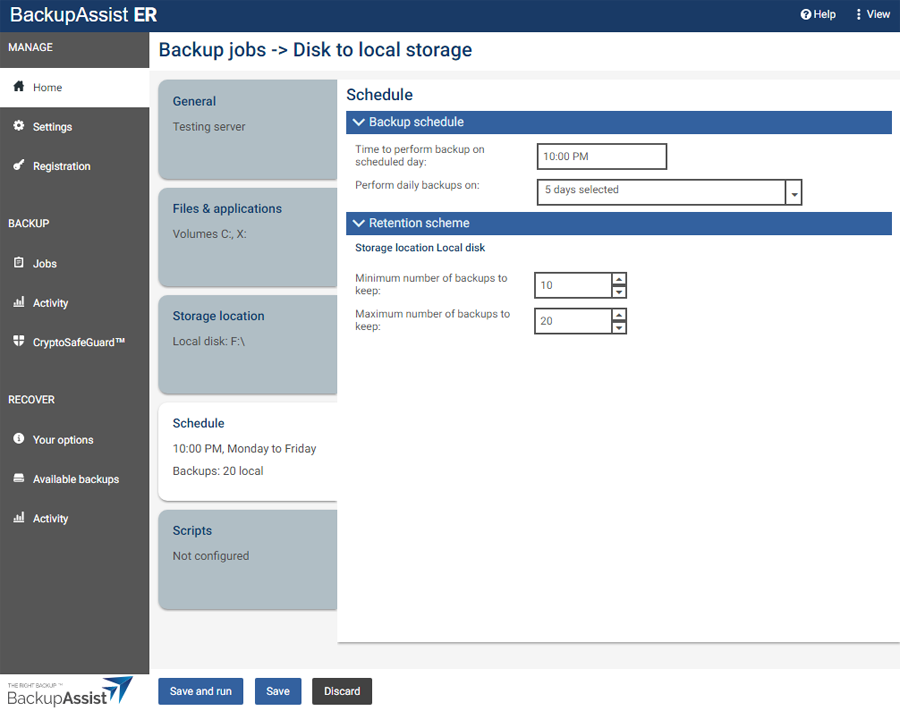
Select the tab containing the information or selection you want to change.
-
Make the required update.
-
Click the Save button.
Resolution 3 – For Hyper-V guests
When troubleshooting problems with Hyper-V backups, it is important to first determine which guest/s is causing the error. You can do this by checking the Hyper-V VMSS logs, as shown below. You may also be able to identify the guest from the information in the backup report. If you are unable to identify the guest, try backing up the guests one at a time until the errant guest is found. Once it is identified, try a VSS backup on the guest itself using a trial version of BackupAssist ER. The success or failure of this backup will help to further narrow down what could be causing the error at the host level.
To view the Hyper-V VMMS logs:
- Click the Start button.
- Click Control Panel.
- Click System and Maintenance.
- Click Administrative Tools.
- Double-click Event Viewer.
- In the left hand navigation window, browse to Applications and Services Logs > Microsoft > Windows > Hyper-V-VMMS.
Resolution 4 – Check Event Viewer for more information
If there is an issue with the hardware, VSS or the operating system, Windows will usually provide entries about this issue in the Event Viewer. These entries can be used to gather more information and help resolve the error.
To use the Event Viewer
- Open Windows search and type Event viewer
- Select Event Viewer.
- Expand the Windows logs. You will specifically want to look at the Application and System logs.
- Check to see if there are any specific warnings or errors that apply to your issue and the time it may have occurred.
- Review the contents of the error or warning for information that may help resolve the issue.
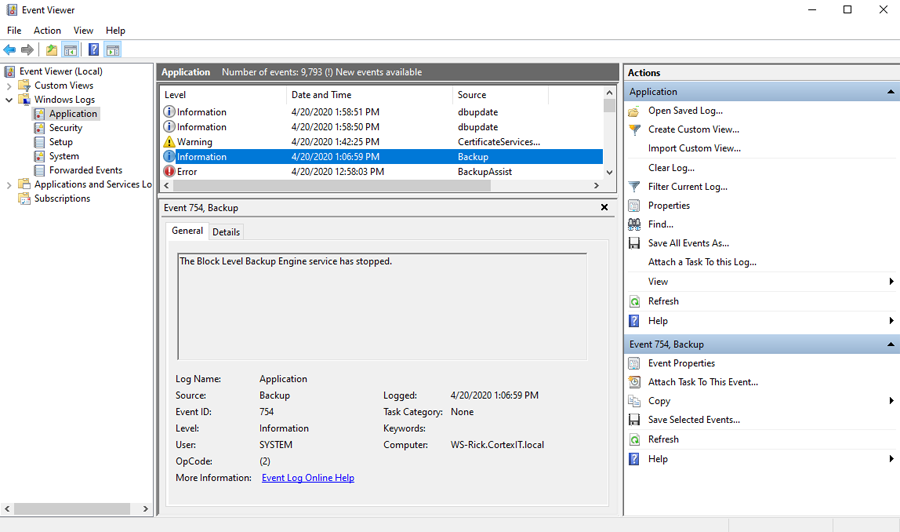
Check for any VSS related errors or warnings being generated by the system. Resolving these should in turn resolve the backup error.
Resolution 5 – If a VSS Writer is Missing
Run the following command through a command prompt window (start > run > cmd):
vssadmin list writers
Next look for a VSS writer from the output that refers to the application mentioned when you scroll over the error in the backup report. If there is no writer listed, you may need to enable the service for the required writer in Services (Administrative tools > Services), or re-install the VSS writer's application.
For a Sharepoint VSS Writer - When you mouseover the error on the backup report, you see the GUID 35500004-0201-0000-0000-000000000000. Check the service Sharepoint 2010 VSS Writer under Administrative Tools > Services is started. This is the service which runs this VSS writer.
For a SQL VSS Writer - When you mouseover the error on the backup report, you see SQL Writer. Check the service SQL VSS Writer under Administrative Tools > Services is started, as this is the service which runs this VSS writer specifically.
| Last updated | Created | Further assistance |
|---|---|---|
| 6th May 2016 | 08th Sep 2010 | BackupAssist ER Support page |