How to support an MSP
To assist your MSP with inquires and problems, and to manage free periods for your MSPs' installations, you can open the Managed Backup Console as an MSP.
Opening MBC as an MSP
MSPs use the Managed Backup Console to monitor their client's installations, backup jobs and subscriptions. This feature makes it easy to support your MSPs.
To log into a managed account:
-
Log into MBC with your Distributor credentials.
-
Click Partner accounts.
-
Locate the MSP Partner on the Partner accounts page.
Typing a word into the Search field will filter the results.
-
Click the Access button next to the MSP you want to access.
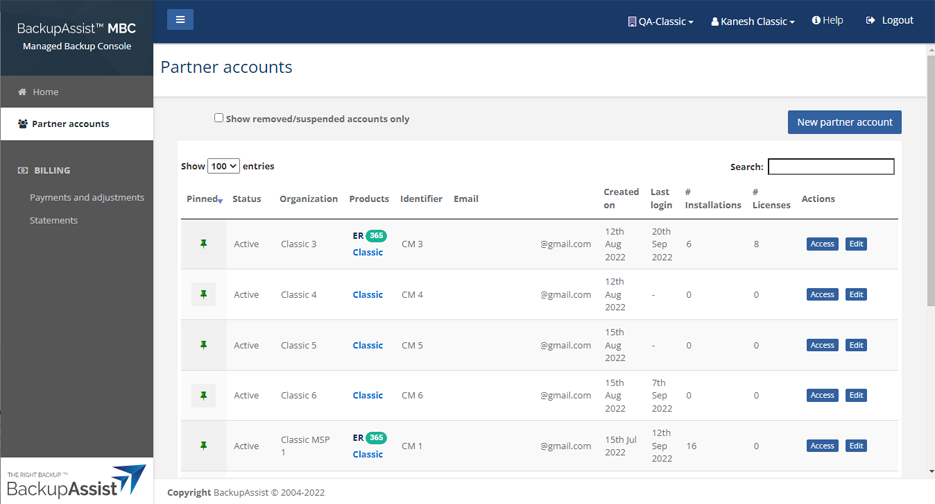
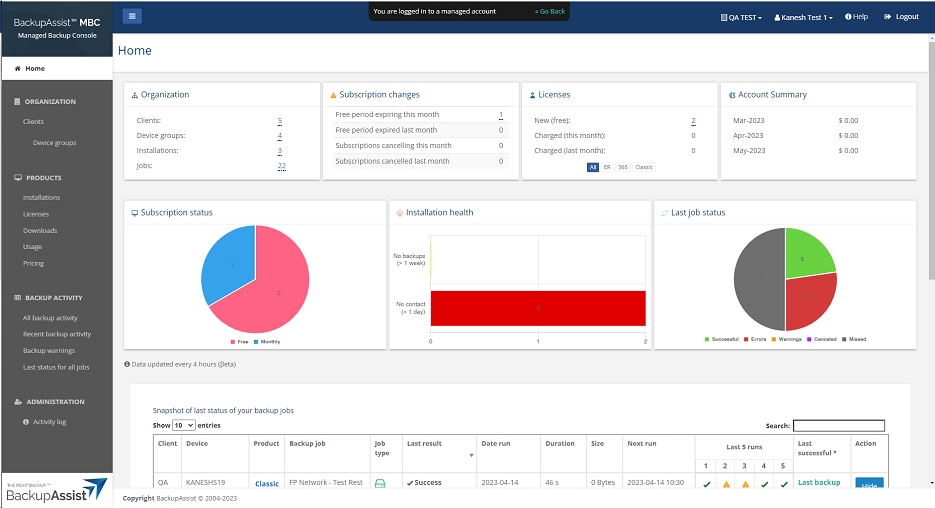
MBC will load your MSP's account and display You are logged in to a managed account at the top of the page.
You can then browse through your MSP's account.
-
When you have finished, select Go Back from the link at the top of the page.
MBC will take you back to your Distributor Home page.
To learn more about using MBC as an MSP, see the MBC MSP guide.
Free to paid period notifications
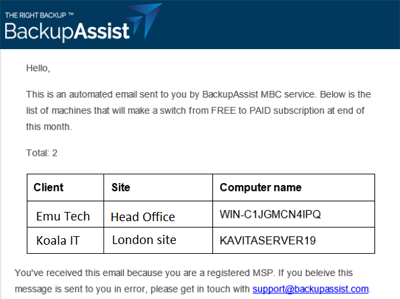
On the last week of each month, a notification email will advise if any BackupAssist Classic, BackupAssist ER or BackupAssist 365 installations are moving from free to paid subscriptions at the end of that month. The email is sent to the users set up for notifications on the Organization profile page.
Managing an MSP's free period
MBC's manage free period functionality is used to extend the initial free period, to give a free NFR style license to an MSP installation as part of their onboarding process, or to give additional free month(s) to an installation as an MSP bonus. The free period for an installation can be extended, altered or even removed at any time, even for long term installations.
To manage an installation’s free period:
-
Log into the MSP using the steps shown in the Opening MBC as an MSP section above.
-
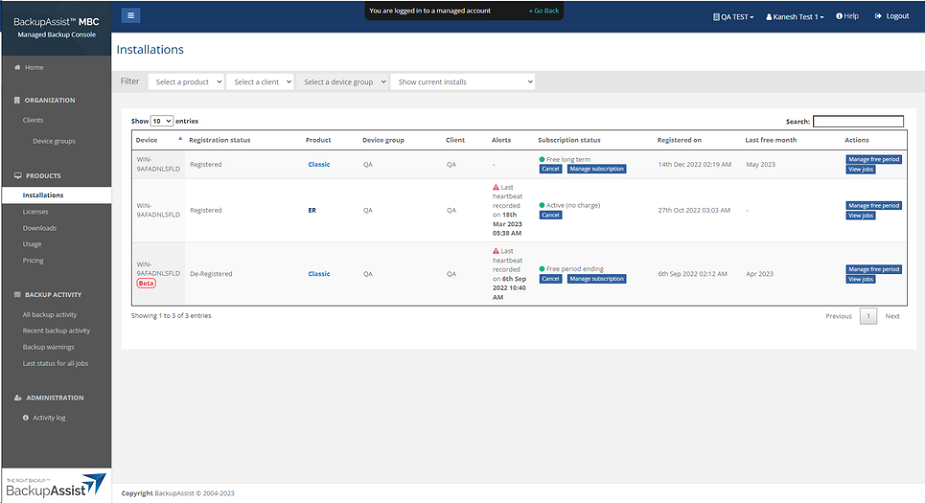
Select the Installations page.
-
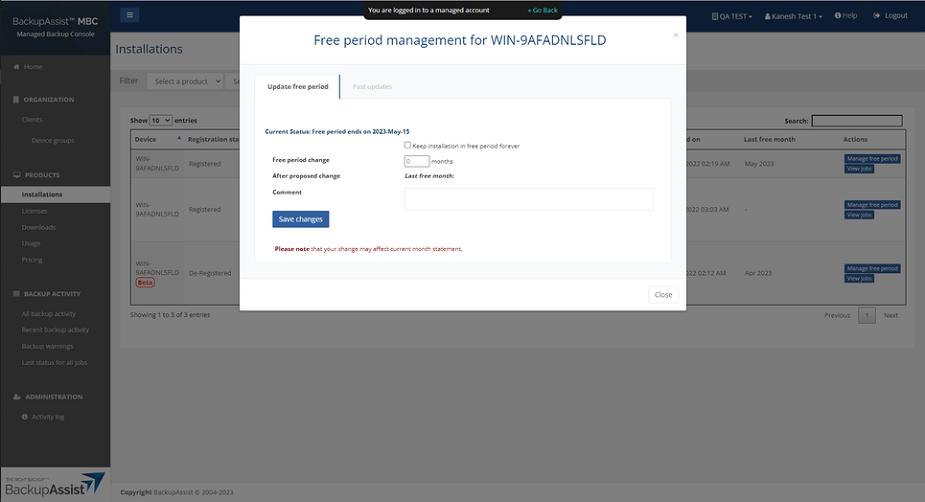
Click the Manage free period button under the Actions column.
-
You can select how many months to provide as free period. Free period always ends at the end of the calendar month. Alternatively, you can select the “Keep installation in free period forever“ checkbox to give a free NFR style license.
-
Click Save changes.
The Past updates tab allows you to review all previous changes to the free period.
To learn more, see the MSP guide's product licensing and free period page.