Add a new MSP (Partner accounts)
Setting up a new MSP in MBC is a quick and easy process.
Once onboarded, an MSP can immediately manage new installations of BackupAssist using MBC, due to MBC's free period.
To learn more, see the MSP guide's product licensing and free period page.
To set up a new MSP:
-
Log into MBC.
-
Click Partner accounts.
-
Click the New partner account button.
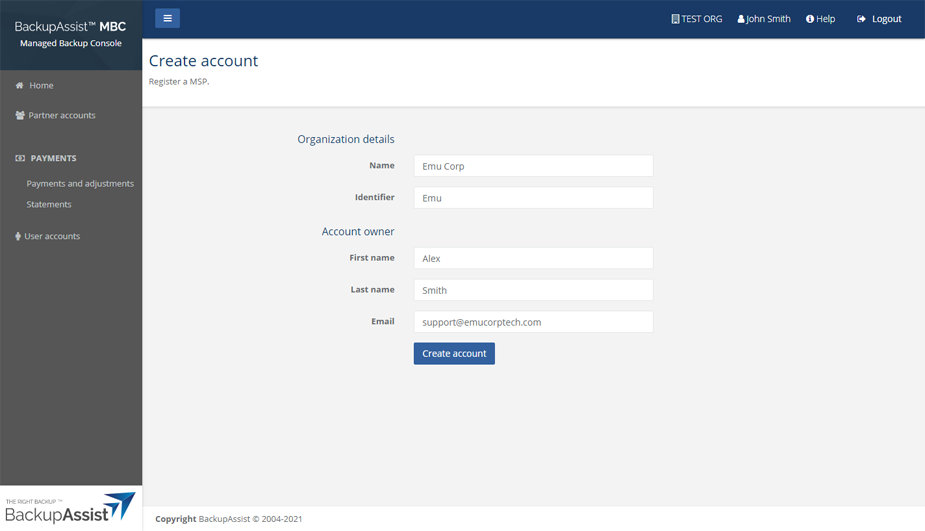
This will open the Create account page.
-
Type the MSP's name into the Organization Name field.
-
Use the optional Organization Identifier field to enter your own internal code or name for the MSP.
-
Type the MSP's email address into the Email field.
-
Click Create account.
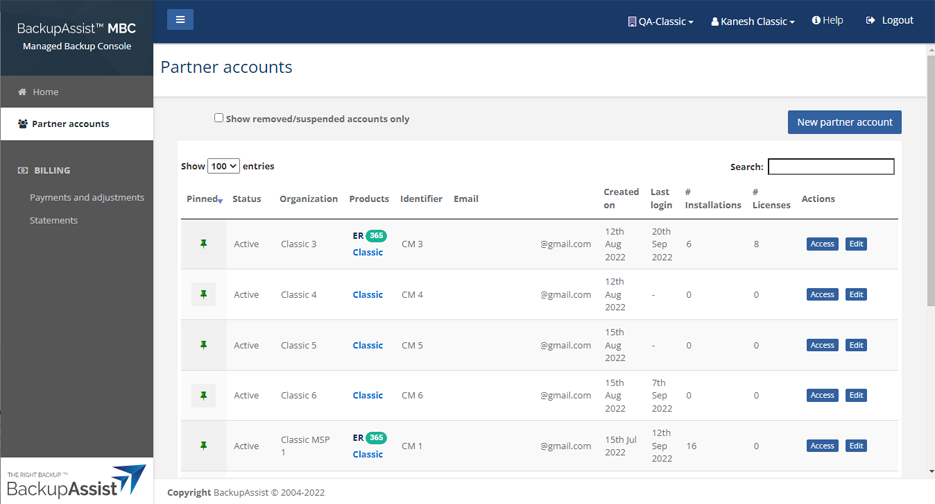
The new MSP will appear on the Partner accounts page and shown in the screenshot below.
-
The MSP can now activate their account.
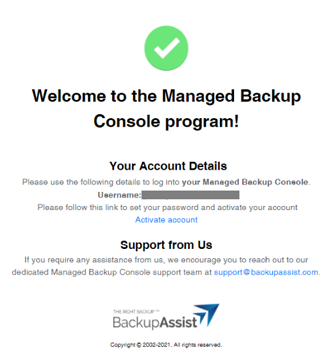
When you select Create account, the MSP is sent an email to advise that their MBC account has been created.
The email will include the username (email address) to use and instructions to set a password and activate the account. When the MSP clicks the Activate account link, the MBC portal will open and prompt the MSP to set the password.