This guide explains how to launch BackupAssist Classic jobs from the command line, retrieve job ID numbers, and select the appropriate execution switch for ad-hoc, unattended, retry, or automated scenarios.
Assumptions: These instructions assume BackupAssist Classic v15 is installed in the default directory.
Command syntax and location
By default, the launcher executable is located in the BackupAssist v15 installation directory:
"C:\Program Files (x86)\BackupAssist v15\BackupAssistManualLauncher.exe" <JobNumber> [Parameter]
1. Get the base launch command
Open BackupAssist Classic.
- Go to Jobs → Overview.
- Select the required backup job. For this example, our backup job is Blanco Svr to NAS.
-
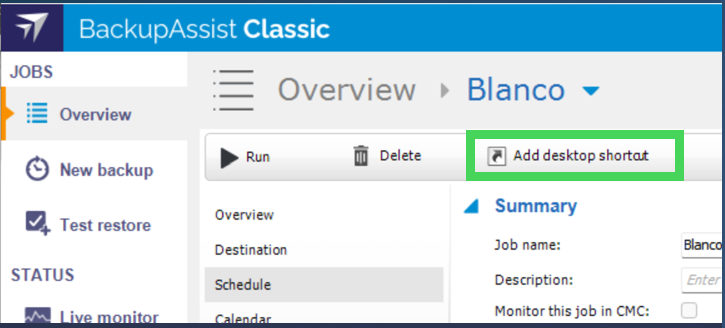
Right-click the job, or open its context menu, and select Add desktop shortcut.
-
Locate the shortcut on your desktop.
- Right-click the shortcut and select Properties.
-
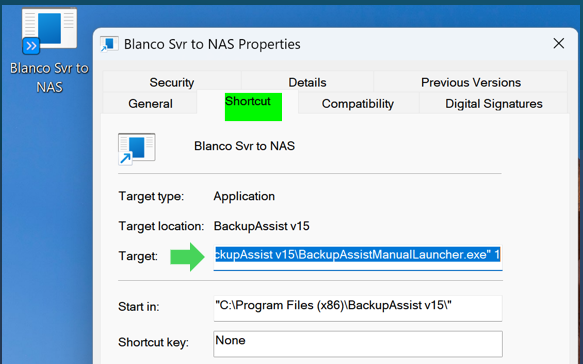
On the Shortcut tab, locate the Target field.
-
Copy the complete contents of the Target field. This is your base command. Proceed to Step 2. Choose how to run the job.
The Target field should contain the path to
BackupAssistManualLauncher.exe, followed by the job number.
Alternative method: manually build the launch command from the job number
If you have direct access to the BackupAssist console, you can reveal the job ID, then combine it with the launcher executable path to create the same base command manually:
- In BackupAssist Classic, navigate to Jobs → Overview.
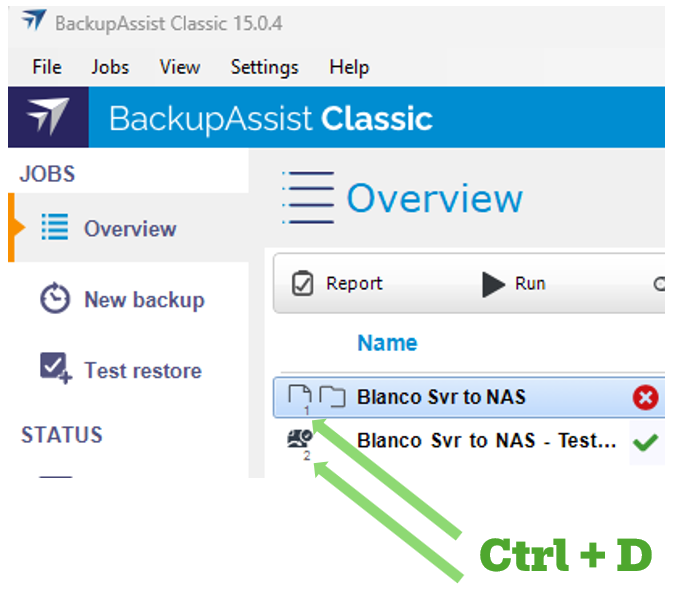
- Press Ctrl + D.
- Each job will now display its assigned numeric ID beneath the job name or icon.
For example:
- Blanco Svr to NAS = job number
1 - Blanco Svr to NAS – Test… = job number
2
Combine the job number with the default launcher path to form the base command:
"C:\Program Files (x86)\BackupAssist v15\BackupAssistManualLauncher.exe" 1
After you have the base command, proceed to Step 2. Choose how to run the job.
2. Choose how to run the job
Open an elevated Command Prompt (Run as administrator), enter the base command from Step 1, and append the required parameter switch at the end.
For example:
"C:\Program Files (x86)\BackupAssist v15\BackupAssistManualLauncher.exe" 1 -i
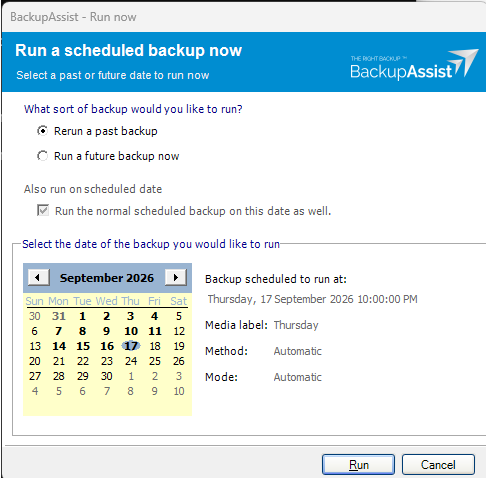
If no parameter is provided, an interactive BackupAssist – Run now graphical user interface (GUI) will launch.
Parameter options
BackupAssistManualLauncher.exe accepts several optional switches to control user interactivity and calendar impact:
| Command pattern | Interactivity | Consumes next scheduled slot? | Best use case |
|---|---|---|---|
...exe <JobNumber> |
Interactive; prompts the user. | Yes | Interactive manual run. |
...exe <JobNumber> -u |
Unattended; silent. | Yes | Unattended run intended to replace the next scheduled backup. |
...exe <JobNumber> -i |
Unattended; silent. | No | Automated retry or catch-up run that preserves all future scheduled backups. |
Why -i is recommended for automation and retries
When using -u on a backup job with a recurring daily schedule, such as Monday to Friday at 10:00 PM:
- If Thursday night’s 10:00 PM job fails and an automated retry runs on Friday at 11:30 AM with
-u, BackupAssist allocates Friday night’s 10:00 PM slot to that midday run. - As a result, Friday night’s scheduled 10:00 PM backup will be skipped. If another retry triggers, it begins consuming Monday’s slot from the following week.
When using -i in the above scenario:
- The catch-up run executes silently in the background.
- It logs as an ad-hoc run and does not consume any upcoming calendar slots. This ensures the next scheduled backup (Friday at 10:00 PM) still runs as planned without manual intervention.
Once executed, the process launches asynchronously and control returns immediately to the command prompt.
For more automation options, see Scripting in BackupAssist.
In BackupAssist v15.0.4,
BackupAssistManualLauncher.exedoes not emit exit codes to indicate whether a job completed successfully, failed, or encountered errors.
3. Verify job completion
Because command-line runs execute asynchronously without command-line status output, verify execution status through the BackupAssist console:
- Open BackupAssist Classic.
- Navigate to Reports.
- Review the latest generated report to confirm successful job completion and verify that no errors were encountered.