Edit Job : Calendar
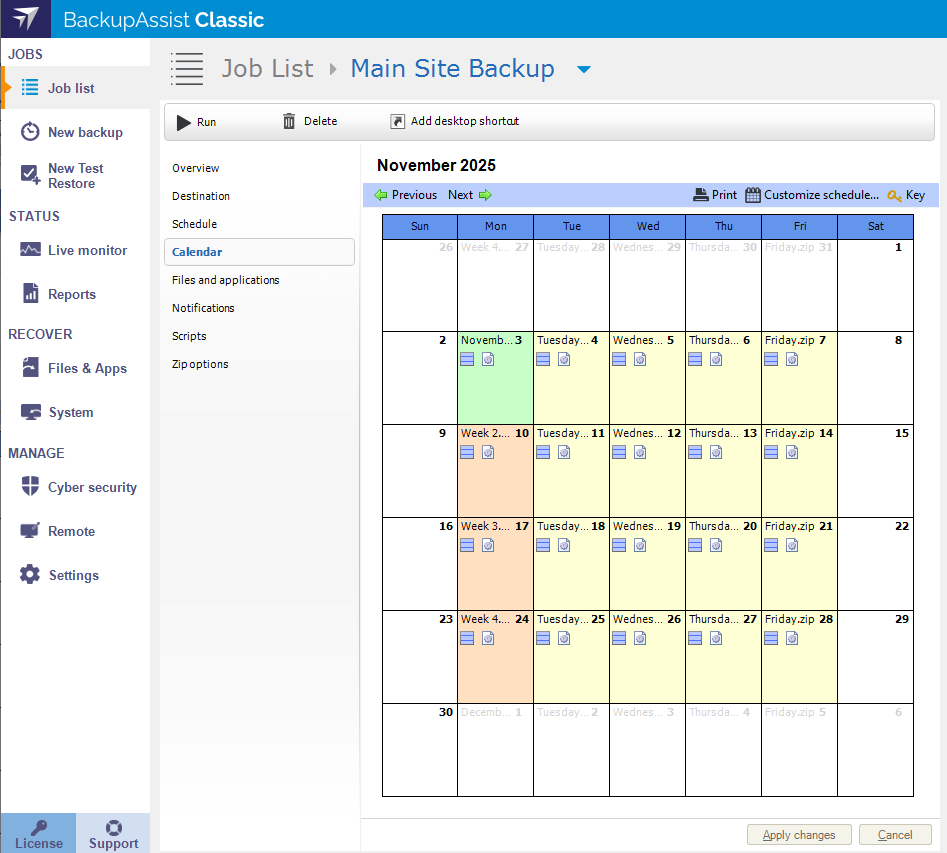
The Calendar section offers an easy to follow visual representation of the selected media rotation scheme. It helps you see when and what types of backups are scheduled to occur, as well as details about each backup day in the rotation scheme. Selecting Previous or Next, allows you to cycle through the months of your rotation scheme. To show the Calendar screen, edit your backup job and then select Calendar from the list on the left.
Below is a list of the sections and options available. What you see in BackupAssist will depend on the backup job's current settings.
Print
Selecting print will open your printer dialog to print out a copy of the calendar.
Customize schedule
Method and Mode
The Method is used to change the way data is added to each backup and should not be confused with the Custom scheme. The methods available are full, differential, incremental and copy., and the options available will depend on the backup type. The Mode will be set to automatic.
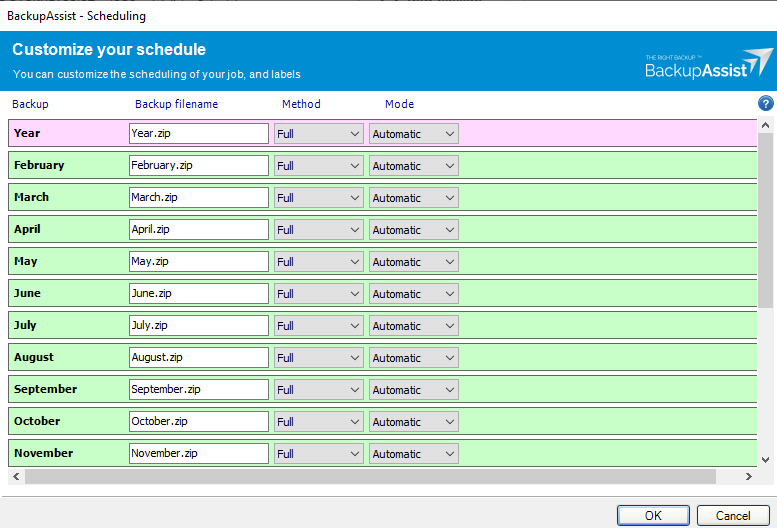
The methods available are as follows:
- For File Protection backups, the method is fixed to automatic because it is managed by BackupAssist due to the incremental imaging technology used. To learn more about incremental image backups, see Windows settings
- For File Archiving backups, you can change the method used (e.g. full, differential & incremental).
- For File Protection backups, the method can only be set to automatic because Single Instance Store (SIS) is used. SIS can provide the benefits of an incremental backup in a full backup format.
Portable media options
- Check Swap media before backup for each media item required. Media swapping will determine if a reminder notification is sent out via BackupAssist for a media item. If media swapping is disabled, no reminder will be delivered for the media because no media change is required.
- Check Eject after backup for each media item required. BackupAssist will then automatically eject your backup media after each backup has been completed. This will ensure that backup media is not overwritten when the next backup runs.
Key Symbol
Selecting the Key symbol in the top right will open a legend. The Calendar Legend demonstrates the various colors used in the calendar view to denote the different backup days you have scheduled.