Run scripts before or after a backup
The Scripts section allows you to add scripted processes to the backup job. Before adding custom scripts, please check BackupAssist and the help files to see if the function you require is already available. To show the Scripts screen, edit your backup job and then select Scripts from the list on the left.
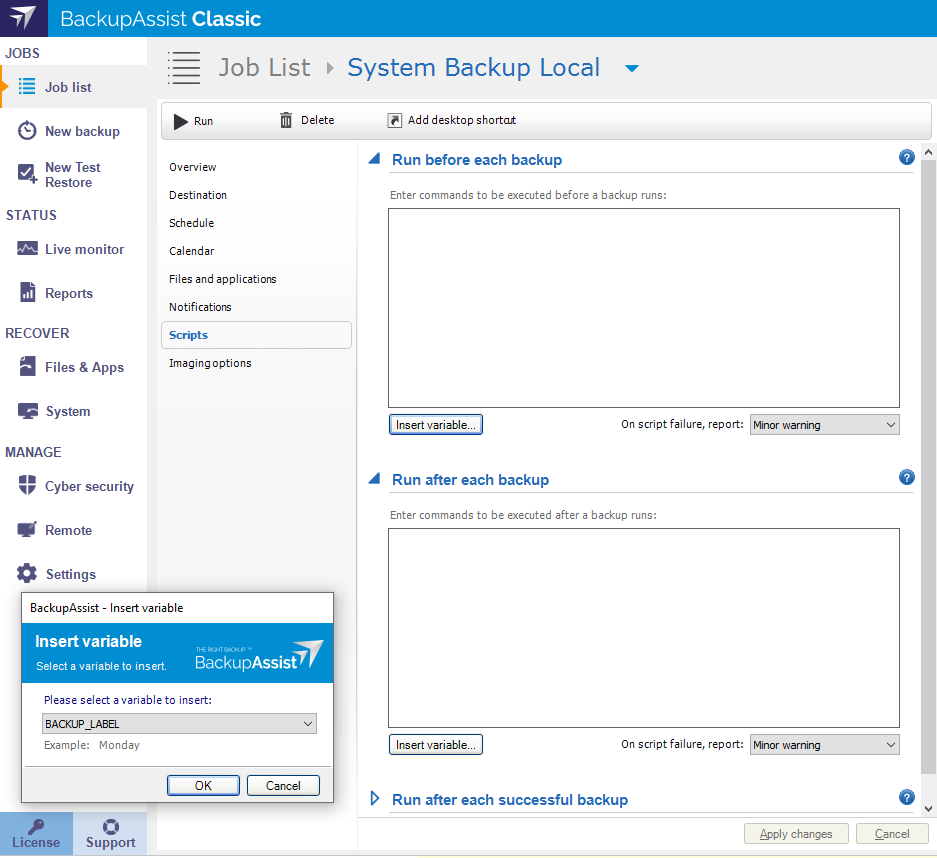
Below is a list of the sections and options available. What you see in BackupAssist will depend on the backup job's current settings.
Run before each backup
The four script fields are used to add scripts that will run before or after each successful or failed backup.
This script runs before any other backup step. You can add scripts here for authenticating to network resources, setting up backup folders or suspending programs that could interfere with the backup, such as anti-virus applications.
Considerations
- Any command that works within a .bat file will work in a BackupAssist script.
- Flow control, such as if and goto statements, will work in a BackupAssist script.
Note
Once a backup job with scripting has been created, it should be tested using the Run option in the Manage screen.
Run after each backup
The four script fields are used to add scripts that will run before or after each successful or failed backup.
This script runs after all the other steps in the backup process have been completed. You can add scripts here to disconnect from network resources, restart any programs that were previously suspended, or to perform any number of post-backup operations.
Considerations
- Any command that works within a .bat file will work in a BackupAssist script.
- Flow control, such as if and goto statements, will work in a BackupAssist script.
Note
Once a backup job with scripting has been created, it should be tested using the Run option in the Manage screen.
Run after each successful backup
The four script fields are used to add scripts that will run before or after each successful or failed backup.
This script runs before the After each backup script, but only if the backup completed successfully. You can enter commands here that you only want executed if the backup succeeded, such as copying the backup file to another location, or compressing the backup file.
Considerations
- Any command that works within a .bat file will work in a BackupAssist script.
- Flow control, such as if and goto statements, will work in a BackupAssist script.
Note
Once a backup job with scripting has been created, it should be tested using the Run option in the Manage screen.
Run after each failed backup
The four script fields are used to add scripts that will run before or after each successful or failed backup.
This script runs just before the After each backup script, but only if the backup fails to complete. This is useful if you want to send a network broadcast alerting someone quickly after a failed backup, or to clean-up folders and quarantine failed backups.
Considerations
- Any command that works within a .bat file will work in a BackupAssist script.
- Flow control, such as if and goto statements, will work in a BackupAssist script.
Note
Once a backup job with scripting has been created, it should be tested using the Run option in the Manage screen.
How to enter scripts
The following section explains how to set up BackupAssist scripts.
Inserting variables
You can customize your script by inserting unique variables. A list of variable descriptions can be found in the variable's section below.
To add a variable:
- Click Insert variable.
- Choose a variable from the list.
The variable will now be inserted into your script, enclosed with percentage signs.You can insert as many additional variables as required.
An example with two variables: net send Administrator "Backup %JOB_NAME% about to start to the %JOB_NAME% backup job"
This command will send a network broadcast to the Administrator user with the message (example): "Backup SQL Data about to start to the SQL Data backup job"
Failure reporting
You can determine how a failed script is flagged within the backup report by using the On script failure report drop-down menu.
No error
If the script fails to execute, the overall status of the backup job will not be affected.
Minor warning
If the script fails to execute, a minor warning will be logged and then displayed in the backup report.
Major warning
If the script fails to execute, a major warning will be logged and then displayed in the backup report.
Error
If the script fails to execute, an error will be logged and then displayed in the backup report. The job will also terminate at this point before completing any further processes. This is useful for the Before backup script if you want to stop the backup job from running if the script fails.
Script samples
Below are some examples of scripts for compression, file renaming and copying, service restarts and connection retries.
Compression using 7za
To compress your backup file, type the following command in the After each successful backup section:
“[Install Directory]\7za.exe” a -y “%BACKUP_FILENAME%.zip” “%BACKUP_FILENAME%”
For example:
“C:\Program Files\BackupAssist\7za.exe” a -y “%BACKUP_FILENAME%.zip” “%BACKUP_FILENAME”
‘a’ stands for archive, and -y answers ‘yes’ to any 7za prompt. Following this command you will most likely want to remove the original uncompressed file. This is achieved simply by entering:
del “%BACKUP_FILENAME%”
To add a password to the compressed file, use the -p argument like this:
“[Install Directory]\7za.exe” a -p[Your Password] -y “%BACKUP_FILENAME%.zip” “%BACKUP_FILENAME%”
Copying a file
Normally, if you need a copy of the backup file you can use the Keep local copy or Create second backup copy options found in the destination settings of your backup job. If you need an additional copy to be stored in another location, or you want to copy .pst, .tlog or any other files after the backup, you can use the xcopy command.
xcopy [Source] [Destination] /e /i /k /y
Restarting services
Sometimes restarting a service before a backup can help eliminate errors. Common services that benefit from restarting before backups are the Removable Storage Manager service and the Volume Shadow Copy service.
To restart the Removable Storage Manager service type the following into the ‘before each backup’ section:
net stop ntmssvc
net start ntmssvc
To restart the Volume Shadow Copy service: net stop vss``net start vss
The names for other services can be found by going to the Windows Control Panel > Administrative Tools > Services, and right-clicking the service and selecting Properties.
Retrying a network connection
set count_=
set target_=!!!!!
:LOOP
set count_=%count_%!
net use \\192.168.1.1\users /user:[user] [pwd]
NETERRLEV=%ERRORLEVEL%
if %NETERRLEV% == 0 goto SUCCESS
if "%count_%"=="%target_%" goto ENDLOOP
ping 24.24.24.24 -n 1 -w 5000
goto LOOP
:ENDLOOP
if %NETERRLEV% == 2 goto SOMETHING
if %NETERRLEV% == 1 goto NOPATH
goto END
:SUCCESS
Echo "the map was successful"
goto END
:NOPATH
echo "path was not found”
goto END
:SOMETHING
echo "something happened"
goto END
:END
Script variables
Below is a list of the variables available for pre backup scripts and post backup scripts
Pre backup variables
Scripts that are run before each backup can make use of any of the following variables:
BACKUP_FILENAME - the filename of the backup including the full path e.g. ‘D:\Backups\Monday.bkf.
BACKUP_LABEL - the label that BackupAssist has given this backup; this does not necessarily match tape labels or filenames. E.g. ‘Week 2’, ‘Monday’ or ‘Month 1’.
BACKUP_METHOD - a variable describing whether the backup’s is overwrite or append.
BACKUP_SIZE - the size of the backup in bytes.
COMPUTER_NAME - the name of the computer performing the backup.
EJECT_AFTER_BACKUP - whether the media is to be ejected after the backup (‘true’ or ‘false’).
FREQUENCY_TYPE - whether this is a monthly, weekly, yearly, quarterly or daily backup.
IS_MEDIA_CHANGE - whether the media was to be changed before the backup.
JOB_NAME - the name of the backup job set in the ‘Overview’ section.
MEDIA_LABEL - same as the backup label.
RUN_LENGTH - the amount of time the backup took to run.
SCHEDULED_TIME - ihe time this backup job is scheduled to run.
SCHEDULED_DATE - the date this backup job is scheduled to run.
STATUS - whether the backup succeeded or failed.
START_TIME - the time the backup starts.
START_DATE - the date the backup starts .
You can specify the date or time format by adding :{} , eg. %START_TIME:{HH:mm}.
The string inside { } can be either a standard date/time format string or a customized date/time format
- Standard date/time format: https://msdn.microsoft.com/en-us/library/az4se3k1(v=vs.110).aspx
- Customized date/time format: https://msdn.microsoft.com/en-us/library/8kb3ddd4(v=vs.110).aspx
Post backup variables
In addition, scripts that are run after each backup can make use of the following variables:
BACKUP_SIZE - the size of the backup in bytes.
RUN_LENGTH - the amount of time the backup took to run.
STATUS - whether the backup succeeded or failed.