Cloud storage
Cloud backups allow you to back up your data to Amazon Web Services (AWS), Microsoft Azure, Wasabi, Backblaze and any S3 Compatible cloud storage destinations. BackupAssist has dedicated setup screens for these cloud service providers.
Getting cloud storage information
Most of your cloud backup configurations are provided by your cloud service provider. To change the settings of an existing Cloud Backup job, you may need to update or access your cloud storage information using your cloud provider's portal. Below are relevant information for AWS and Azure.
AWS
The Amazon Web Services portal allows you to create and update S3 cloud backup destinations.
How to get Amazon AWS storage keys
The Access Key ID and Secret Access Key are downloaded to a csv file when you create the IAM user account that the back job will use. Open this csv file when you create the backup job.
To learn more, see the Amazon guide here
Azure
The Microsoft AZURE portal allows you to create and update Azure cloud storage accounts.
How to get Azure connection strings
When backing up to a Microsoft Azure container, a connection string is used by the backup job to access the storage account. The connection string is entered in the Set up destination step when creating the backup job.
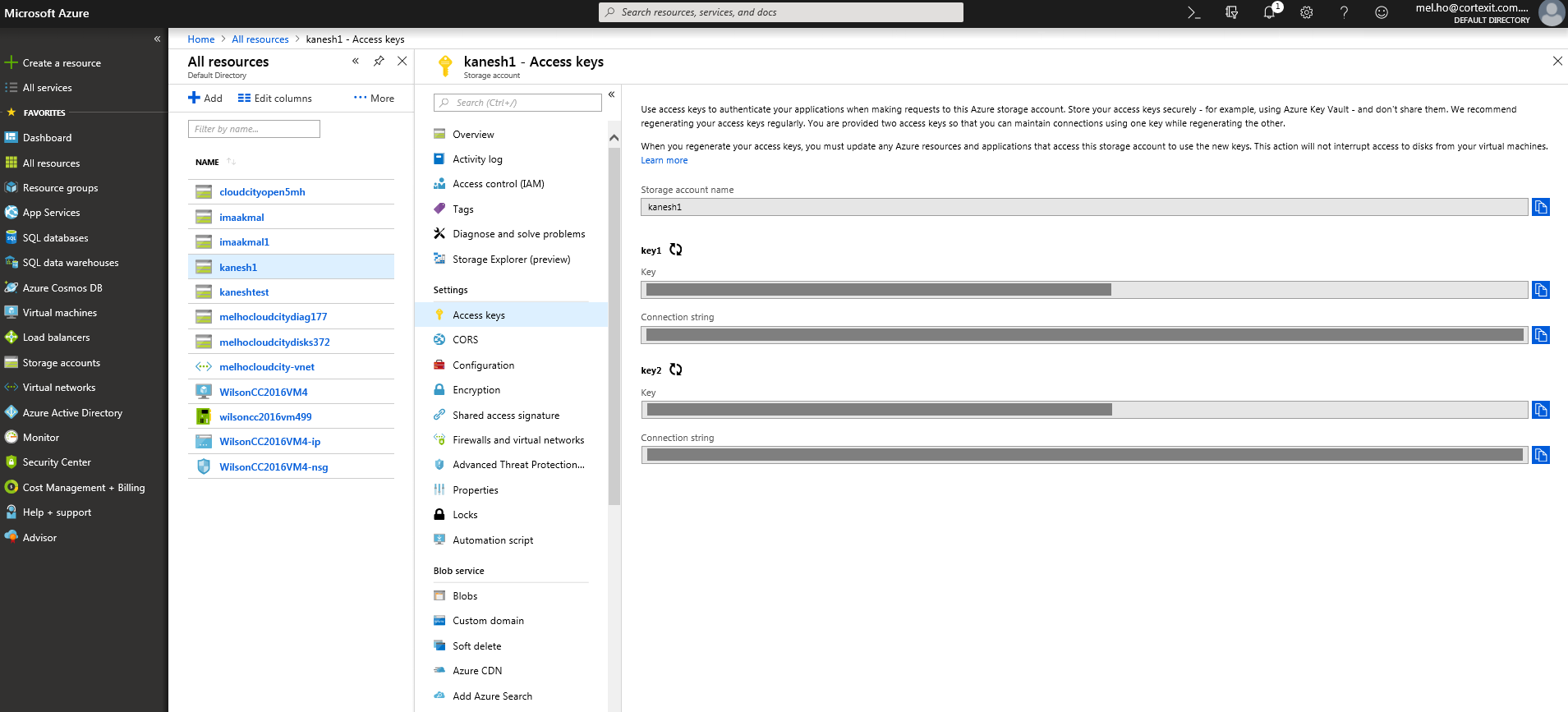
To locate the connection string:
-
Log into the Azure portal.
-
Select the Storage account from the Resources list.
-
Select Access keys from the list of Settings.
The dashboard will display the Keys and Connection strings for the selected storage account.
-
Using the copy button, select a Connection string from one of the key sections. E.g. under Key1.
-
Paste the connection string into the field provided.