Edit Job : Notifications
The Notifications option allows you to set up Reminder, Report and Maintenance notifications for backup jobs and backup media. The notification methods available depend on the notification type. To show the Notifications screen, edit your backup job and then select Notifications from the list on the left.
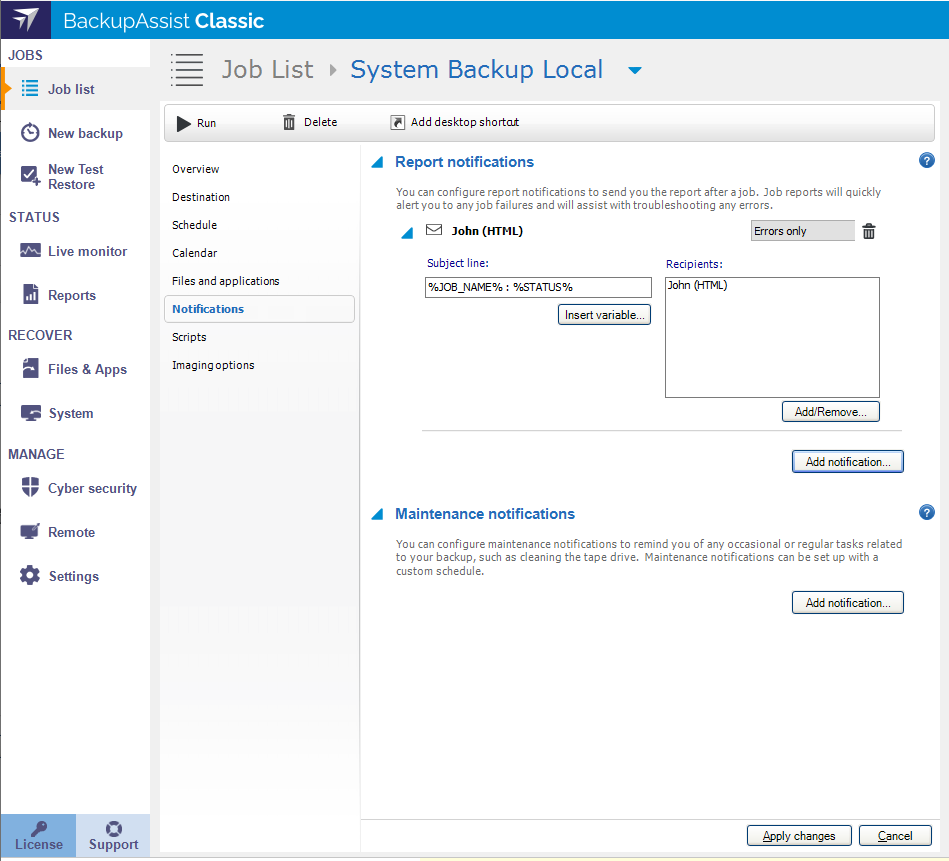
Below is a list of the sections and options available. What you see in BackupAssist will depend on the backup job's current settings.
Reminder notifications
Email notifications are used to ensure your media rotation scheme is followed and that the backup media was swapped correctly. The Reminder notifications option will only appear if removable media are used.
Before setting up email notifications, check that you have set up the email server in BackupAssist, and that you have an email distribution list set up in BackupAssist. To learn more, see Email server settings and Email address list
Adding a Reminder notification
-
Select the Add notification button.
-
Select the Time that you want the notification to go out and select Next
-
The subject line and message will be automatically filled in, but it can be modified by inserting more variables. Make the required changes and select Next.
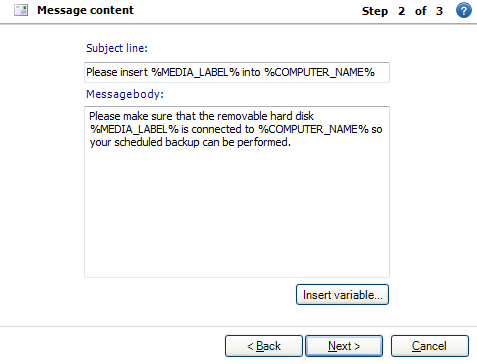
To add a new variable, select where you want to insert the variable and click Insert variable then choose a variable from the list. The variable will be inserted and enclosed with percentage signs (eg. %JOB_NAME%).
Example Input: %JOB_NAME% - Please insert tape %MEDIA_LABEL% into %COMPUTER_NAME% will produce the output: SQL Data - Please insert tape Monday into SBS-SERVER
-
Recipients can be selected using the list provided. This list is taken from the Email address list option in the BackupAssist Settings tab. You can also add new email addresses by typing them into the field provided and selecting Add.
-
Select Finish
Editing or deleting a Reminder notification
Once a notification has been created it will appear as an expandable notification under the Notification category. To view or edit a notification's settings, click the notification's name.
To edit a reminder notification:
- Edit the subject or message body by typing into the Subject line or Message body fields.
- Edit the time for the notification with the Time control to the right of the notification.
- Click Add /Remove to edit the notification's recipient list.
To delete a reminder notification:
- Click the Remove icon.
Report notifications
Email, printout or saved file reports are used to alert users to backup failures by delivering a detailed report. The report is delivered after the backup job has completed.
Report notifications contain useful information on how to resolve errors encountered during a backup.
To add a report notification:
-
Select the Add notification button
-
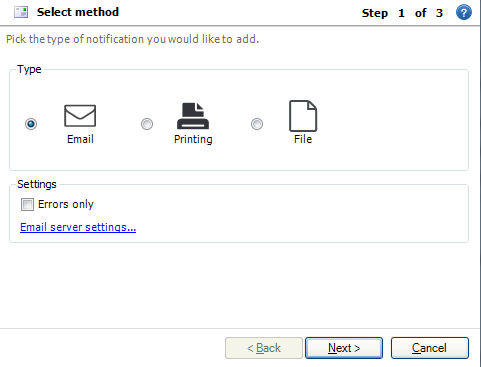
Select Email, Printing or File notification.
-
Tick the Errors only box if you only want the report to be run if there are errors.
-
Configure the selected format.
-
Email notifications
You can review and add variables to the Subject line. Add recipients by ticking the available names or adding email addresses using the field provided.
-
Printing notifications
Select the printer to be used for the printed report.
-
File notifications
Review the File name, specify a location to save the file to and select if you want an HTML or text file.
-
Editing or deleting a Report notification
Once a notification has been created it will appear as an expandable notification under the Notification category. To view or edit a notification's settings, click the notification's name.
To edit a report notification:
- Edit the subject or message body by typing into the Subject line or Message body fields. For Report notifications, the Message body field does not apply to reports as BackupAssist automatically fills in the body of each report notification.
- Click Add /Remove to edit the notification's recipient list.
To delete a report notification:
- Click the Remove icon.
Maintenance notifications
Maintenance notifications send emails that remind users to perform occasional or regular maintenance tasks such as tape drive cleaning or purchasing new media. These notifications can be set up with advanced scheduling options.
To add a maintenance notification:
-
Select the Add notification button
-
Select Next on the Select Method dialog
-
Input the Subject line and Message body for your maintenance reminder.
To add a new variable, select where you want to insert the variable and click Insert variable then choose a variable from the list. The variable will be inserted and enclosed with percentage signs (eg. %JOB_NAME%).
-
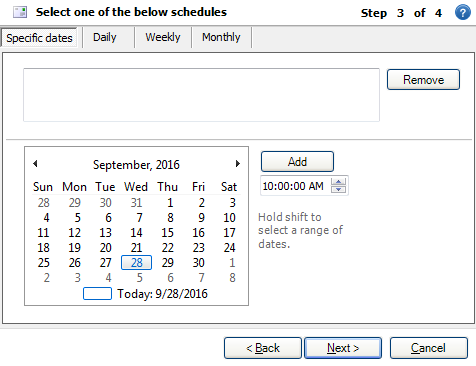
Set when the notification should be sent by choosing one of the tabs at the top of the dialog box. Only one of the following scheduling methods can be applied to each maintenance notification. You cannot combine options.
-
Specific dates
Click the date you require, or hold shift to select a range of dates, then choose the time you wish the notification to be sent and click Add. The selected dates will now appear at the top of the dialog. If required, you can remove dates by selecting them and clicking Remove. Example setup: send notifications on 02/30/2007 at 8am and on 04/30/2007 at 5pm.
-
Daily
Used to specify a recurring schedule for the maintenance notifications to be sent every X days. Select when the notification should be sent (ie. every X number of days), then select what time the notification should be sent. Example setup: send notifications every 3 days at 3pm.
-
Weekly
Used to specify a recurring schedule for the maintenance notifications to be sent every X weeks. Select when the notification should be sent (ie. every X number of weeks), then select what time the notification should be sent. Specify which days of the week the notification should be sent. Example setup: send notifications every 2 weeks at 3pm on Monday and Friday.
-
Monthly
Used to specify a recurring scheduling for the maintenance notifications to be sent every X months. Select when the notification should be sent (ie. every X number of months), then Select what time the notification should be sent. Specify what days of the month the notification should be sent. Example setup: send notifications every 3 months at 3 pm on the first Monday of the month.
-
-
Specify recipients.
Type in a new email address or select an existing address, then click Add. You can add as many additional addresses as required. Click Finish when you have added all required addresses.
Editing or deleting a Maintenance notification
Once a notification has been created it will appear as an expandable notification under the Notification category. To view or edit a notification's settings, click the notification's name.
To edit a maintenance notification:
- Edit the subject or message body by typing into the Subject line or Message body fields.
- Edit the notification's schedule by selecting the Schedule button and redoing your selection.
- Click Add /Remove to edit the notification's recipient list.
To delete a maintenance notification:
- Click the Remove icon.