Download a cloud backup for bare-metal recovery (BMR)
If you have a cloud backup of a System and Volume Backup, you can download that backup to a local storage which you can then use to run a bare metal recovery (BMR) or VM Instant boot. This topic describes how this download process works.
Download requirements
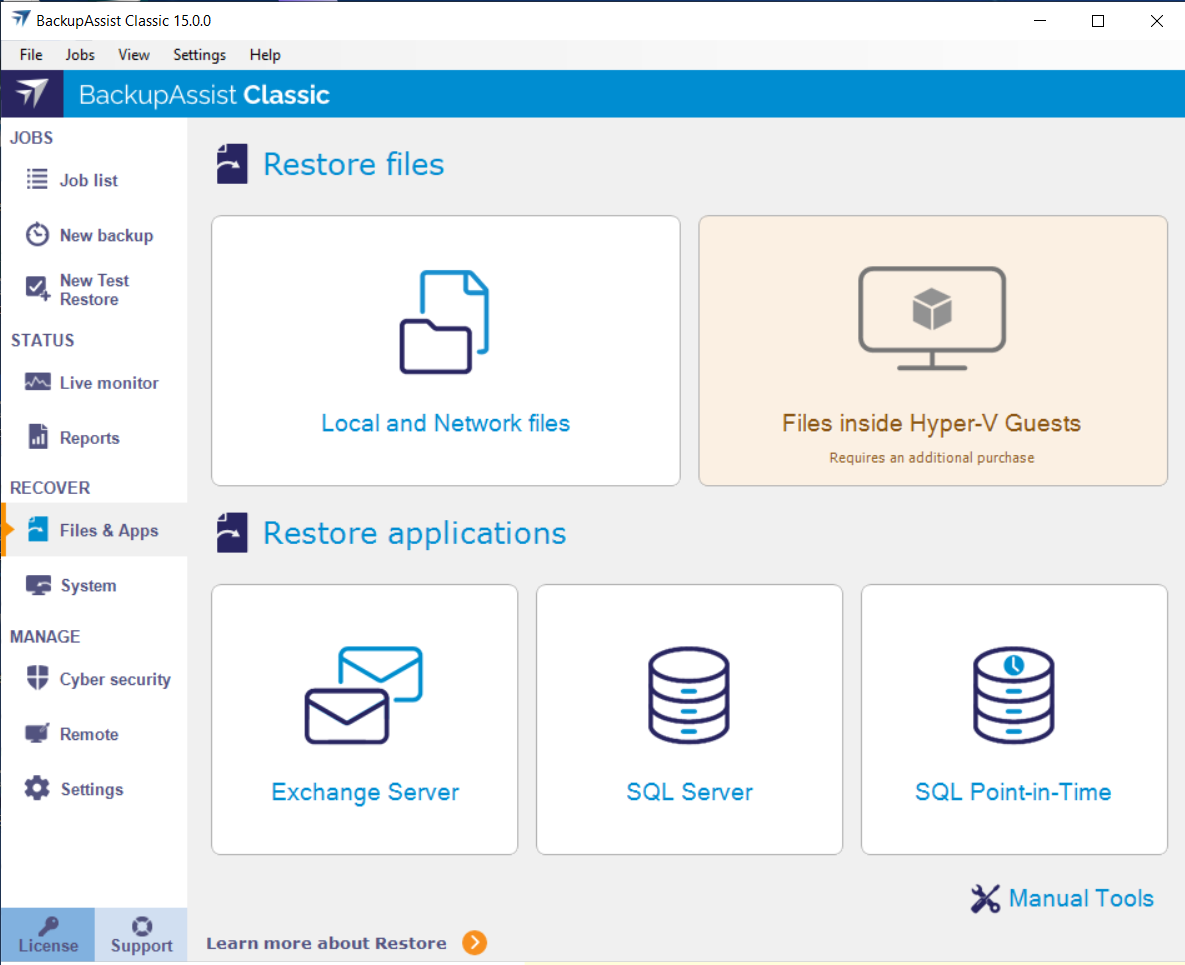
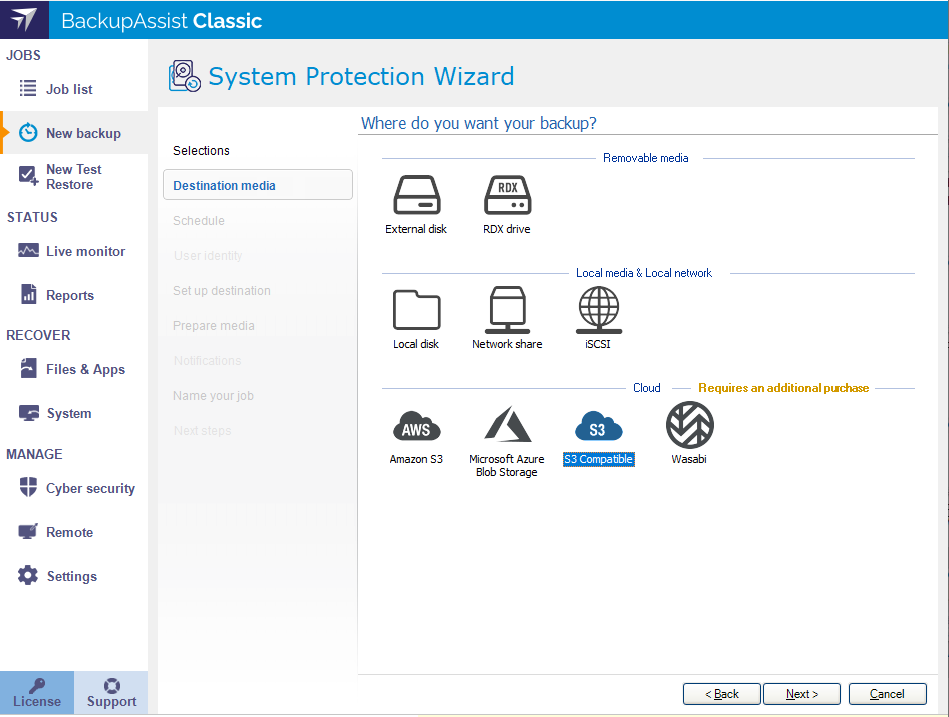
From v12.1.0 onwards, you are able to create cloud backups for a system image. Simply ensure that you have selected the BMR option in the selection step of your backup job. This will ensure that your backups are BMR capable and can be downloaded for system recovery or VM Instant boot.
How does it work
The cloud backup contains all the files from all the backed up volumes, along with meta-data of each volume. During a 'Download BMR backup' process, a virtual hard disk (VHDX) file is created for each volume that you can then use RecoverAssist to run Bare Metal Recovery or use VM Instant boot for fast business continuity.
Download BMR backup process
The following steps explain how to Download a BMR backup:
-
Select the backup to download
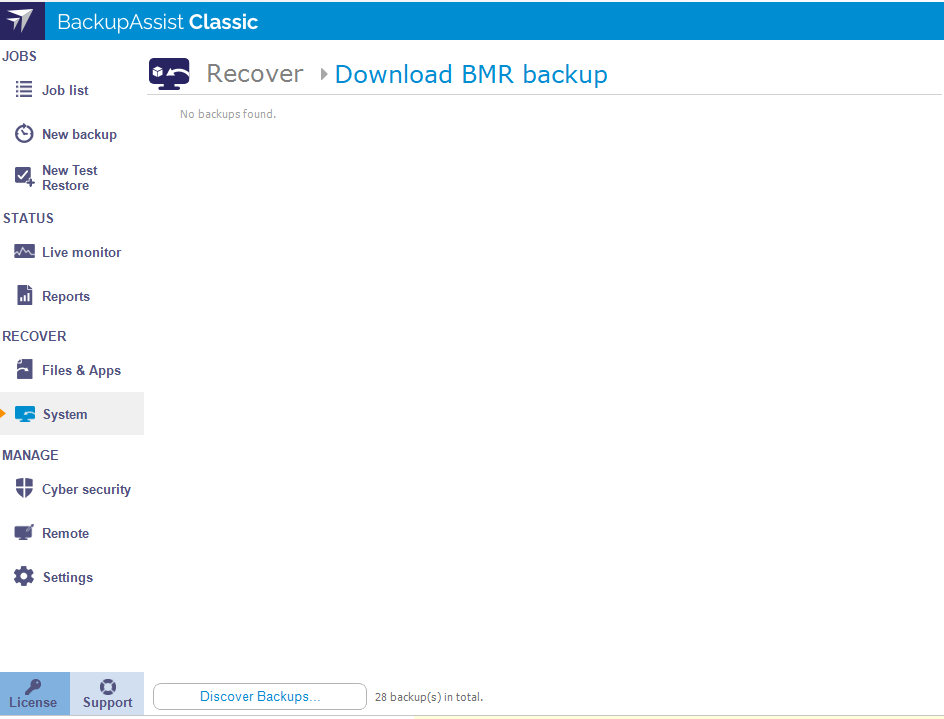
After clicking 'Download BMR backup' button from the RECOVER System tab, you would be presented with the list of cloud backups that are BMR capable.
To download a backup created by another machine, select Discover Backups... at the bottom of the screen.
Select the backup you would like to download.
-
Configure and start download
Once you selected a backup, the "Integrated Restore Console" will appear. Choose the volumes you want to download for the recovery, and configure where to download the VHDX files into.
To start the download process, click the 'Restore' button.