Edit a backup job
Once you have created a backup job, you can modify its settings using the Job list tab Edit option.
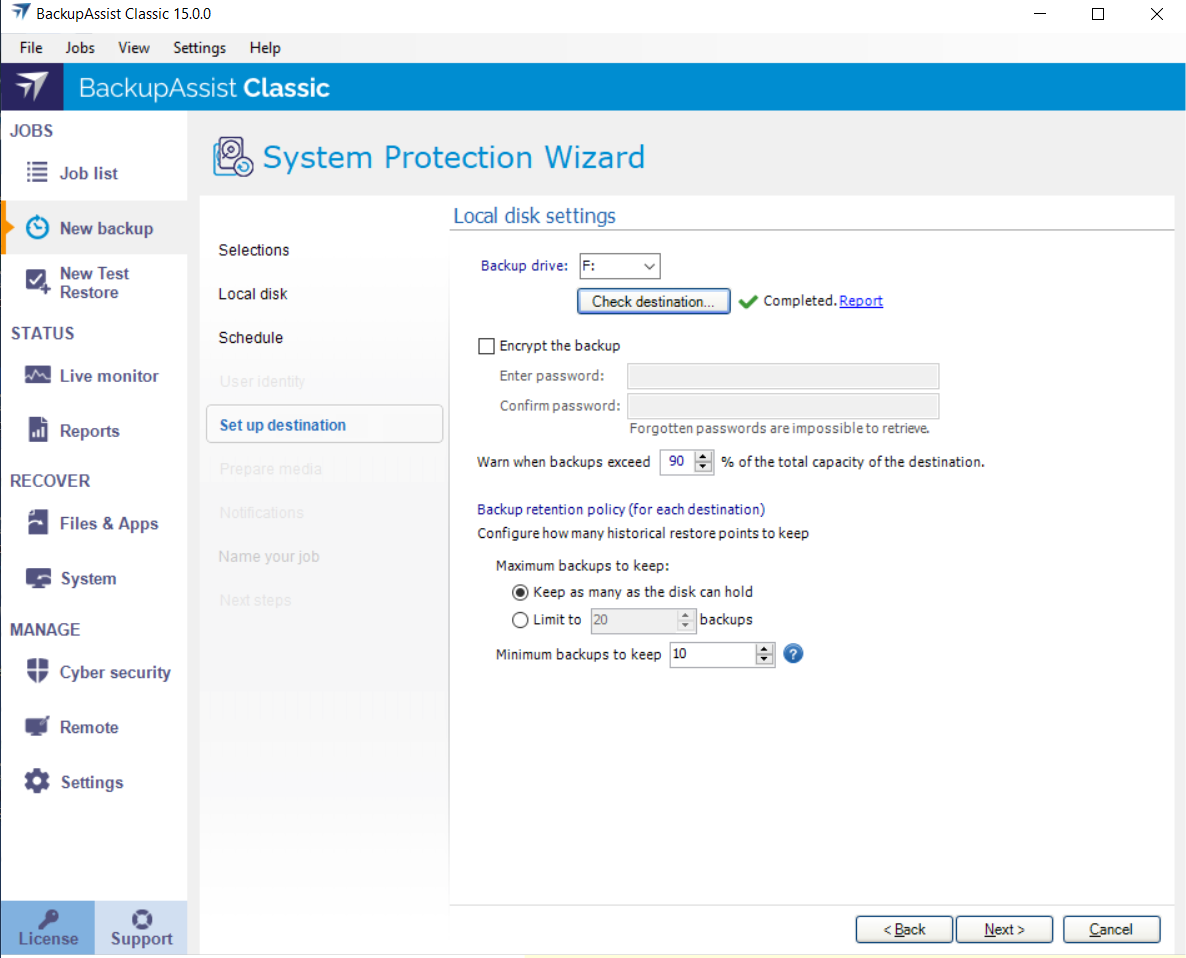
This allows you to change selections that were made when the job was created. There are also options that are not available when you create a backup job.
To modify a backup job:
- Select BackupAssist's Job list tab
- Select the backup job that you want to change
- Select Edit from the top menu
- Select the part of the job you want to change from the list on the left
- Once you have made the required changes, select Apply changes
There are 8 standard Edit options, similar to the steps completed during the backup job creation. There may also be backup specific options.
Overview
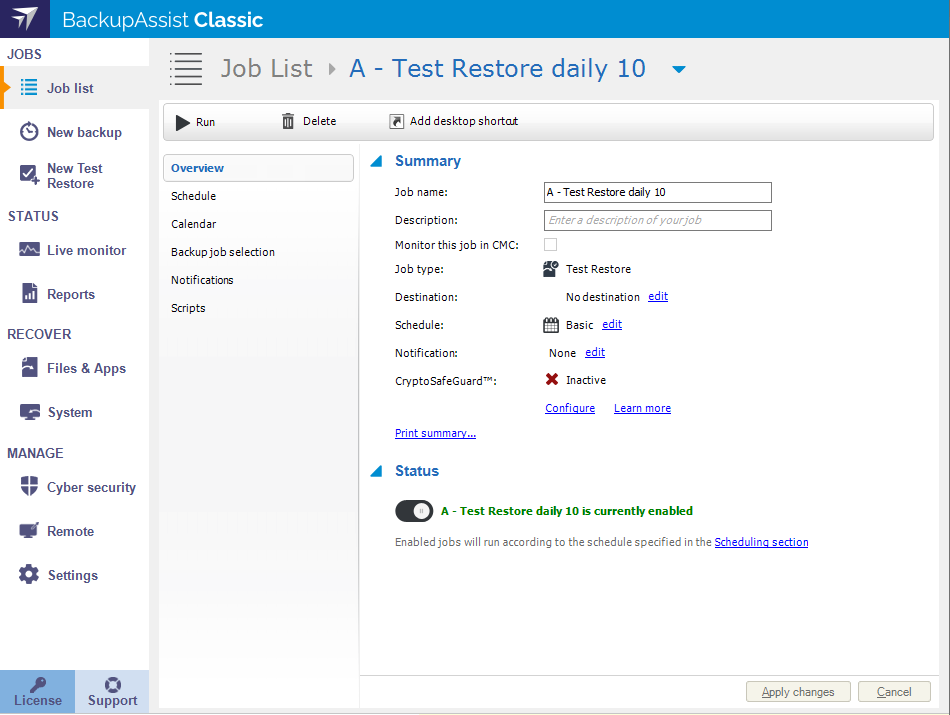
The Overview section allows you to view a summary of the backup job. You can also use this section to modify the Job name and Description, and to access the Schedule, Report and Reminder settings.
Job name and Description
Use the fields provided to change the backup job's name and description. This information can be used to identify the backup job in reports, remote tools and on the main Manage screen.
Monitor this job in CMC
This tick box will can be used by BackupAssist resellers to add the backup job to the Centralized Monitoring Console, and to include the backup activity in CMC's consolidated backup reports.
Edit options
The Schedule edit option provides a shortcut to the Scheduling section. The Report and Reminder edit options, provide shortcuts to the Notifications section.
Print Summary
This option opens the Windows Print dialog, and allows you to print a summary of the backup job. The summary will include the information shown in the Overview section.
Status
This option allows you to enable or disable the backup job by clicking on the switch graphic. Enabled jobs will run according to the schedule specified in the Scheduling section.