BA1521: One or more databases were not found
| Error code | Product | Applies to |
|---|---|---|
| BA1521 | BackupAssist | For BackupAssist 10.5.2 or later. |
Description
The SQL Protection job may not have backed up all of the databases selected in the backup job. This could be due to a timeout between BackupAssist and the SQL Server, or a difference in the selected databases and the databases that currently exist.
Resolution
Resolution 1 - Check that databases selected in the backup job are correct
Review the list of databases selected in the backup job and the databases that exist in the SQL Server.
- Check if any database names have changed in SQL. If they have, update the backup job so that it includes any renamed databases and does not use old database names.
- Check that the databases selected in the backup job still exist in the SQL Server. If any databases no longer exist, remove them from the backup job.
To modify an SQL Protection backup job:
-
Open BackupAssist.
-
Select Manage Backup Jobs
-
Select the backup job.
-
Select Edit from the top menu
-
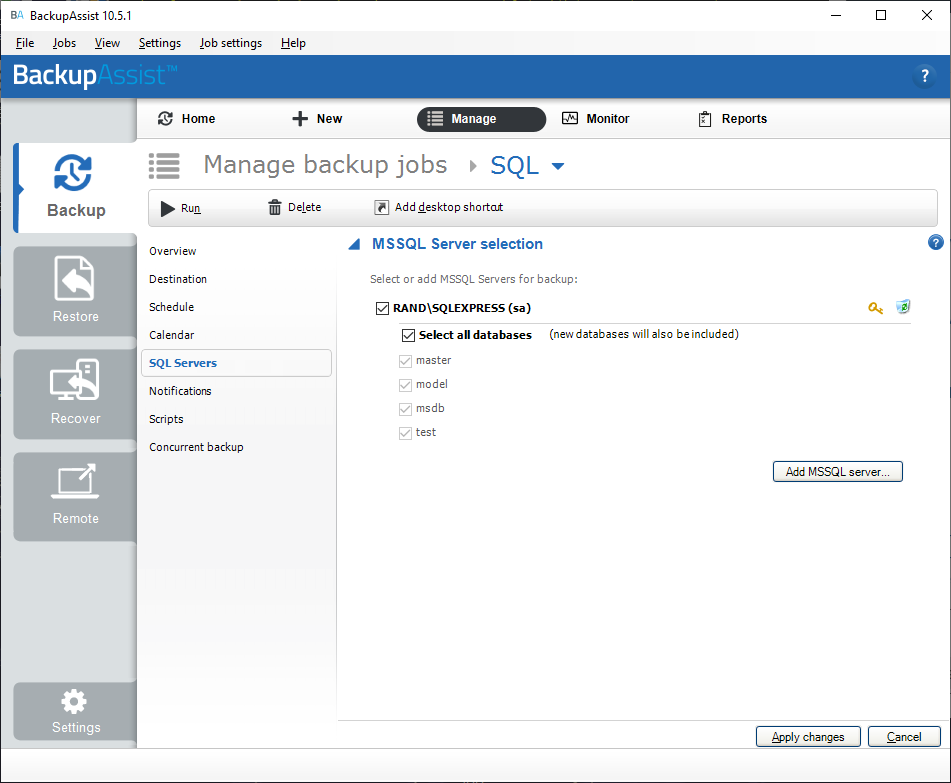
Select SQL Server.
-
Make the required changes.
- To remove a database - remove the tick from the database.
- To add a database - use the delete icon to remove the database and select Add SQL Server to add an updated database list.
Note
If you are unable to get the databases in the backup job to match the databases on the SQL Server, recreate the SQL Protection backup job.
Resolution 2 - Increase the SQL Protection backup's timeout
When running an SQL Protection backup, BackupAssist communicates with the SQL Server to retrieve the list of databases. If this process takes to long, a timeout will take place and BackupAssist can be left with an incomplete list of what databases are present for the backup job.
Increasing the timeout can resolve this problem, and the process will require the assistance of BackupAssist Technical Support.
To contact BackupAssist Technical Support and provide diagnostic information, please click on the applicable section below and follow the steps provided.
If you are using BackupAssist v9.5.1 or later
- Open BackupAssist.
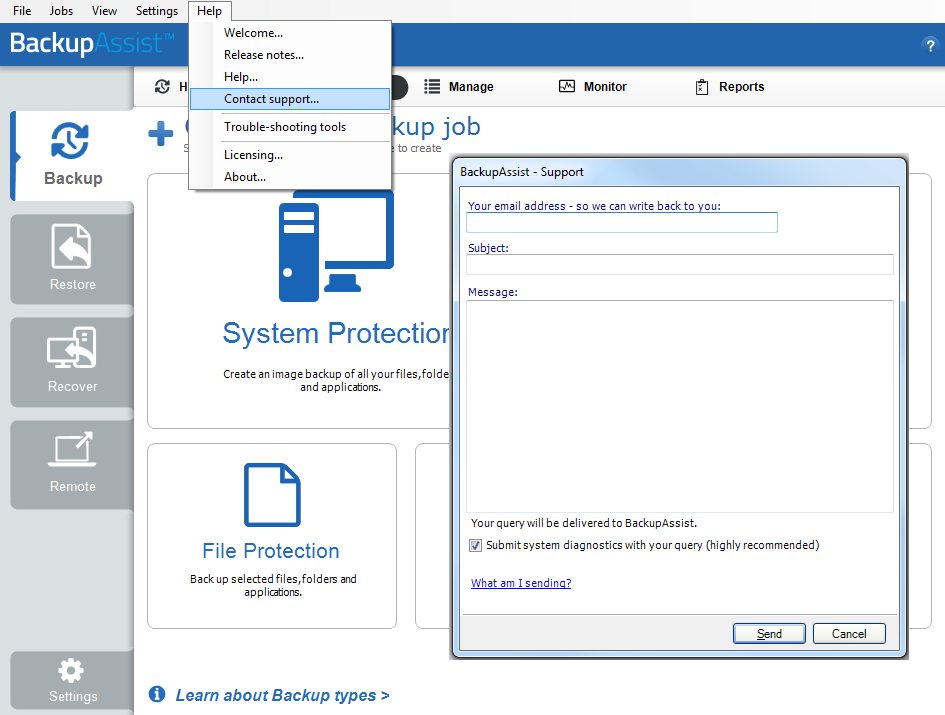
- Select Help from the menu at the top of the BackupAssist console.
- Select Contact Support ... from the drop-down menu. This will open the BackupAssist - Support dialog.
- Enter the details in the fields provided.
- Make sure the Submit system diagnostics to help with your query tick box is checked. This will zip your BackupAssist settings so technical support can review these specifically for your environment.
- Select Send.
BackupAssist technical support will review your message and diagnostics, and contact you to help resolve the problem.
If you are using BackupAssist v9.5.0 or earlier
- Open BackupAssist.
- Select Help from the menu at the top of the BackupAssist console.
- Select Feedback and Support … from the drop-down menu.
- Select Contact support. This will open the BackupAssist - Support dialog.
- Enter the details in the fields provided.
- Make sure the Submit system diagnostics to help with your query tick box is checked. This will zip your BackupAssist settings so technical support can review these specifically for your environment.
- Select Send.
BackupAssist technical support will review your message and diagnostics, and contact you to help resolve the problem.
| Last updated | Created | Further assistance |
|---|---|---|
| 4th March 2020 | 4th March 2020 | BackupAssist Support page |