BA1004: The logfile from NTbackup was blank
End of life
BackupAssist v8 and later don't use NTBackup. This article applies to BackupAssist v7 and earlier, which reached end of life on 30 September 2016 and no longer receive technical support. See Software end of life.
| Error code | Product | Applies to |
|---|---|---|
| BA1004 | BackupAssist | BackupAssist v3 and later |
Description
The log file has been created and found but is empty. Normally this means that the backup has not been successful.
Resolution
Resolution 1 Scheduling conflicts
This section explains VSS and device conflicts. Refer to the section applicable to your issue.
VSS conflicts: Having two backup jobs running at the same time within BackupAssist can cause errors if both backup jobs are trying to run VSS. Ensure that only one backup job is running at any one time.
Hardware conflicts: Conflicts with backup devices can occur when another process is trying to use the backup destination at the same time as BackupAssist. Make sure that there are no scheduled tasks, particularly backup tasks, that run at the same time as your scheduled backups.
To confirm that this is a scheduling issue try running a backup during the day, or try changing the scheduled time of your backup by a few hours. If these backups work, the problem is likely to be a scheduling conflict.
Resolution 2 Process terminating
If the NTBackup process is terminated for any reason before the backup is completed, it will produce a blank logfile. In particular, if you have turned on automatic updates, make sure they are set to 'Download only'. If the computer restarts due to an automatic update you will receive this error. You will also receive this error if a user terminates the NTBackup.exe process using the task manager.
Resolution 3 Using IP addresses in network paths
NTBackup cannot recognise IP addresses. If you create a network path that includes an IP address NTBackup can fail with this error. To resolve this issue go to Settings > Network paths and edit the network path to use the NETBIOS name of the remote machine instead of the IP address.
Resolution 4 Make sure a Backup User Identity is configured.
Check that the backup job is using a Backup User Identity (BUI).
For BackupAssist 10.4.2 and earlier
BackupAssist jobs run using a Windows user account that has the access required to perform a backup job. This account must be created in Windows and then set up in BackupAssist before running your backup job.
Once you have created this account, assign it to BackupAssist as follows:
- Open BackupAssist
- Select the Settings tab
- Select Backup User Identity.
- Click on Provide a Backup User Identity.
- Enter the account's username, password and the account's domain.
- Click Ok.
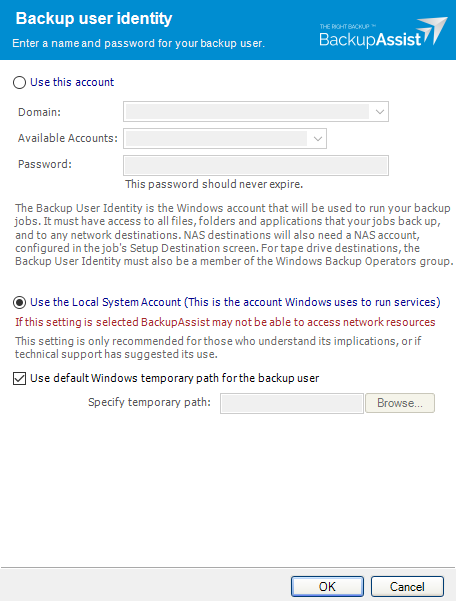
If backup account's password is changed in Windows, it will need to be changed in BackupAssist. You can also use these steps to change the password.
Note
Make sure that the Backup User Identity account has permissions that will give it access to the directories and applications that you are backing up and access to the destination / media that you are backing up to.
For BackupAssist 10.4.3 and later
For BackupAssist 10.4.3 and later, a Backup User Identity is only used when running jobs that have a NAS destination or the SQL add-on. You will be prompted to select an account when creating a job or modifying a job to use a NAS or the SQL add-on. The account selected will be a member of the administrators group and will have the required access.
If you get this error message, check that the account is still selected, enabled and a member of the administrators group.
To learn more, see Backup user identity
| Last updated | Created | Further assistance |
|---|---|---|
| 8th June 2017 | 16th Mar 2007 | BackupAssist Support page |