BA1389: NTBackup could not find selected tape media pool
End of life
BackupAssist v8 and later don't use NTBackup. This article applies to BackupAssist v7 and earlier, which reached end of life on 30 September 2016 and no longer receive technical support. See Software end of life.
| Error code | Product | Applies to |
|---|---|---|
| BA1389 | BackupAssist | BackupAssist v4 and later |
Description
BackupAssist will launch NTBackup to perform the backup to the tape drive and media pool specified in your job settings. However, the media pool could not be found has become invalid.
Resolution
To resolve this issue, please make sure:
- The Windows drivers are installed for your tape drive.
- You can run NTBackup and perform a manual backup to your tape drive. Make a note of the media pool that is selected when you run your backup (in the lower left corner of the NTBackup window)
- Check your backup job, and make sure that your media pool (in the Destination tab) matches the setting from NTBackup (performed in the previous step).
Note
There are other backup software packages, such as Backup Exec, that may uninstall the Windows drivers for your tape drive and install its own. However, this means that no other programs (including BackupAssist) will be able to use the tape drive.
If these steps do not resolve the issue, please contact support.
To contact BackupAssist Technical Support and provide diagnostic information, please click on the applicable section below and follow the steps provided.
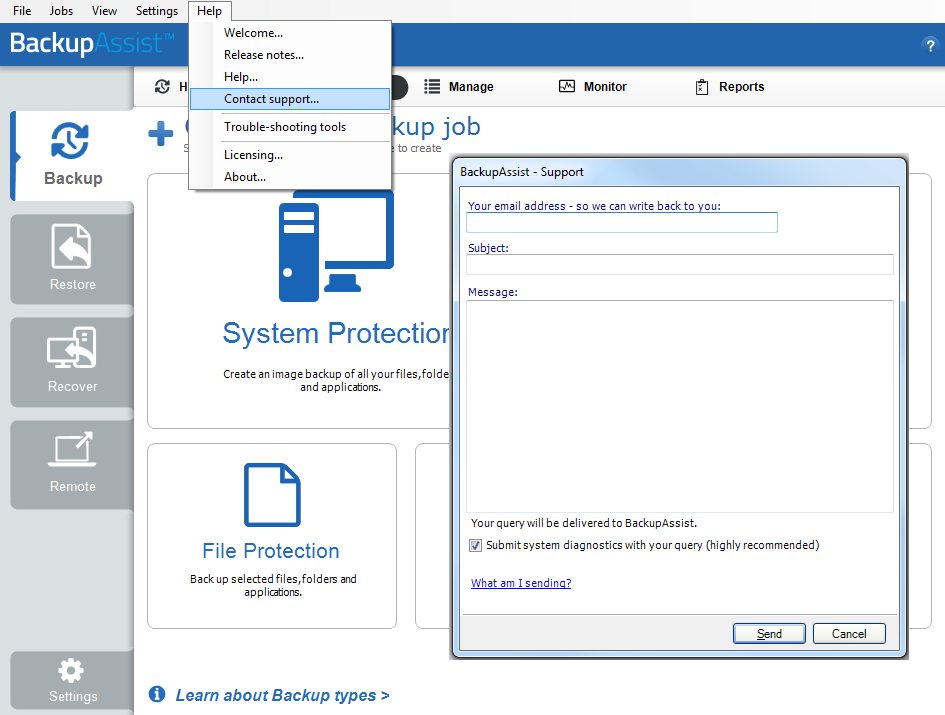
If you are using BackupAssist v9.5.1 or later
- Open BackupAssist.
- Select Help from the menu at the top of the BackupAssist console.
- Select Contact Support ... from the drop-down menu. This will open the BackupAssist - Support dialog.
- Enter the details in the fields provided.
- Make sure the Submit system diagnostics to help with your query tick box is checked. This will zip your BackupAssist settings so technical support can review these specifically for your environment.
- Select Send.
BackupAssist technical support will review your message and diagnostics, and contact you to help resolve the problem.
If you are using BackupAssist v9.5.0 or earlier
- Open BackupAssist.
- Select Help from the menu at the top of the BackupAssist console.
- Select Feedback and Support … from the drop-down menu.
- Select Contact support. This will open the BackupAssist - Support dialog.
- Enter the details in the fields provided.
- Make sure the Submit system diagnostics to help with your query tick box is checked. This will zip your BackupAssist settings so technical support can review these specifically for your environment.
- Select Send.
BackupAssist technical support will review your message and diagnostics, and contact you to help resolve the problem.
| Last updated | Created | Further assistance |
|---|---|---|
| 21st Feb 2008 | 16th Mar 2007 | BackupAssist Support page |