BA1394: Backup was canceled by user
End of life
BackupAssist v8 and later don't use NTBackup. This article applies to BackupAssist v7 and earlier, which reached end of life on 30 September 2016 and no longer receive technical support. See Software end of life.
| Error code | Product | Applies to |
|---|---|---|
| BA1394 | BackupAssist | BackupAssist V4 |
Description
The NTBackup windows cancel button has been pressed which has stopped the backup.
Resolution
Do not press the cancel button.
If you receive this message and you are sure that the backup was not deliberately canceled please Contact Support following the directions below.
We have also discovered that in a circumstance that this error may be thrown when using an RDX as your backup destination. A client discovered that there were files still left from another 3rd party backup solution on the cartridges (which he thought were removed previously). Once the cartridges were completely blank the error disappeared and the backup's worked successfully again.
To contact BackupAssist Technical Support and provide diagnostic information, please click on the applicable section below and follow the steps provided.
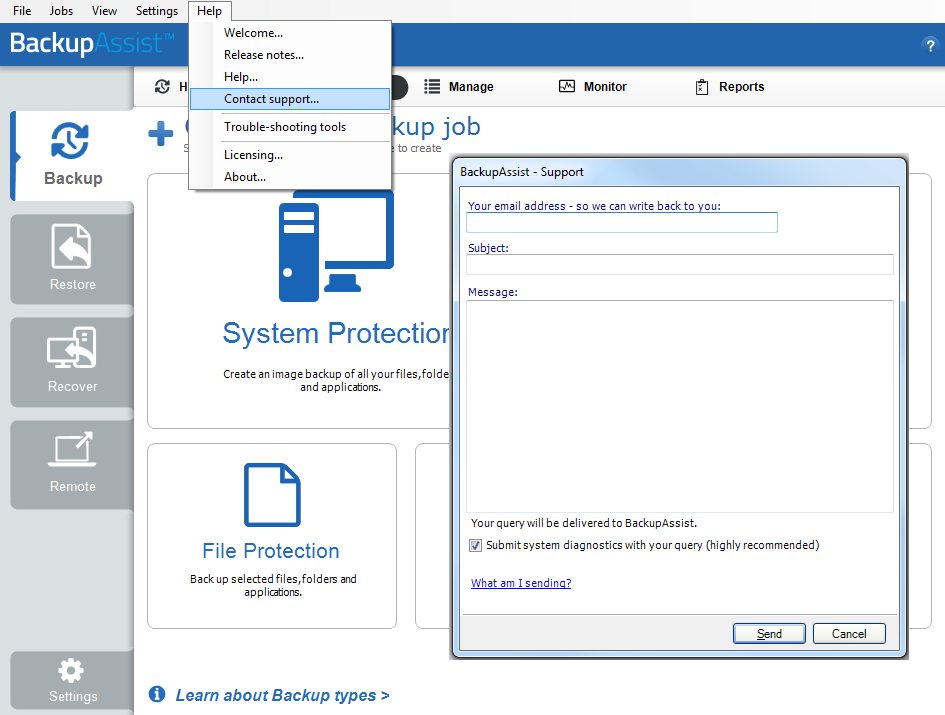
If you are using BackupAssist v9.5.1 or later
- Open BackupAssist.
- Select Help from the menu at the top of the BackupAssist console.
- Select Contact Support ... from the drop-down menu. This will open the BackupAssist - Support dialog.
- Enter the details in the fields provided.
- Make sure the Submit system diagnostics to help with your query tick box is checked. This will zip your BackupAssist settings so technical support can review these specifically for your environment.
- Select Send.
BackupAssist technical support will review your message and diagnostics, and contact you to help resolve the problem.
If you are using BackupAssist v9.5.0 or earlier
- Open BackupAssist.
- Select Help from the menu at the top of the BackupAssist console.
- Select Feedback and Support … from the drop-down menu.
- Select Contact support. This will open the BackupAssist - Support dialog.
- Enter the details in the fields provided.
- Make sure the Submit system diagnostics to help with your query tick box is checked. This will zip your BackupAssist settings so technical support can review these specifically for your environment.
- Select Send.
BackupAssist technical support will review your message and diagnostics, and contact you to help resolve the problem.
| Last updated | Created | Further assistance |
|---|---|---|
| 04th Nov 2015 | 16th Mar 2007 | BackupAssist Support page |