BA2009: Add-ons will not work without the base product key
| Error code | Product | Applies to |
|---|---|---|
| BA2009 | BackupAssist | BackupAssist v6.0.0 and higher |
Description
A BackupAssist Add-on requires a BackupAssist base license. This error will occur if you attempt to activate an Add-on license key without an active BackupAssist license.
Resolution
Please enter a base BackupAssist base product key and then the Add-on key.
If you still encounter problems, deactivate all license keys and then reactivate them using the deactivate / reactive buttons under the BackupAssist menu. Select Help > Licensing
To purchase BackupCare (formerly Upgrade Protection)
- Go to our website https://www.backupassist.com/purchase.php#top
- Select the Renewal tab
- Select Renew BackupCare
To activate a BackupAssist license
- On the BackupAssist file menu, select Help > Licensing
- Enter and activate (or reactivate) your product key using the fields provided.
If you've tried this and are still having issues, please submit some diagnostics to our support team:
To contact BackupAssist Technical Support and provide diagnostic information, please click on the applicable section below and follow the steps provided.
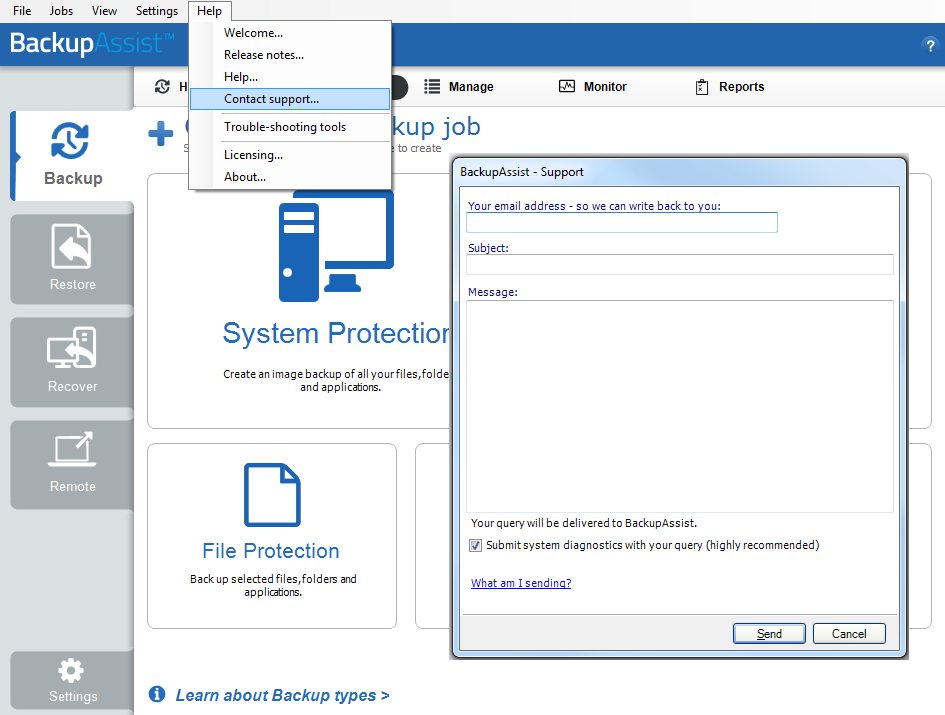
If you are using BackupAssist v9.5.1 or later
- Open BackupAssist.
- Select Help from the menu at the top of the BackupAssist console.
- Select Contact Support ... from the drop-down menu. This will open the BackupAssist - Support dialog.
- Enter the details in the fields provided.
- Make sure the Submit system diagnostics to help with your query tick box is checked. This will zip your BackupAssist settings so technical support can review these specifically for your environment.
- Select Send.
BackupAssist technical support will review your message and diagnostics, and contact you to help resolve the problem.
If you are using BackupAssist v9.5.0 or earlier
- Open BackupAssist.
- Select Help from the menu at the top of the BackupAssist console.
- Select Feedback and Support … from the drop-down menu.
- Select Contact support. This will open the BackupAssist - Support dialog.
- Enter the details in the fields provided.
- Make sure the Submit system diagnostics to help with your query tick box is checked. This will zip your BackupAssist settings so technical support can review these specifically for your environment.
- Select Send.
BackupAssist technical support will review your message and diagnostics, and contact you to help resolve the problem.
| Last updated | Created | Further assistance |
|---|---|---|
| 13th September 2017 | 10th Oct 2013 | BackupAssist Support page |