BA3302: Could not establish connection
Superseded by newer technology
Rsync has been superseded by newer cloud backup destinations, and we strongly recommend using one of them instead (see Cloud Backup). Customers with older environments can continue to use rsync with the version of BackupAssist they have, but without technical support, which ended in November 2023.
| Error code | Product | Applies to |
|---|---|---|
| BA3302 | BackupAssist | BackupAssist v5 and later |
Description
This error usually occurs when a connection between the rsync source and the rsync destination cannot be made.
Resolution
There are 4 possible resolutions for this problem and each is shown below.
Resolution 1 - Check the firewall settings
- Check that the firewall is not blocking the connections.
- Check that the ports used to connect to rsync (default port 22 using SSH or port 873 using Rsync Daemon) are open and correctly configured.
Resolution 2 - Windows Data Execution Prevention
Windows Data Execution Prevention (DEP) may be preventing rsync from running.
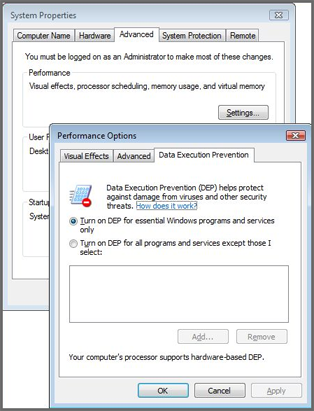
To change DEP to allow rsync to run, browse to the Control Panel > System > Advanced > Performance > Data Execution Prevention.
Either change the DEP setting to essential Windows programs and services only, or add exceptions for the three programs required for Rsync: rsync.exe, ssh.exe and ssh-keygen.exe.
These programs are located in:
- C:\ProgramData\BackupAssist vX\temp\Rsync on Windows Server 2008 and later.
- C:\Documents and Settings\All Users\Application Data\BackupAssist vX\temp\rsync on earlier versions of Windows.
Resolution 3 - Process conflicts
Processes that are running at the same time as BackupAssist can interfere and could cause this error.
Check that you are not running the following processes at the same time as your backup job:
-
Anti-virus scans (including live scanning features)
It is recommended that all anti-virus processes are disabled while the backup job is running to avoid any conflicts. If you are not sure how to configure this, you may need to contact your anti-virus vendor for assistance.
Try placing an exception for BackupAssist within or disable your anti-virus software and run the backup again to see if the error is generated again. If it is, then it means that your anti-virus is marking BackupAssist as a threat to your system. To re-configure your anti-virus avoid such a conflict, we recommend that you contact your anti-virus support vendor for further advice.
-
Defragmentation processes
More information on this process is located at http://windows.microsoft.com/en-au/windows/improve-performance-defragmenting-hard-disk#1TC=windows-7.
-
Consistency checks such as chkdsk scans
Please review the following document from Microsoft on the use of chkdsk: https://technet.microsoft.com/en-us/magazine/ee872425.aspx
If any of the problems described in the article are occurring, reschedule one of the processes to a later time to avoid the conflict.
Resolution 4 - if you are using an SSH connection
Try connecting through a third party SSH tool such as Putty to see if a connection can be made.
You can download Putty from http://www.chiark.greenend.org.uk/~sgtatham/putty/download.html.
If a connection cannot be made, this means that SSH is not configured correctly on your rsync destination.
| Last updated | Created | Further assistance |
|---|---|---|
| 8th June 2017 | 15th Dec 2008 | BackupAssist Support page |