BA3399: Unknown rsync error
Superseded by newer technology
Rsync has been superseded by newer cloud backup destinations, and we strongly recommend using one of them instead (see Cloud Backup). Customers with older environments can continue to use rsync with the version of BackupAssist they have, but without technical support, which ended in November 2023.
| Error code | Product | Applies to |
|---|---|---|
| BA3399 | BackupAssist | BackupAssist |
Description
This is a generic Rsync error from an Rsync backup report. For more information, see the Rsync log file which can be accessed using the link in the backup report.
If the information does not assist in resolving this issue, please send a diagnostics file to BackupAssist Technical Support using the steps in the Resolution section below.
Resolution
If you are backing up a network share
If you are backing up network shares using rsync, and encounter an error within the Cygwin libraries, the problem could be that the network share causing the fault is a hidden / administration share (represented by a '$' sign in the path).
This can be resolved by following the resolutions in Rsync internal error
If you are not backing up a network share
Resolving an unknown rsync error will require the assistance of BackupAssist technical support to identify the specific cause of the error and the correct way to proceed.
Please send technical support a copy of the BackupAssist diagnostics file so that a specialist can help you.
To contact BackupAssist Technical Support and provide diagnostic information, please click on the applicable section below and follow the steps provided.
If you are using BackupAssist v9.5.1 or later
- Open BackupAssist.
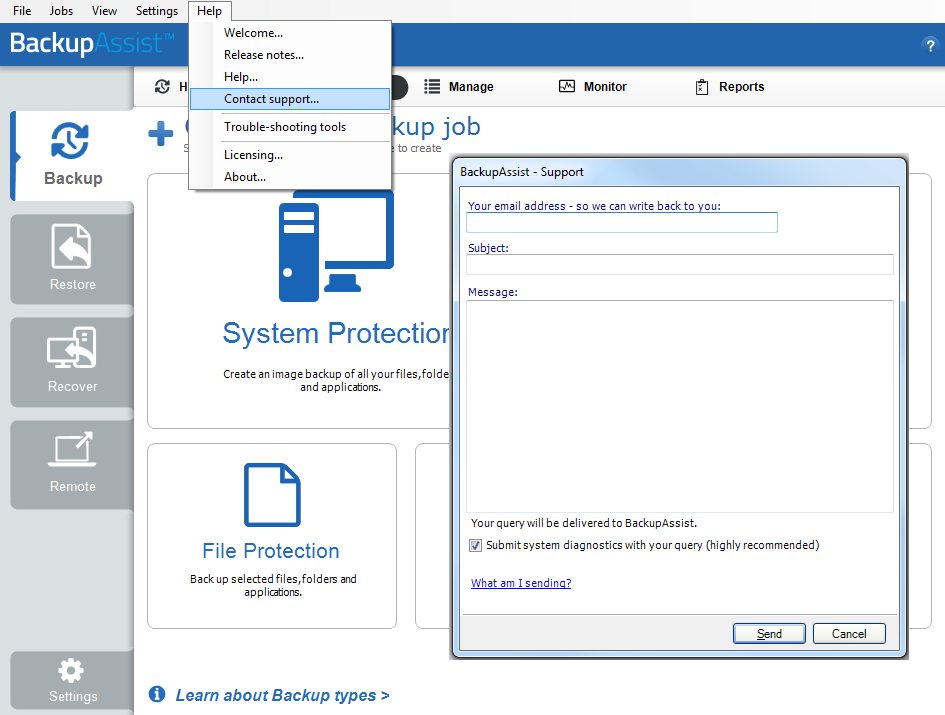
- Select Help from the menu at the top of the BackupAssist console.
- Select Contact Support ... from the drop-down menu. This will open the BackupAssist - Support dialog.
- Enter the details in the fields provided.
- Make sure the Submit system diagnostics to help with your query tick box is checked. This will zip your BackupAssist settings so technical support can review these specifically for your environment.
- Select Send.
BackupAssist technical support will review your message and diagnostics, and contact you to help resolve the problem.
If you are using BackupAssist v9.5.0 or earlier
- Open BackupAssist.
- Select Help from the menu at the top of the BackupAssist console.
- Select Feedback and Support … from the drop-down menu.
- Select Contact support. This will open the BackupAssist - Support dialog.
- Enter the details in the fields provided.
- Make sure the Submit system diagnostics to help with your query tick box is checked. This will zip your BackupAssist settings so technical support can review these specifically for your environment.
- Select Send.
BackupAssist technical support will review your message and diagnostics, and contact you to help resolve the problem.
| Last updated | Created | Further assistance |
|---|---|---|
| 29th Nov 2016 | 15th Dec 2008 | BackupAssist Support page |