BA5207: The media cannot be made bootable because the disk has been formatted in a mode that is not compatible with your server
| Error code | Product | Applies to |
|---|---|---|
| BA5207 | BackupAssist | BackupAssist v9 and later |
Description
The media preparation process for your external HDD has determined that the media's current formatting is not suitable for use with the current system. This can mean that the machine is a BIOS system and the HDD is GPT-formatted, or that the machine is a EFI system and the HDD is MBR-formatted.
Resolution
There are 4 possible resolutions for this problem
Resolution 1 - Use the RecoverAssist Builder to make a separate bootable media on a different external device
You can create a separate standalone recovery media (on a different external device) using RecoverAssist on BackupAssist's Recovery tab. To learn how to use the RecoverAssist Builder, see the Creating a bootable recovery media section of the RecoverAssist Builder guide.
Resolution 2 - Use RecoverAssist Builder to make the media bootable
Use RecoverAssist to make the backup media a bootable recovery media. Then re-run the backup job using that bootable media.
Warning
This process will probably erase the existing data on the backup media.
To learn how to use the RecoverAssist Builder, see the Creating a bootable recovery media section of the RecoverAssist Builder guide.
Resolution 3 - Reformat the external HDD to the required format
Reformat the external HDD to the required format, either GPT or MBR, and re-try the prepare operation.
See the following article to learn how to change the format:
http://www.sevenforums.com/tutorials/26193-convert-mbr-disk-gpt-disk.html.
Resolution 4 - Disable the bootable backup media option in the job
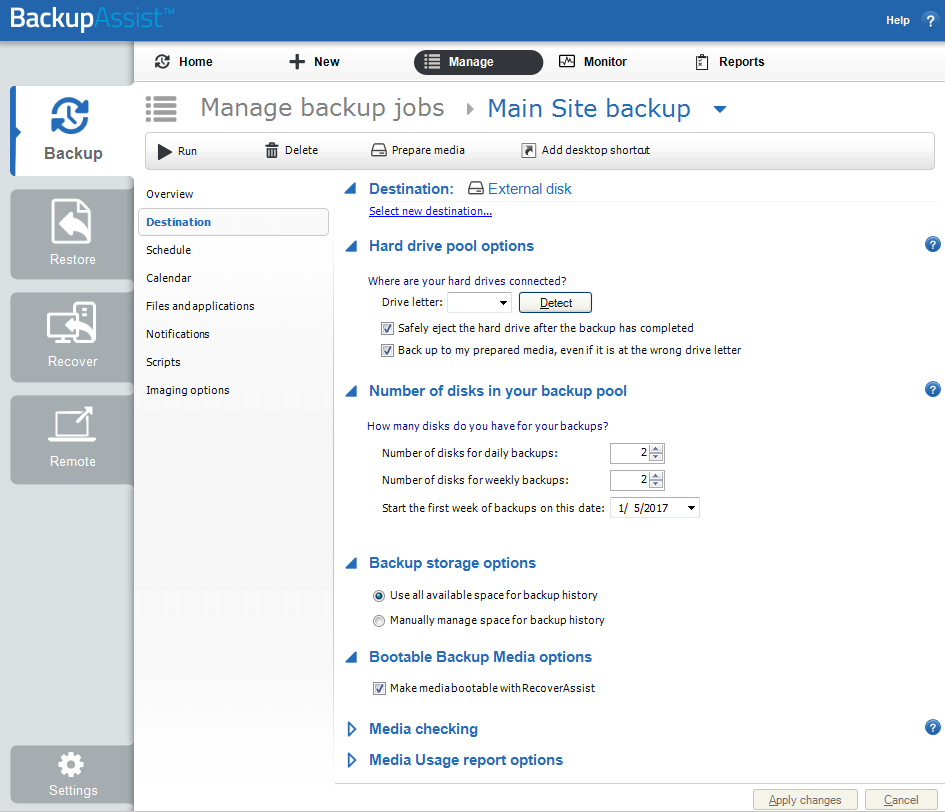
Disable the bootable backup media option in the job if it is incompatible - as follows:
- Open BackupAssist.
- Select Manage Backup Jobs
- Select the backup job that you want to back up Exchange.
- Select Edit from the top menu
- Select Destination from the options on the left
- Open the Bootable Backup Media options drop down heading
- Untick Make media bootable with RecoverAssist
| Last updated | Created | Further assistance |
|---|---|---|
| 14 Sept 2016 | 24th Jul 2015 | BackupAssist Support page |