BA5219: Bootable backup media timeout
| Error code | Product | Applies to |
|---|---|---|
| BA5219 | BackupAssist | For BackupAssist v9.5.3 and later. |
Description
This error occurs if an operation times out during the creation of a Bootable Backup Media. Rather than stopping the backup process, BackupAssist marks this Bootable Backup operation as incomplete and continues with the next step of the backup process.
The backup itself can complete as detailed in the backup report, but the backup media may not be bootable.
Resolution
To resolve this problem, you can manually create the bootable backup media.
To do this:
- Select the Recovery tab.
- Select either Create a bootable media using a Windows installation disk or the installed version of Windows.
- Follow the steps to create the bootable media.
For a detailed step through of this process, see our Create a recovery media topic.
If this does not resolve your problem, send technical support a copy of the BackupAssist diagnostics file using the steps provided in the section below.
To contact BackupAssist Technical Support and provide diagnostic information, please click on the applicable section below and follow the steps provided.
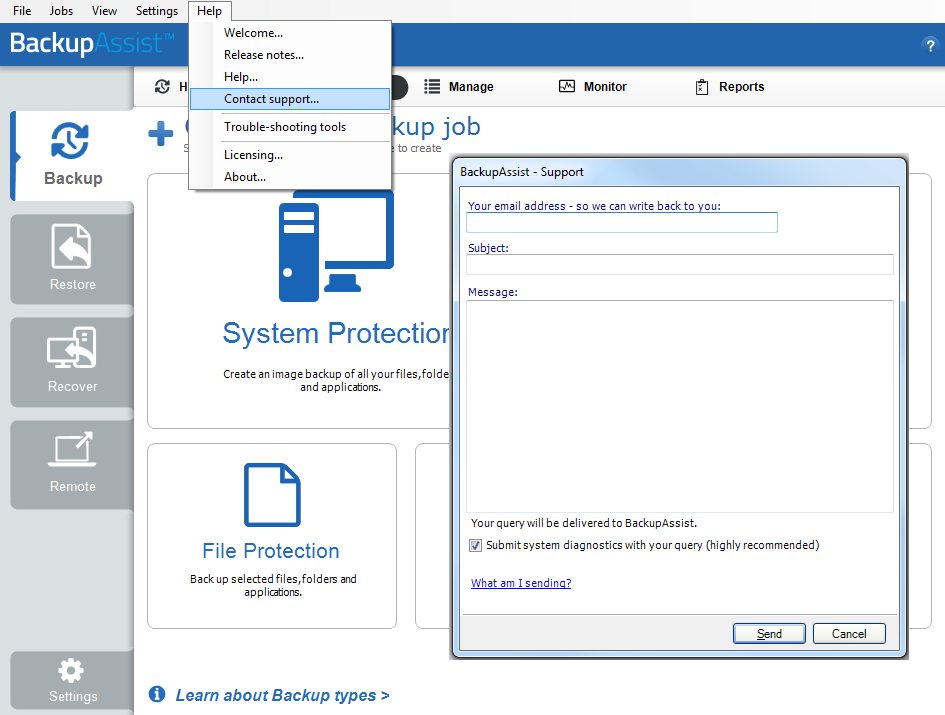
If you are using BackupAssist v9.5.1 or later
- Open BackupAssist.
- Select Help from the menu at the top of the BackupAssist console.
- Select Contact Support ... from the drop-down menu. This will open the BackupAssist - Support dialog.
- Enter the details in the fields provided.
- Make sure the Submit system diagnostics to help with your query tick box is checked. This will zip your BackupAssist settings so technical support can review these specifically for your environment.
- Select Send.
BackupAssist technical support will review your message and diagnostics, and contact you to help resolve the problem.
If you are using BackupAssist v9.5.0 or earlier
- Open BackupAssist.
- Select Help from the menu at the top of the BackupAssist console.
- Select Feedback and Support … from the drop-down menu.
- Select Contact support. This will open the BackupAssist - Support dialog.
- Enter the details in the fields provided.
- Make sure the Submit system diagnostics to help with your query tick box is checked. This will zip your BackupAssist settings so technical support can review these specifically for your environment.
- Select Send.
BackupAssist technical support will review your message and diagnostics, and contact you to help resolve the problem.
| Last updated | Created | Further assistance |
|---|---|---|
| 1st August 2017 | 9th Feb 2017 | BackupAssist Support page |