BA7001: Could not create the cloud destination container
| Error code | Product | Applies to |
|---|---|---|
| BA7001 | BackupAssist | For BackupAssist 10 or later. |
Description
The backup job was unable to either create or connect to the cloud container.
Resolution
This error is usually indicative of network issues or an incorrect connection setting.
To resolve this issue:
- Check that your internet connection is working and fix any issues found.
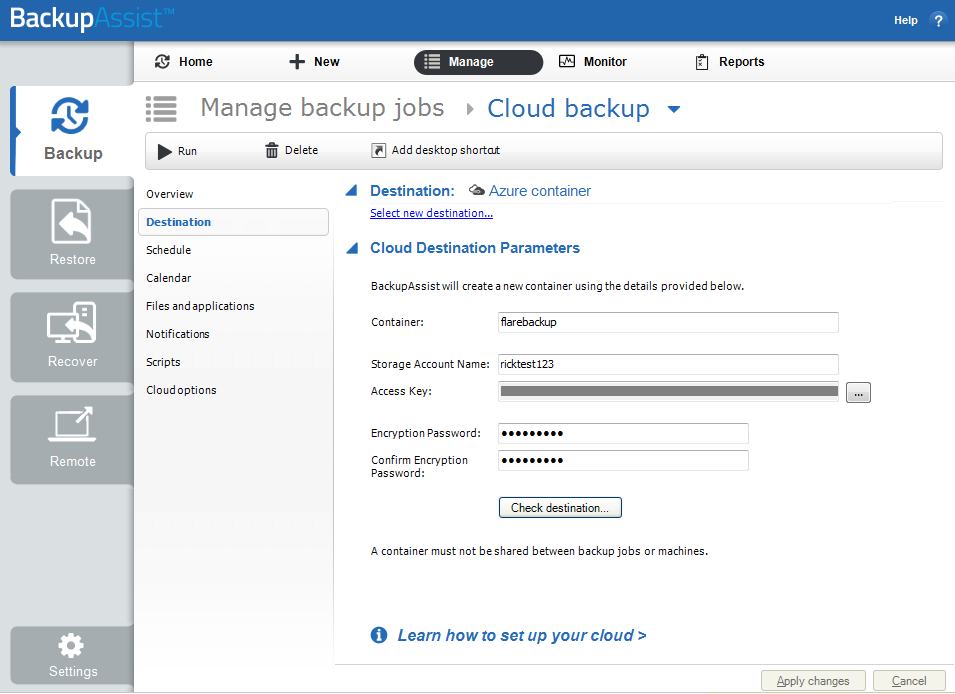
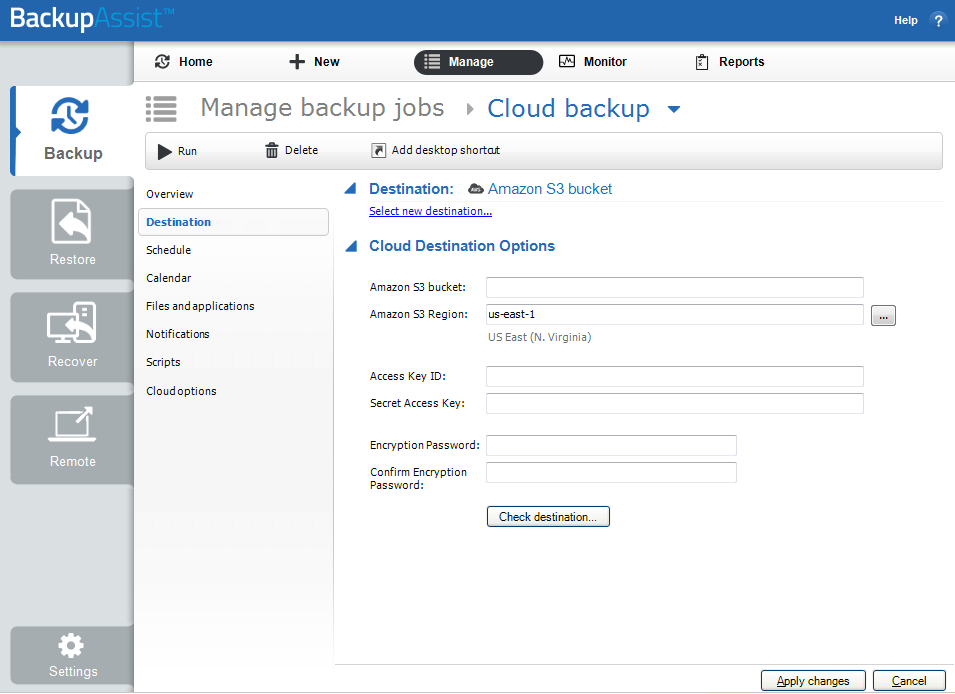
- For Amazon S3, check that your bucket name and region are correct.
- For Azure, check that your cloud container name is correct.
- If this is the first time the backup job has run, check that the destination settings are correct.
To Edit the backup destination:
- Open BackupAssist.
- Select Manage Backup Jobs
- Select the backup job.
- Select Edit from the top menu
- Select Destination from the options on the left
- Check the information provided, such as container (bucket) name, account name (ID) or access key.
Azure container
|
Amazon S3 bucket
|
If the problem persists, you should contact BackupAssist technical support and provide a diagnostic package to help us resolve the problem.
To contact BackupAssist Technical Support and provide diagnostic information, please click on the applicable section below and follow the steps provided.
If you are using BackupAssist v9.5.1 or later
- Open BackupAssist.
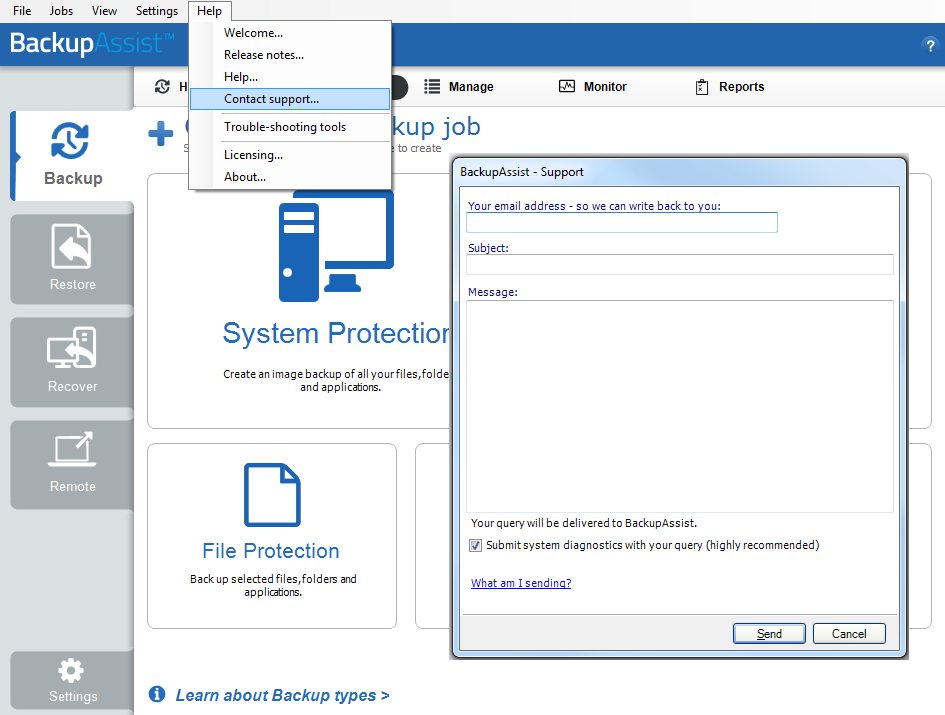
- Select Help from the menu at the top of the BackupAssist console.
- Select Contact Support ... from the drop-down menu. This will open the BackupAssist - Support dialog.
- Enter the details in the fields provided.
- Make sure the Submit system diagnostics to help with your query tick box is checked. This will zip your BackupAssist settings so technical support can review these specifically for your environment.
- Select Send.
BackupAssist technical support will review your message and diagnostics, and contact you to help resolve the problem.
If you are using BackupAssist v9.5.0 or earlier
- Open BackupAssist.
- Select Help from the menu at the top of the BackupAssist console.
- Select Feedback and Support … from the drop-down menu.
- Select Contact support. This will open the BackupAssist - Support dialog.
- Enter the details in the fields provided.
- Make sure the Submit system diagnostics to help with your query tick box is checked. This will zip your BackupAssist settings so technical support can review these specifically for your environment.
- Select Send.
BackupAssist technical support will review your message and diagnostics, and contact you to help resolve the problem.
| Last updated | Created | Further assistance |
|---|---|---|
| 11th April 2017 | 29th March 2017 | BackupAssist Support page |